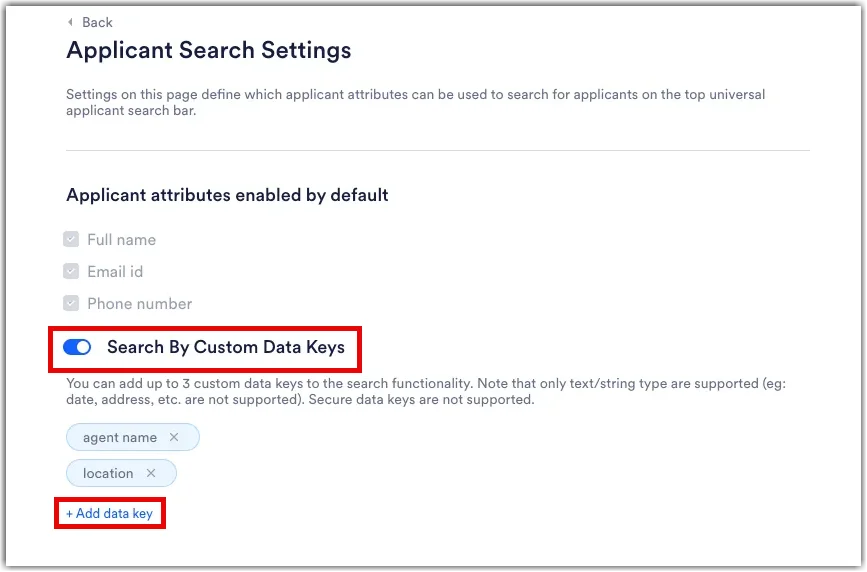
Enable Search by Custom Data Keys
Within the App Settings section of Company Settings, you can enable your users to be able to search by custom data keys that you select in addition to being able to search by the default options of full name, email ID, or phone number.

Applicant Search Settings Steps
Section titled “Applicant Search Settings Steps”To enable searching by custom data keys, follow the steps below:
- Click your initial icon in the top right corner of any Rekrutek Hire page. Then click Company Settings in the dropdown.
- In the side panel on the left, click Applicant Search Settings under the App Settings section.
- Turn the Search by Custom Data Keys toggle to on.
- Click +Add data key and search for the data key you want to make searchable. You can add up to three custom data keys. Once added, your users can search by these custom data keys within the search bar in the top toolbar of any Rekrutek Hire page.