Webhooks
If you have data in Rekrutek you’d like to retrieve during the hiring process with the assistance of a partner integration, this can be achieved using webhooks.
Webhooks
Section titled “Webhooks”Webhooks will activate when an applicant lands in a set stage or when his/her background check result is returned, sending all of the applicant’s data in JSON form (except for secure documents and fields) to whatever URL you specify; this is called a payload URL. A payload URL is formatted like this: https://www.yourdomain.com/process_rekrutek_webhook.
Setting Up a Webhook
Section titled “Setting Up a Webhook”To set up a webhook in Rekrutek, follow the steps below:
- Find your name in the top right-hand corner of the screen and navigate to Company Settings.
- Select Webhooks on the left-hand side.
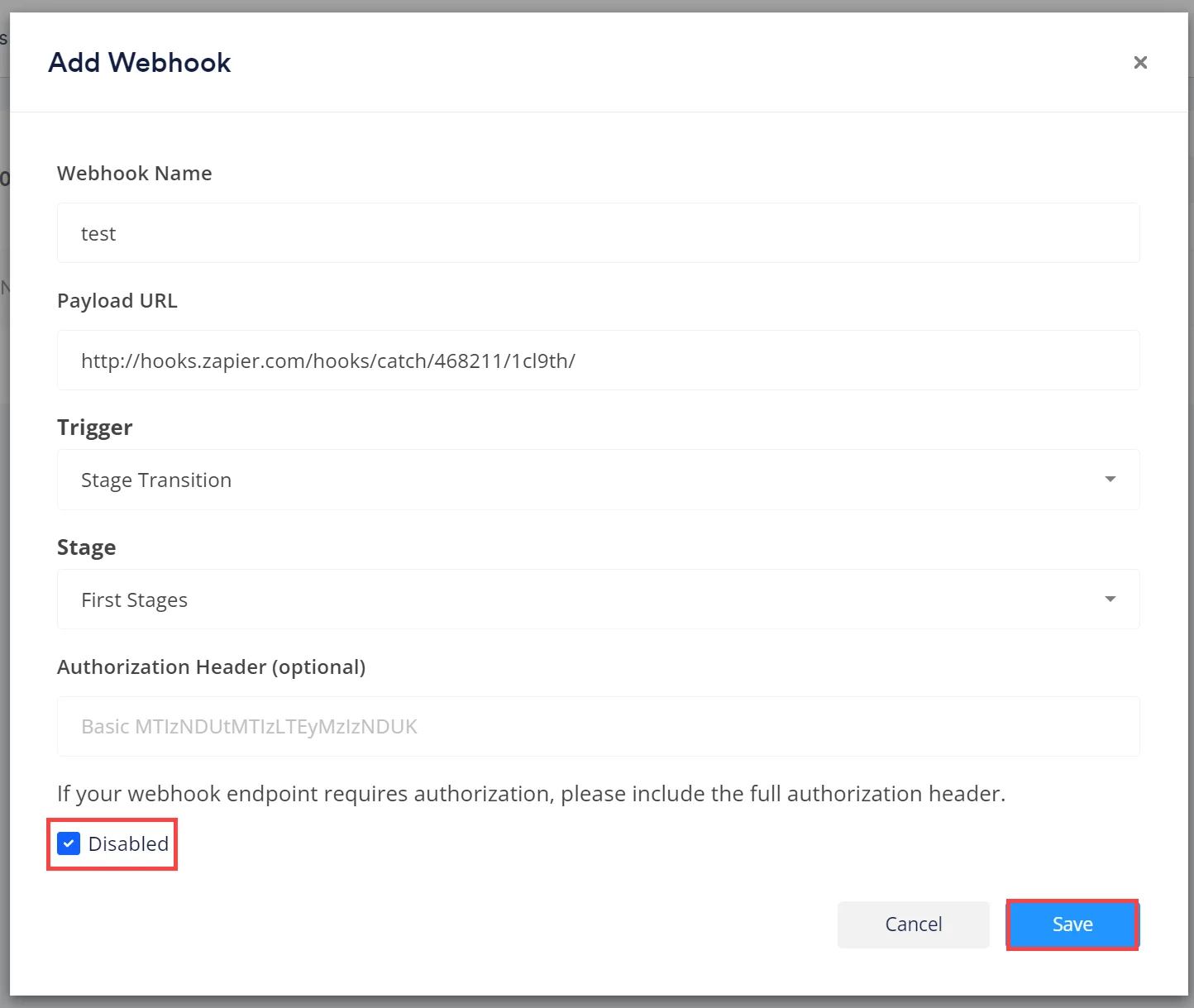
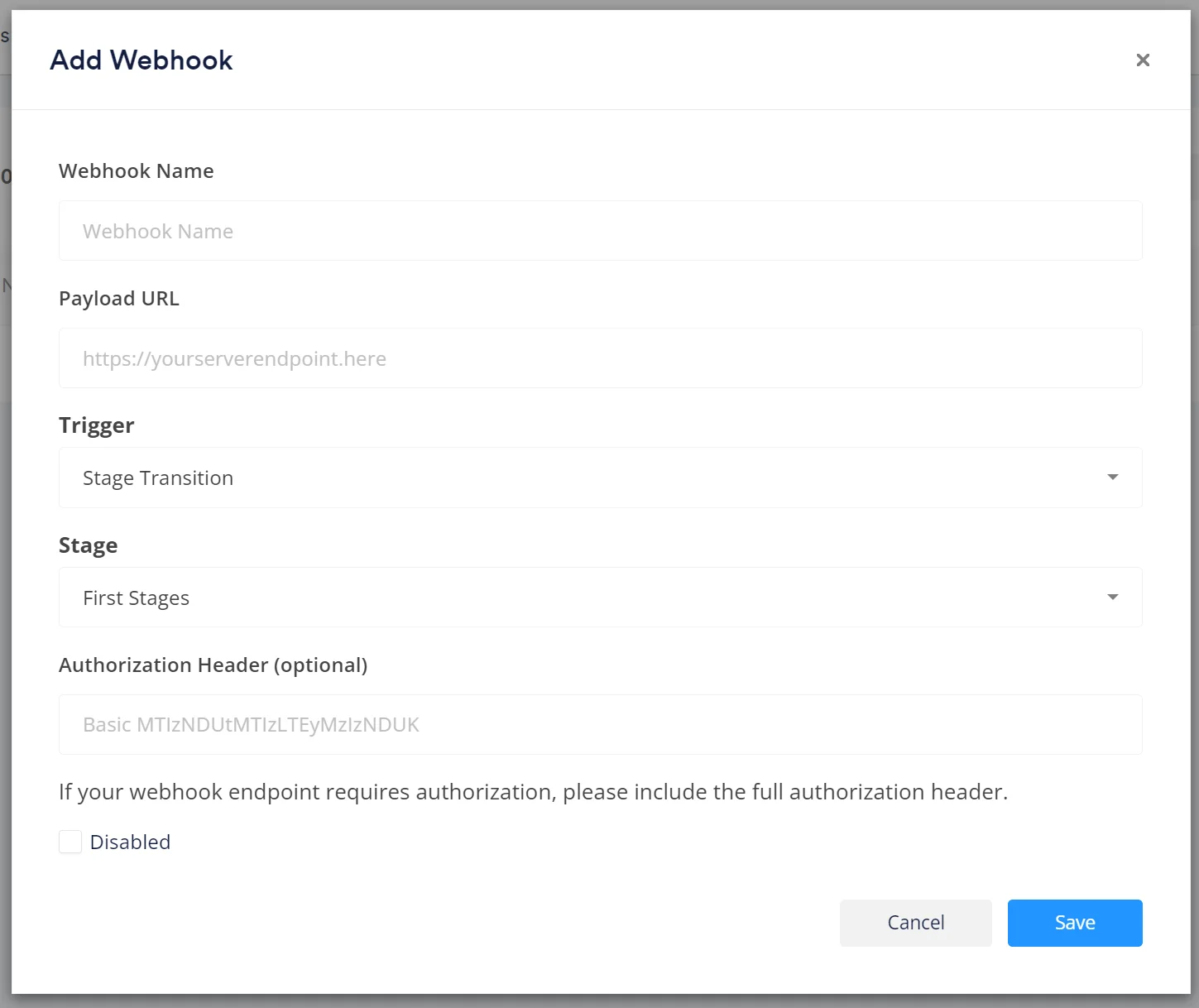
- Select the blue Add Webhook. The Add Webhook window will appear.
- Complete the required fields (learn more in the table below). You can also add an optional authentication bearer token.
- Click Save.
Webhook Name | Type a name for the webhook |
|---|---|
Payload URL | This is the URL to which the data will be sent. |
Trigger | This can be either a stage transition, Checkr status, or Posthire status! If you select Stage Transition, then you'll be able to specify which stage(s) you'd like for the webhook to fire in. If you select Checkr status, then you'll be able to specify whether you'd like the webhook to fire when the check comes back as cleared or consider. You can also have webhooks triggered by Posthire Worker Activation, Worker Deactivation, or on Approved Documents. |
Authorization Header | This is optional. This field allows you to add an authentication bearer token to webhook configuration settings for endpoints that require authentication. |
Disable Broken Webhooks
Section titled “Disable Broken Webhooks”If a webhook fires more than 10 times per day with a 100% failure rate, the webhook will be disabled the following day.
-
To view a webhook’s status, click your initials and then Company Settings.
-
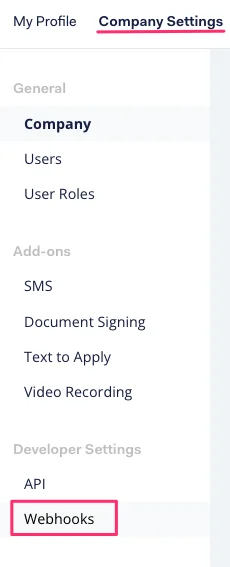
Click Webhooks in the left sidebar under Developer Settings.
-
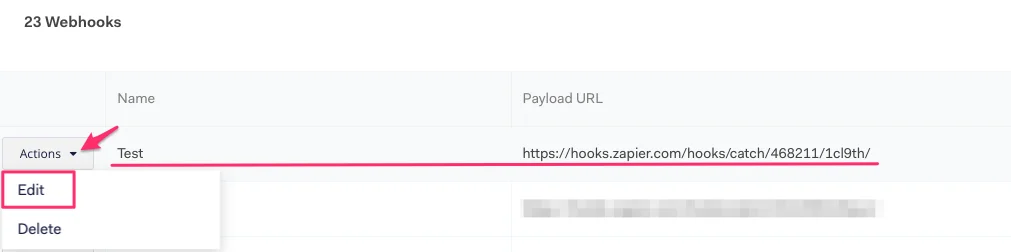
Find the webhook you need to edit in the list. Click Actions, and then click Edit in the dropdown.
-
The Edit Webhook window will allow you to re-enable the previously disabled Webhook.