Go Better by BetterPlace Assessments
Go Better, part of the BetterPlace enterprise, is a trailblazing full-suite HRMS solution redefining frontline workforce management. Go Better provides upskilling options that help ensure a seamless lifecycle for workers. With a unified tech solution that spans APAC, India, and GCC regions, they’ve transformed 1,500+ businesses across 500 locations.
With Rekrutek’s Go Better integration, you can seamlessly integrate Go Better assessments and courses into your Rekrutek Hire application.
Creating Go Better Assessments and Courses
Section titled “Creating Go Better Assessments and Courses”Once Go Better is enabled in your account, you’ll be able to access your BetterPlace account via Company Settings:
-
Click your initial icon in the top right corner of any Rekrutek page and then click Company Settings.
-
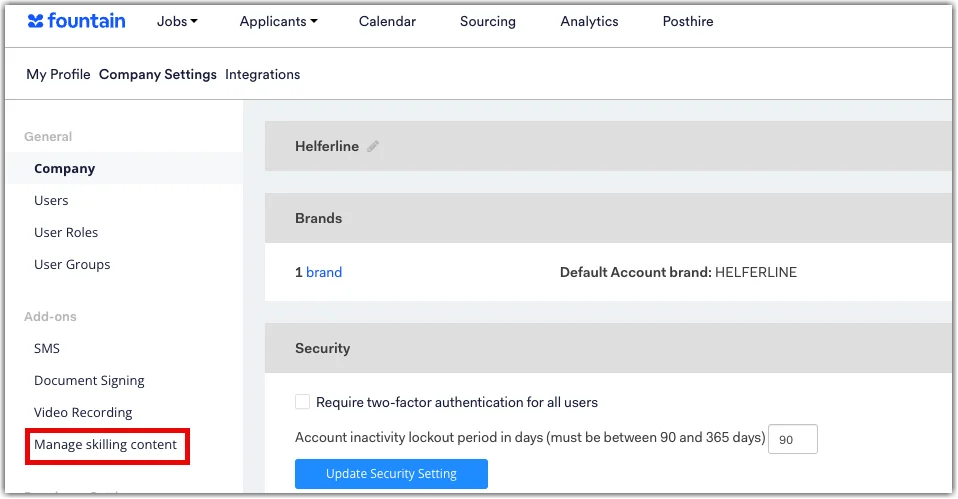
Under Add-ons in the left sidebar, click Manage skilling content.
-
Click the link to log in to your BetterPlace account and create any needed assessments or courses.
Add Go Better to the Workflow Editor
Section titled “Add Go Better to the Workflow Editor”After courses or assessments are created, you are ready to add the Go Better stage to the Workflow Editor:
-
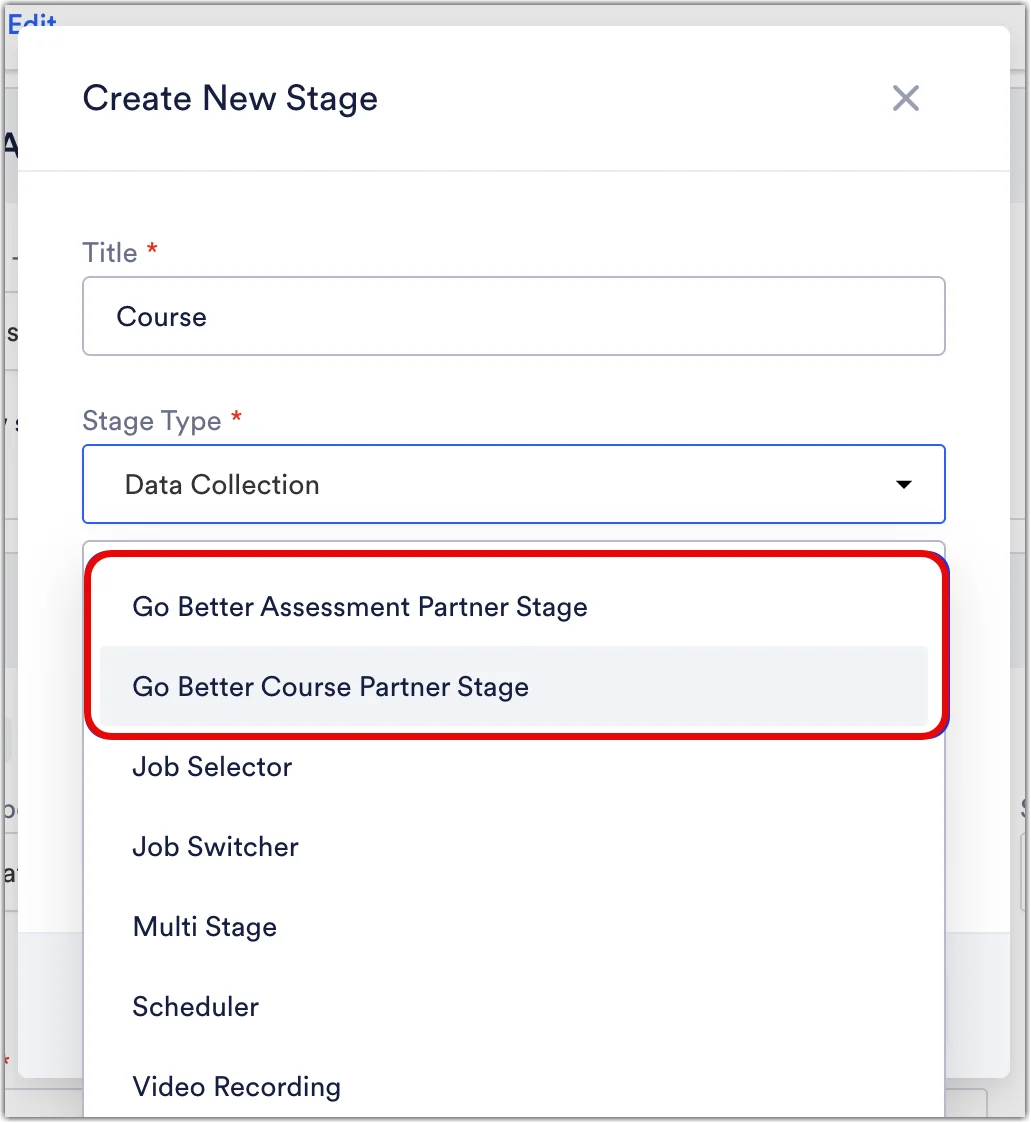
Navigate to the job Opening you want to add the appropriate Go Better stage to and select Add Stage → Create a new stage. Visit the Add Stage section in this article for details on how to add stages. You will choose between either the Go Better Assessment Partner stage or Go Better Course Partner stage.
-
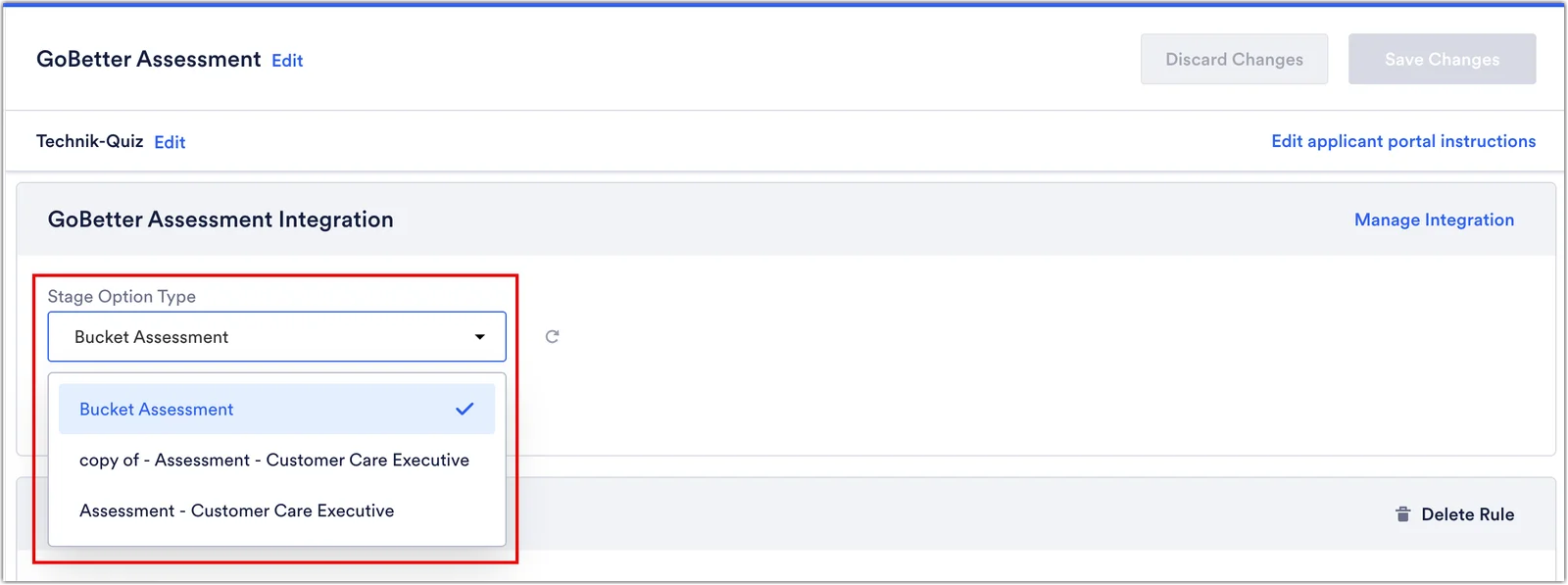
Select the assessment or course you want applicants to complete in this stage from the Stage Option Type dropdown.
Go Better Partner Rules
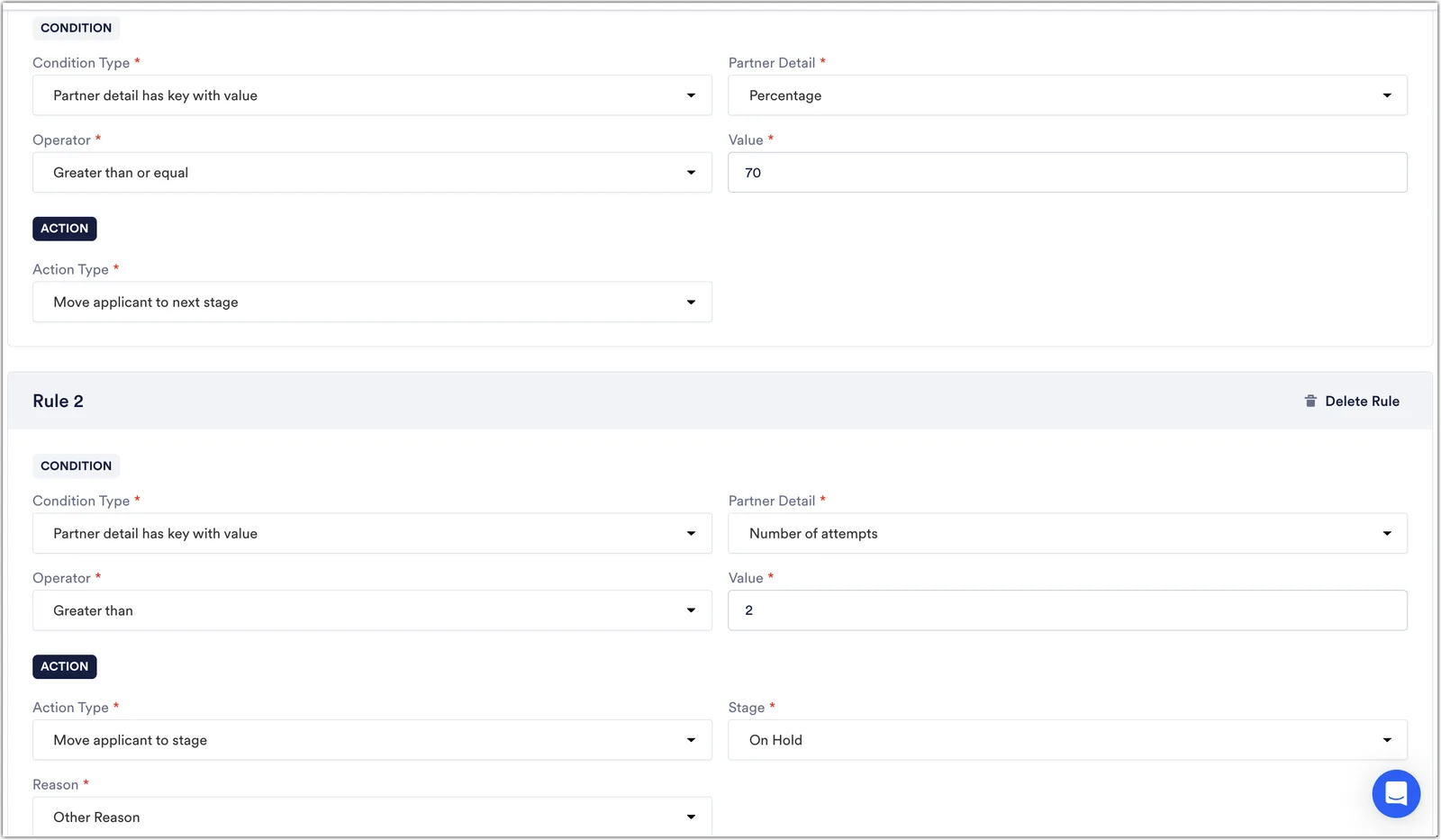
Section titled “Go Better Partner Rules”To create a rule in the Go Better Partner stage, you can use four data points provided by Go Better: Score, number of attempts, percentage, and status.
- Score: The finished score result the applicant received after submitting their assessment.
- Number of attempts: How many attempts the applicant took to complete the assessment. This is customizable in Go Better when creating an assessment. You can restrict the applicant to one attempt or more. You can create rules to reject or move applicants to On Hold based on the attempt count.
- Percentage: The applicant’s score divided by the total score as a percentage. If you are using this data point to create a rule, be sure to enter the desired number without the % sign in the value field as shown in the example below.
- Status: The completion status, such as not started or completed.
Viewing Assessment and Course Results
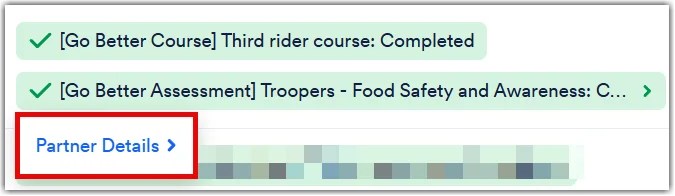
Section titled “Viewing Assessment and Course Results”You can see if a course or assessment was completed by reviewing the Go Better stage Status Labels on the Applicant Table, Universal Applicant View, or within an Applicant’s profile.
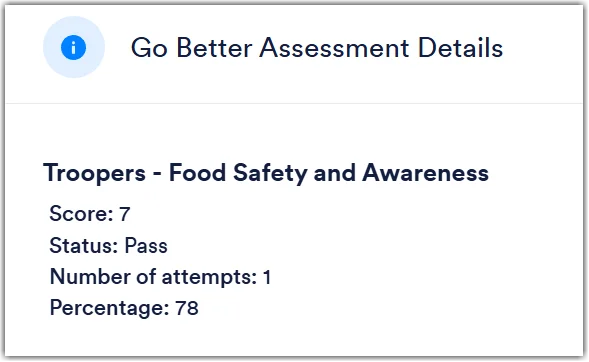
Additionally, assessment labels can be clicked to view the Partner Details. This will include the score the applicant received on the assessment, whether they passed or failed, the number of attempts, and the percentage.
Applicant Experience
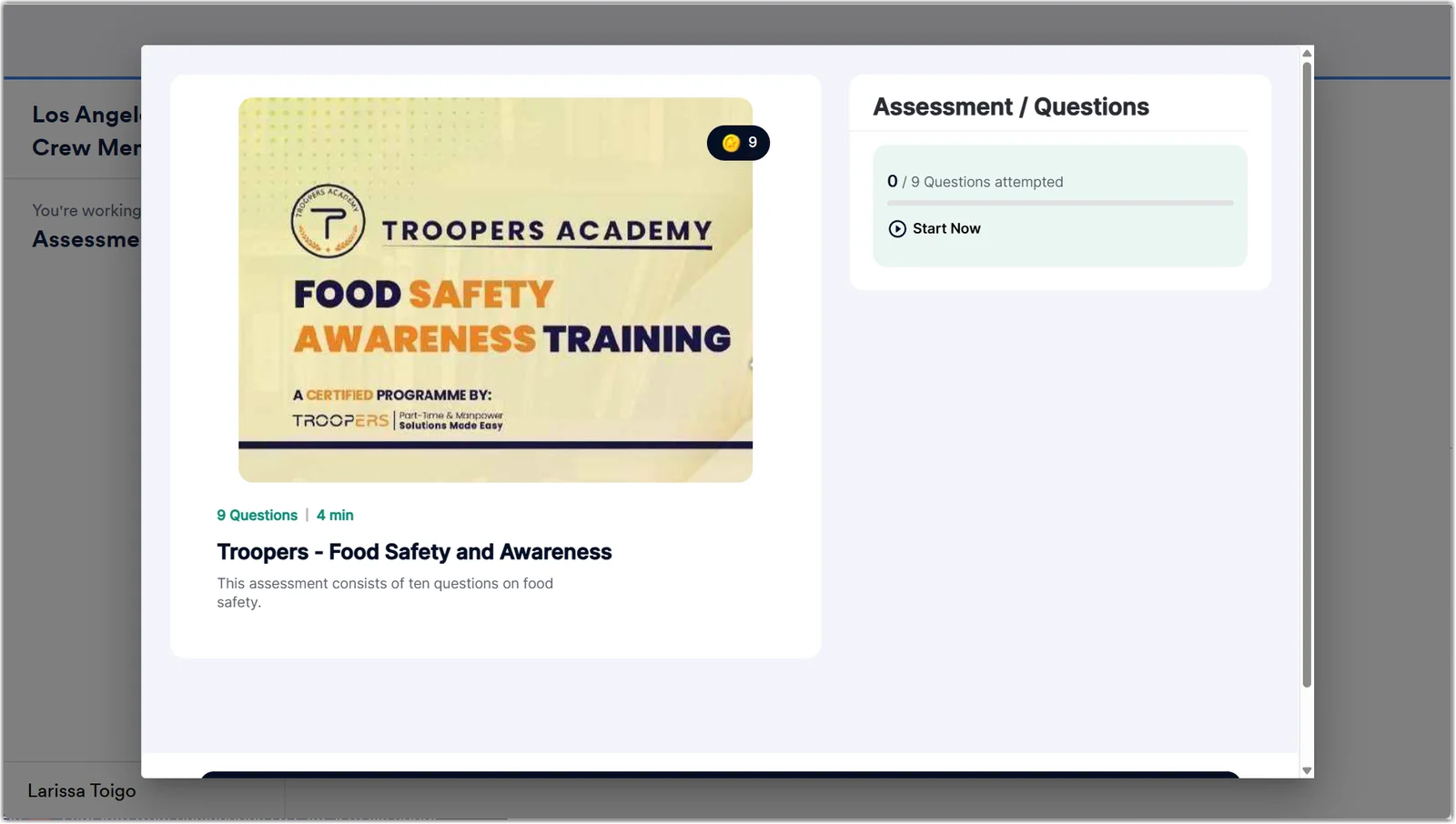
Section titled “Applicant Experience”When an applicant lands on the Go Better Partner Stage in the application workflow, the assessment or course will launch automatically via a pop-up that overlays on top of the application, allowing the applicant to answer questions or complete the course. When finished, the pop-up will close, and the applicant can continue with the application stages.