
Profile Settings
Your user profile is where you can control your email, password, and time zone preferences. Follow the steps below to set up your user account.
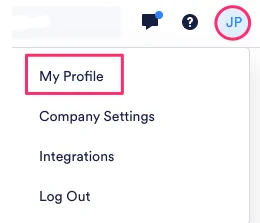
If you hover over your username located in the top right corner and click My Profile, you can customize your account, notification, and calendar settings.
Logging Out
Section titled “Logging Out”To log out of your account, hover over your username and click Log Out in the drop-down menu.
User Info
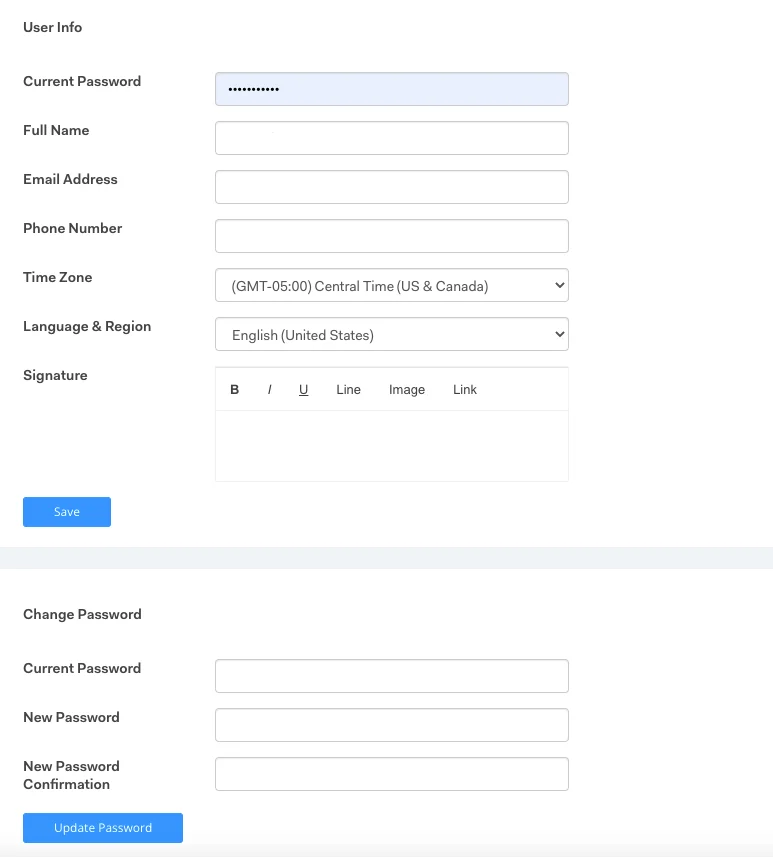
Section titled “User Info”Under User Info and Change Password, you can view and edit your email, phone number, time zone, language & region, password, and email signature.
Note that when reviewing the time zone, it should be the time zone in which you live, not the time zone in which you are accepting applicants. Learn more about the time zone and how it integrates with the Rekrutek Calendar in the next section.
Whenever you make a change to your user information, click Save or Update.
Time Zone Details
Section titled “Time Zone Details”Rekrutek’s time zone settings drive its calendar integration and therefore must be verified to ensure that listed availability is accurate.
The selected time zone may also impact what applicants see when scheduling time on your calendar:
- If the Opening is for a specific location, applicants will see that location’s time zone when selecting a time on the calendar regardless of your time zone (e.g., applicants for a Cashier position in Tucson, Arizona, will see availability in Mountain time, regardless of your location).
- If the Opening is for a remote position, the time zone will default to the Hiring Manager’s calendar time zone (e.g., if you are located in the Pacific time zone but the applicant is located in the Central time zone, the slots available to the applicant will be listed in PT).
- This can be confusing for applicants. Rekrutek suggests providing additional guidance to applicants either on the application portal or within a message template to remind them to review the time zone.
Update your Language & Region Settings
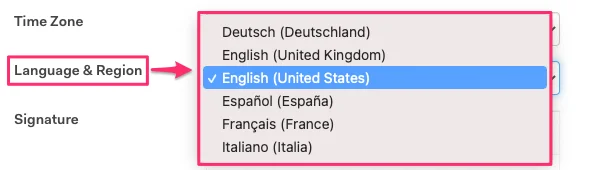
Section titled “Update your Language & Region Settings”You can update your Language and Region settings for your Rekrutek account to your preferred language settings directly in your User Profile.
The current languages that are supported include:
- Deutsch (Deutschland)
- English (United Kingdom)
- English (United States)
- Espanol (Spanish)
- Francais (France)
- Italiano (Italia)
Select the dropdown menu in the Language & Region area to display the different language options, and Save.
Notification Settings
Section titled “Notification Settings”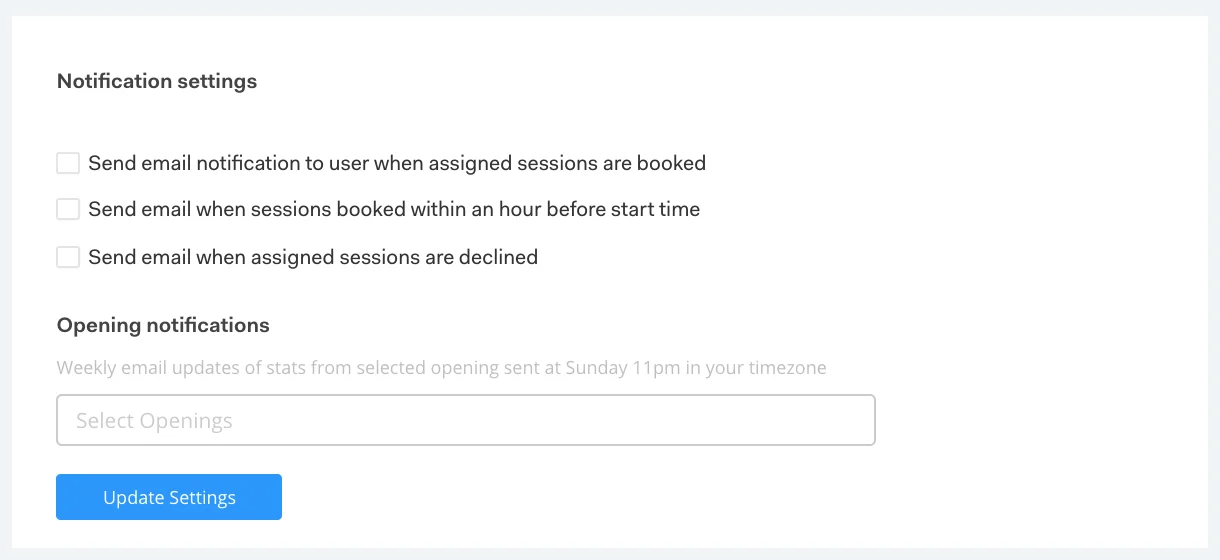
Under Notification settings, you can customize email notifications depending on your calendar appointments. You can also opt into Opening notifications with stats from selected openings sent weekly. Click Update Settings if you make any changes here.
General Settings
Section titled “General Settings”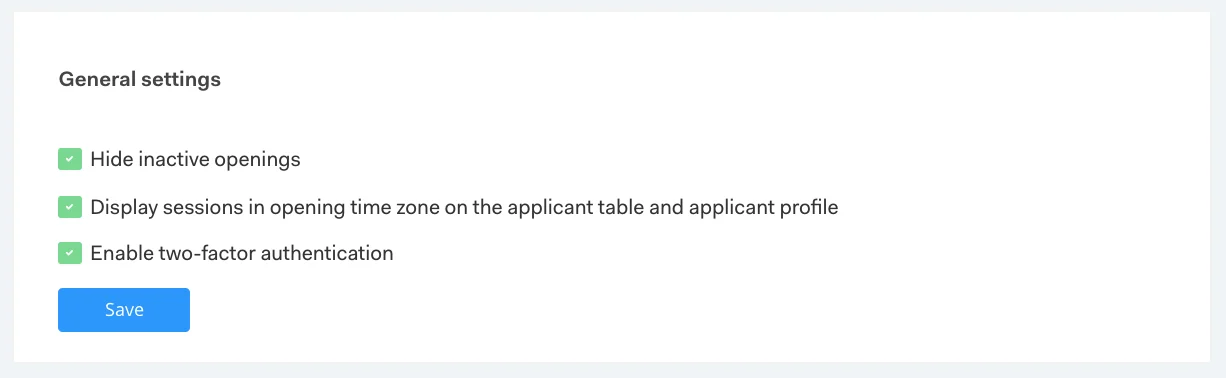
Under General settings, you can toggle the above features.
By checking Hide inactive openings, the inactive openings won’t appear on the main openings page.
If you check Display sessions in opening time zone on the applicant table and applicant profile, the session will appear internally not as your time zone, but the opening’s. For example, if you are in PST and you’re hiring in an opening in EST, the scheduled times will appear in EST.
By checking Enable two-factor authentication, you will verify your account every time you log in; more information here.