Sterling
Sterling, a leading provider of background and identity services, offers a foundation of trust and safety that spans across industries, professions, and borders. Sterling’s technology-powered services help organizations create great environments for their workers, partners, and customers. With office locations around the world, Sterling conducts more than 100 million searches annually and is trusted by over 30,000 clients globally.
With Sterling’s Dynamic Consent, applicants can complete the entire background check process (consent and data submission) without leaving the Rekrutek portal for a more seamless experience. The information collected will be sent to Sterling to be processed and then sent back to Rekrutek with the status update and details which can be reviewed via Status Label.
Watch the video below to learn more about the Dynamic Consent integration:
Rekrutek also offers a basic Rekrutek Redirect Sterling integration. This process only includes the background check and does not include consent or data collection. The applicant also completes their portion outside of the Rekrutek application. You’ll learn about both integrations in this article.
Sterling Supported Products
Section titled “Sterling Supported Products”Below is a list of Sterling products currently supported via Rekrutek’s Seamless (Dynamic Consent) integration:
- Locator Select (ARRDIRCDT)
- Federal Criminal Record (CRFED)
- County Criminal Record (CRFM)
- Enhanced Nationwide Criminal Search (CRNATVNS)
- DOJ Sex Offender Search (CRSEXDOJ)
- Driver’s Record (DR)
- US Identity Verification - Standard (IDVUS1)
- Client Matrix Application (MAR)
- SSN Trace (SSV1)
- FMCSA Clearinghouse (FMCSACH)
- Fingerprinting - TPA (FPTPA)
- Registered Drug Test (RTD)
- Employment Verification - DOT (VCDOT)
Obtaining a Sterling Account
Section titled “Obtaining a Sterling Account”In order to enable a Sterling integration, you will need to create an account by completing this page on the Sterling website. Already have a Sterling account? Please skip to the next section of this article.
Set up a Sterling Integration
Section titled “Set up a Sterling Integration”Reach out to support@rekrutek.ai or the Customer Success team to enable this feature on your account. Once Sterling has been enabled for your account, follow the steps below:
- Contact the Sterling team to request the relevant API Key and Account ID. Save these for use in Rekrutek.
- Within Rekrutek, click on your initials icon in the top right corner. Then click Integrations in the dropdown.
- Click on Screening in the left sidebar.
- Click Connect to the right of Sterling Dynamic Consent.
- Type your Sterling API Key and Account ID.
- Click Save Changes.
Add Sterling Dynamic Consent Stage to a Workflow
Section titled “Add Sterling Dynamic Consent Stage to a Workflow”To add the Sterling Dynamic Consent Stage to your Opening’s workflow, follow the steps below:
- Access the Workflow Editor for your Opening. Click Add Stage in the top left corner. Then click Create New Stage in the dropdown.
- Type a name for the stage, select either Sterling Partner Stage (Rekrutek Redirect) or Sterling Dynamic Consent Partner Stage (depending on the integration type you are using) in the stage type dropdown, and choose the placement of the stage.
- Click Add Stage.
- In the Sterling Integration section, choose the appropriate Stage Option Type in the dropdown.
- Click Save Changes in the top right corner.
Dynamic Consent Applicant Experience
Section titled “Dynamic Consent Applicant Experience”When an applicant lands in the Sterling Dynamic Consent stage during their application, they will be prompted to provide their consent via a checkbox and complete the data collection questions. Please note, if you need a change made to the questions presented in the stage, contact your Sterling representative. These questions are created via the Sterling portal and sent to Rekrutek.
Once the relevant questions and consent are completed, the information will be sent to Sterling for review. The results will be sent back to Rekrutek and be visible via Status Label with any required actions. Please note, the status details in Rekrutek will show non-secure information provided for the order but will be in read-only format for Rekrutek end-users.
Rekrutek Redirect Sterling Applicant Experience
Section titled “Rekrutek Redirect Sterling Applicant Experience”When an applicant lands on the Sterling Partner Stage in the application workflow, they will be automatically redirected to Sterling’s web portal.
Once the relevant information is completed on Sterling portal, the applicant will automatically be redirected back to the Rekrutek’s applicant portal.
Sterling Dynamic Consent Statuses and Scores
Section titled “Sterling Dynamic Consent Statuses and Scores”In the below charts, you can see the various statuses and CMA (Client Matrix Adjudication/Application) scores related to Sterling Dynamic Consent.
Status Label | Description |
|---|---|
 | The candidate has submitted their background check screening from the Rekrutek platform. |
 | Sterling has completed fulfillment of the background check order. |
 | The stage is configured to use CMA, and a discrepancy was found in one or more screenings. You can choose to manually score or initiate Adverse Action. Review more about CMA statuses in the table below. |
 | Adverse Action has been initiated. Customer to configure with Sterling.* |
 | Either it has been 90+ days since the order was completed, OR the stage is configured to use CMA and has scored an order as passed. Review more about CMA statuses in the table below. |
 | A validation error has occurred due to invalid data in the order request. |
 | A system error has occurred on the Sterling side. |
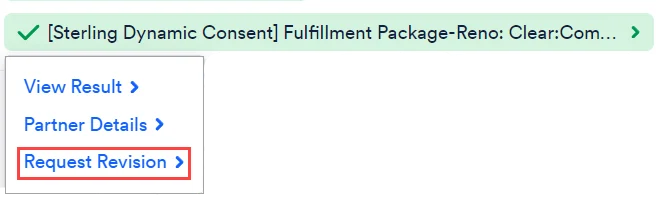
To request a revision to an existing Sterling Dynamic Consent background check, click the Sterling Dynamic Consent Status Label and then Request Revision in the dropdown.
CMA Scores:
Section titled “CMA Scores:”| CMA Type | Review Queue Enabled? | Score | Description |
|---|---|---|---|
| n/a | n/a | Clear | Candidate has passed all Screenings as part of their background check. |
| n/a | n/a | Consider | Candidate Screenings have returned one or more discrepancies as part of their background check. |
| CMA 2 | No | Passed | Candidate has passed all Screenings as part of their background. |
| CMA 2 | No | Review | Order is waiting for the customer to manually score or initiate Adverse Action You can also see this status if Managed Adverse Action is initiated on an Order scored Review. |
| CMA 2 | Yes | Passed | Candidate has passed all Screenings as part of their background check. |
| CMA 2 | Yes | Review | Defined by the customer.* |
| CMA 3 | No | Level 1 | Defined by the customer.* |
| CMA 3 | No | Level 2 | Defined by the customer.* |
| CMA 3 | No | Level 3 | Defined by the customer.* |
| CMA 3 | Yes | Level 1 | Discrepancies in one or more screening tests. The customer can manually score or initiate Adverse Action. |
| CMA 3 | Yes | Level 2 | Discrepancies in one or more screening tests. The customer can manually score or initiate Adverse Action. |
| CMA 3 | Yes | Level 3 | Discrepancies in one or more screening tests. The customer can manually score or initiate Adverse Action. |
Sterling Dynamic Consent Stage Rules
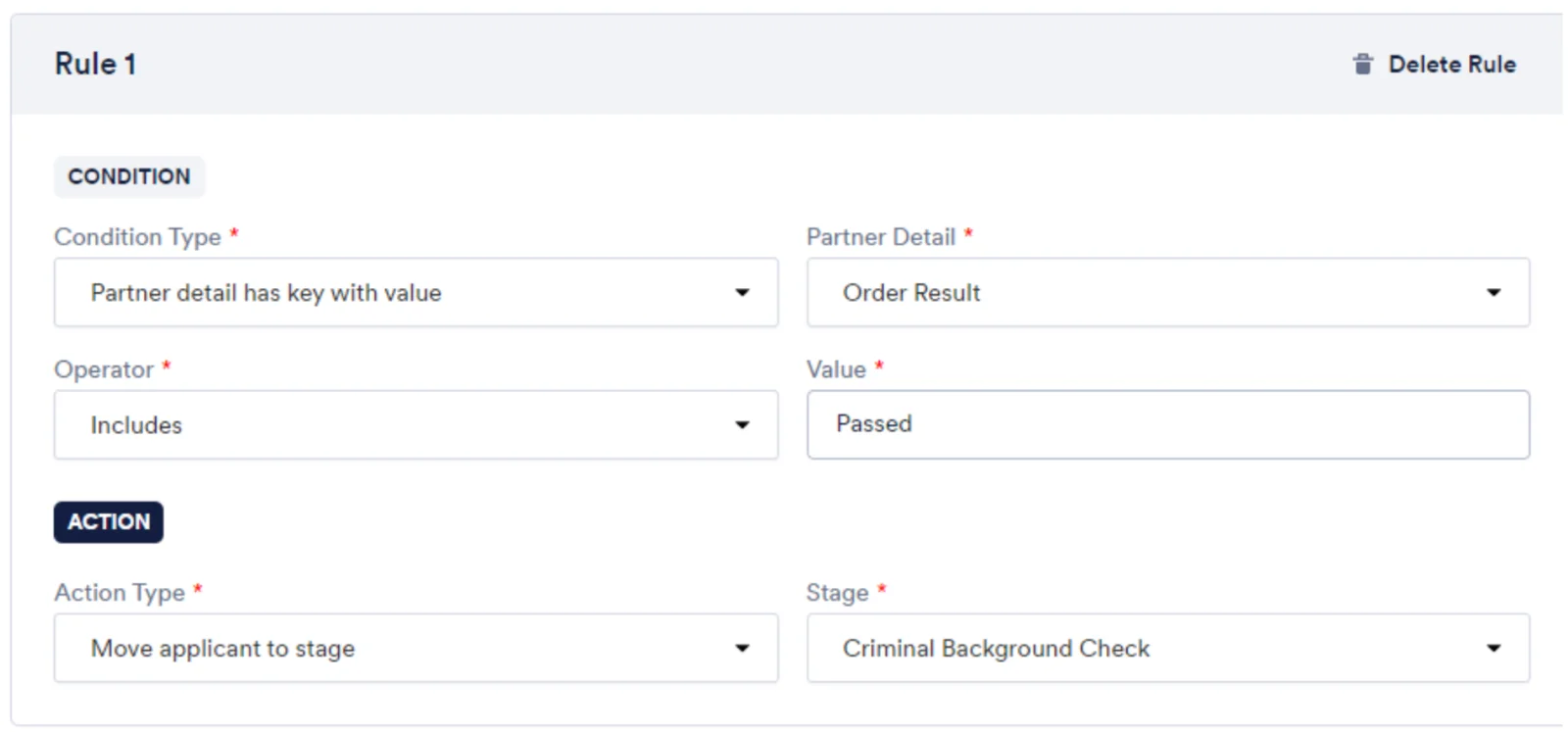
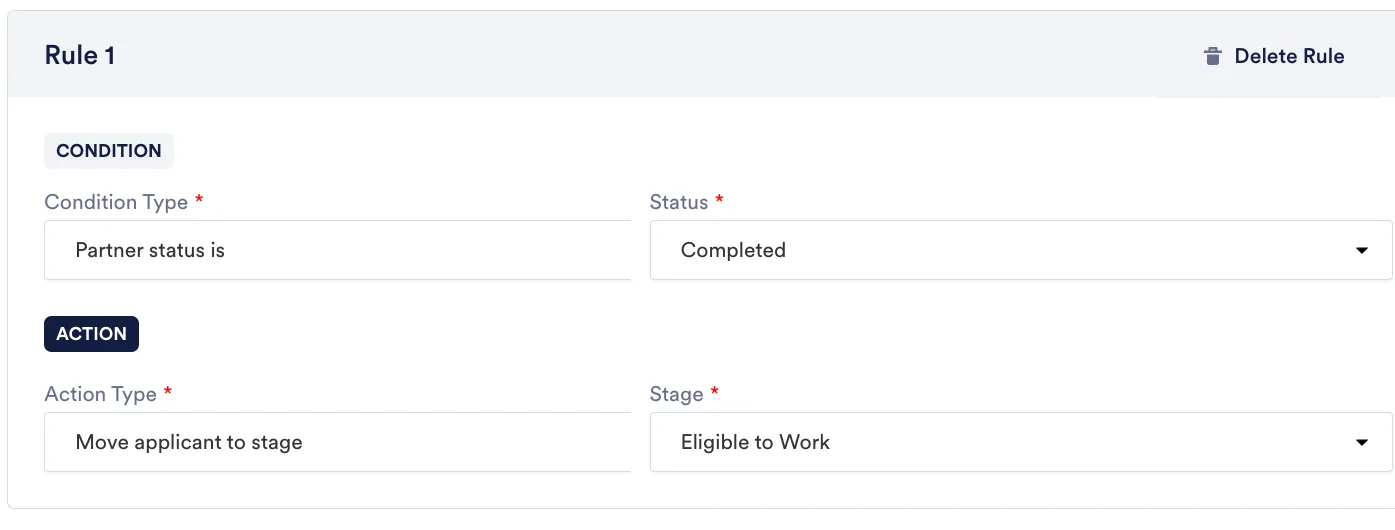
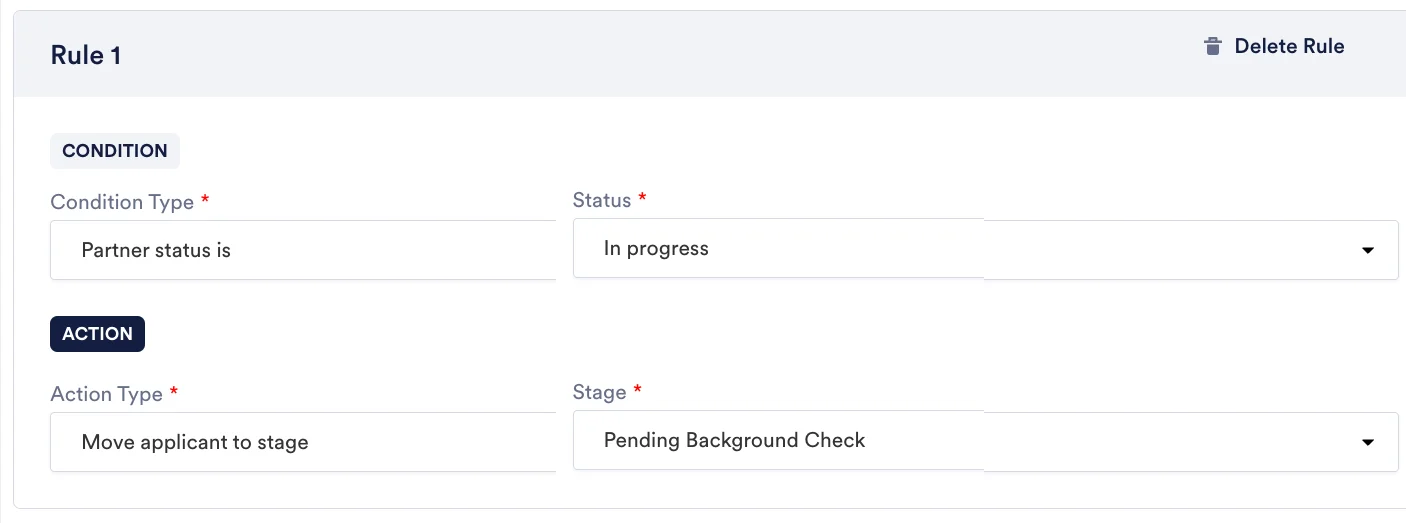
Section titled “Sterling Dynamic Consent Stage Rules”You can create stage rules for applicants in the Sterling Dynamic Consent stage based on their status or score. Below are examples of a rules in the Sterling Dynamic Consent partner stage:
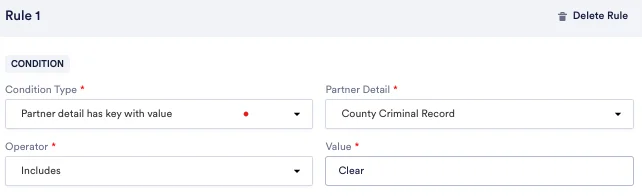
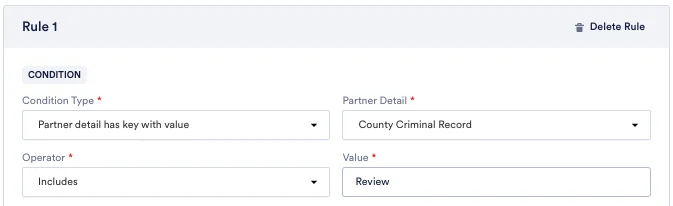
Rekrutek Redirect Sterling Partner Stage Rules
Section titled “Rekrutek Redirect Sterling Partner Stage Rules”You can create partner stage rules on applicants in the Rekrutek Redirect Sterling stage in the workflow editor. There are two keys: Partner Status and Partner Score. There are a few statuses you can take action on. The Keys, Status titles, and their descriptions are:
| Keys | Status Title | Description |
|---|---|---|
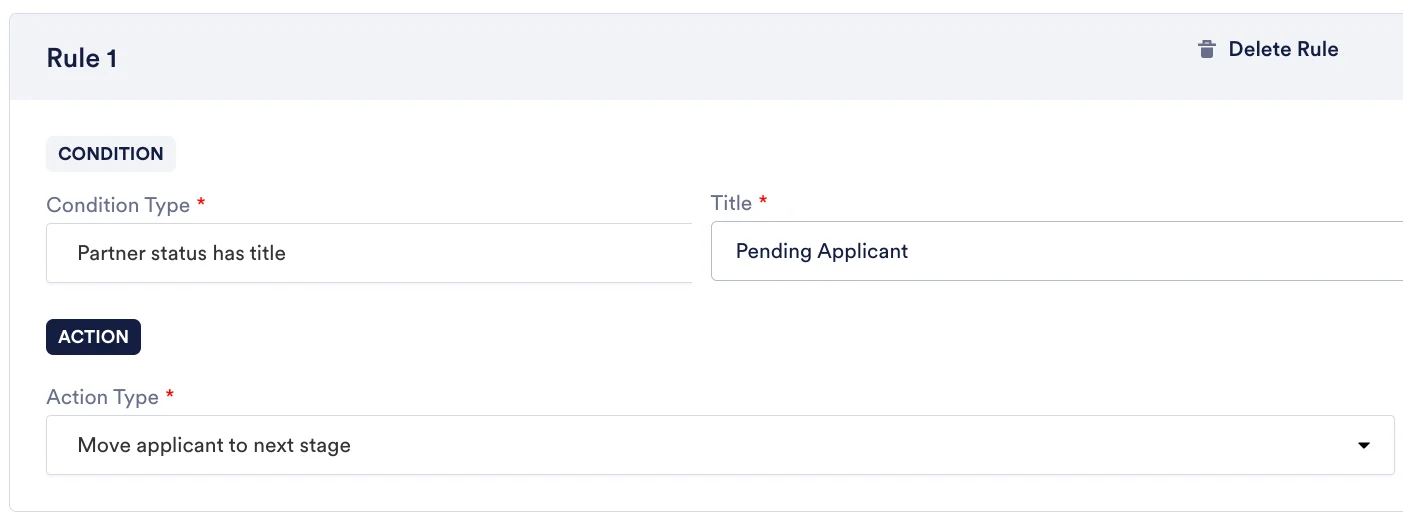
| Partner Status | Pending Applicant | Order is initiated or created on Sterling side. Waiting candidate to fill the form. |
| Pending Vendor | Candidate submitted all required data to Sterling | |
| Archive, Complete, Adverse Action, Review | Action to be taken on the order | |
| Validation Error | Invalid data submitted when order was getting initiated. For example, invalid account credentials. | |
| System Error | Error occurred on Sterling side | |
| Partner Detail has Key with Value | Clear, Consider, Passed, Review, Level1, Level2, Level3 | Order score |
CMA Levels and Scores Per Key
Section titled “CMA Levels and Scores Per Key”| Key | CMA Level | Score Title |
|---|---|---|
| Order Result | Level 1 | Clear/Consider |
| Order Result | Level 2 | Passed/Review |
| Order Result | Level 3 | Level 1, Level 2, Level 3 (defined by client during Sterling configuration) |
A user can create rules to move the applicant through the Rekrutek funnel. Below are examples of rules in the Sterling partner stage: