
Standard Questions With Data Validation
Some standard questions will include a prebuilt data validation. These questions support real-time formatting validation for the following data fields:
- IBAN/BIC
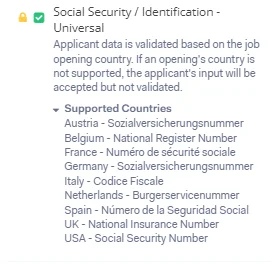
- Universal Social Security Number (SSN)
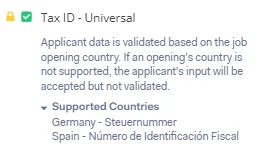
- Universal Tax Identification (Tax ID)
Standard Data Validation Overview
Section titled “Standard Data Validation Overview”Formatting Validation
Standard Data Validation confirms whether the format of a number provided by an applicant is valid (i.e., characters, length, structure, format). For most numbers, this includes a checksum analysis of the number provided. The validation also includes auto-formatting of the input to improve first-time input accuracy. The applicant can copy/paste the required input into the field.
Universal Support
Social Security Number (SSN) and Tax Identification (Tax ID) validations are available across a select number of countries, as shown below. The fields will still accept data from other countries, but not validate them.
How to add Standard Data Validation questions
Section titled “How to add Standard Data Validation questions”Follow the steps below to add Standard Data Validation questions
-
Within the Data Collection stage, click Customize fields for Data Collection
-
Click Add question
-
Click in the Enter a question title field
-
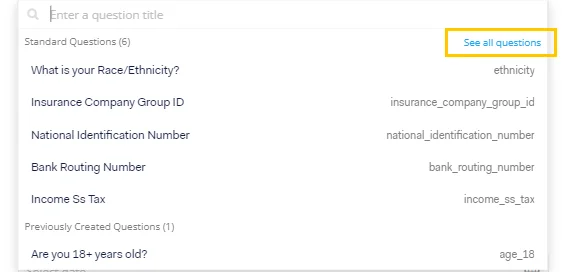
In the dropdown that opens, in the top right corner, click See all questions
-
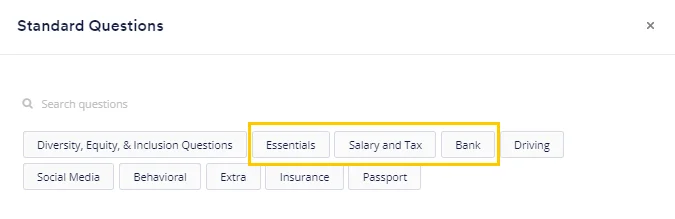
The Standard Questions pop-up will open. Follow the steps below to find each type of Data Validation question:
-
IBAN / BIC: Click the Bank button
-
Social Security / Identification - Universal: Click the Essentials button
-
Tax ID - Universal: Click the Salary and Tax button.
-
-
Click Select next to the question. The Standard question is auto-enabled with the Data Validation and will be added to your form. You can also search for the question by entering keywords in the Enter a question title field.
-
Click Add hint (optional) if you want to add a hint, such as an example of an IBAN number
-
Click the star icon if you want to make the question required
-
Click Save