
Application Form
Rekrutek’s application form is designed to surface the right information at the right moment, giving qualified applicants everything they need to feel confident and apply.
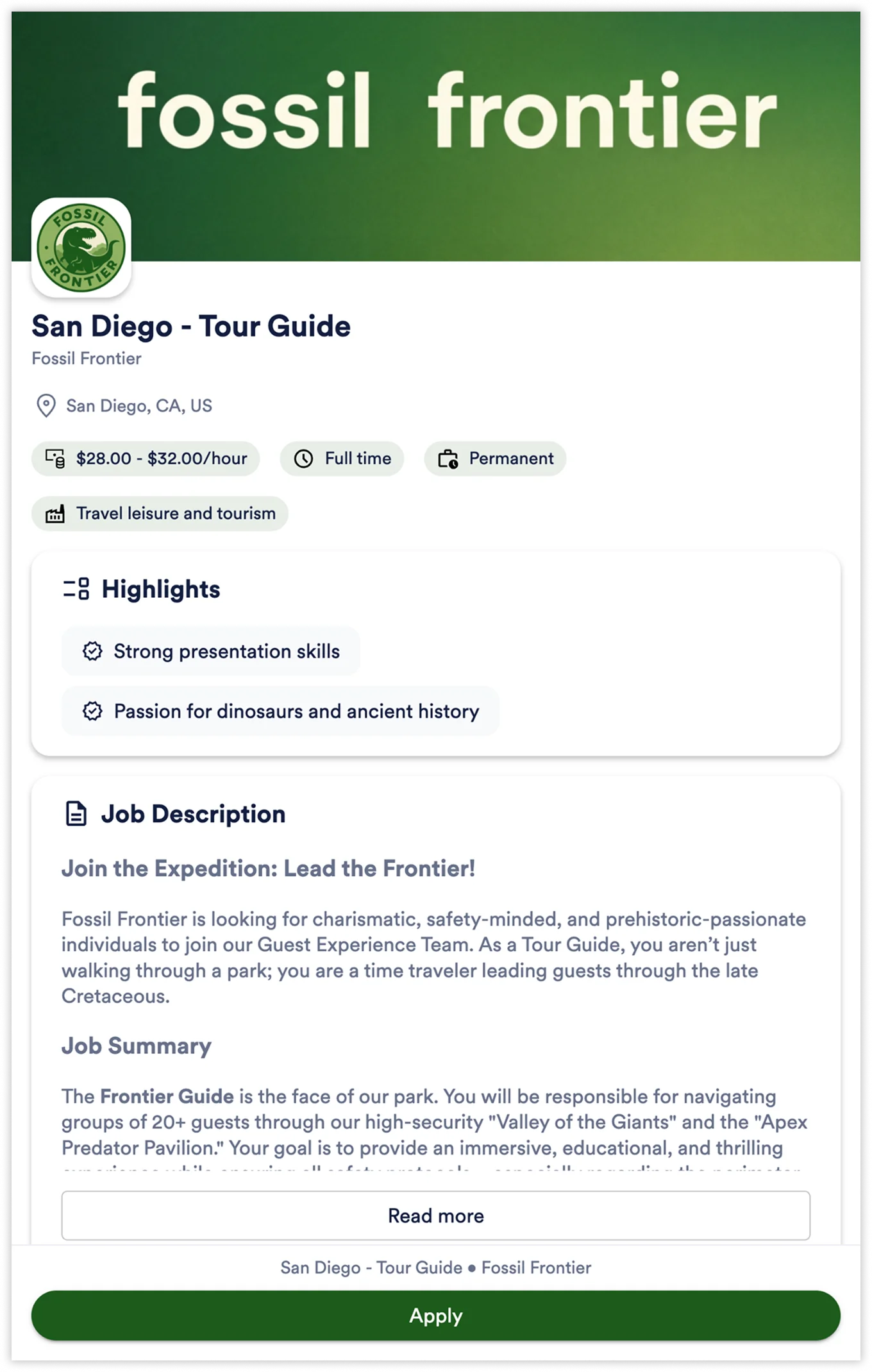
Before filling in their details, applicants see a visually rich job page with a cover image, industry tag, job description, and role highlights, followed by a clean, focused form to complete their application.
The Applicant Experience
Section titled “The Applicant Experience”The Application Form is the initial step for candidates, capturing their name, email, and phone number by default.
When an applicant opens a Rekrutek application form, the page is divided into two sections: job information at the top, followed by the application form fields below.
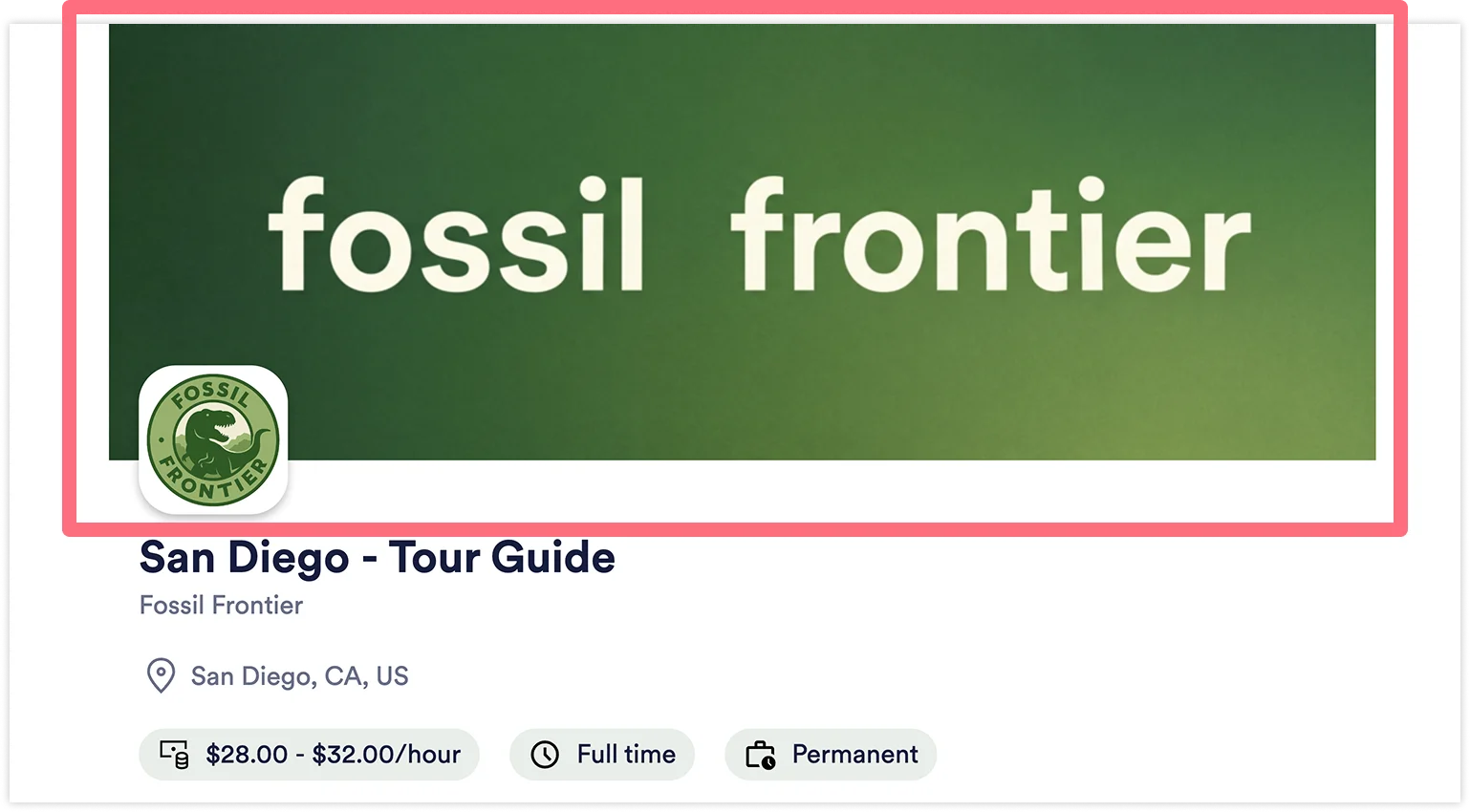
Cover Image
Section titled “Cover Image”A cover image appears at the top of the form. It is configured on the Position. If no cover image is set, the brand logo renders in its place.
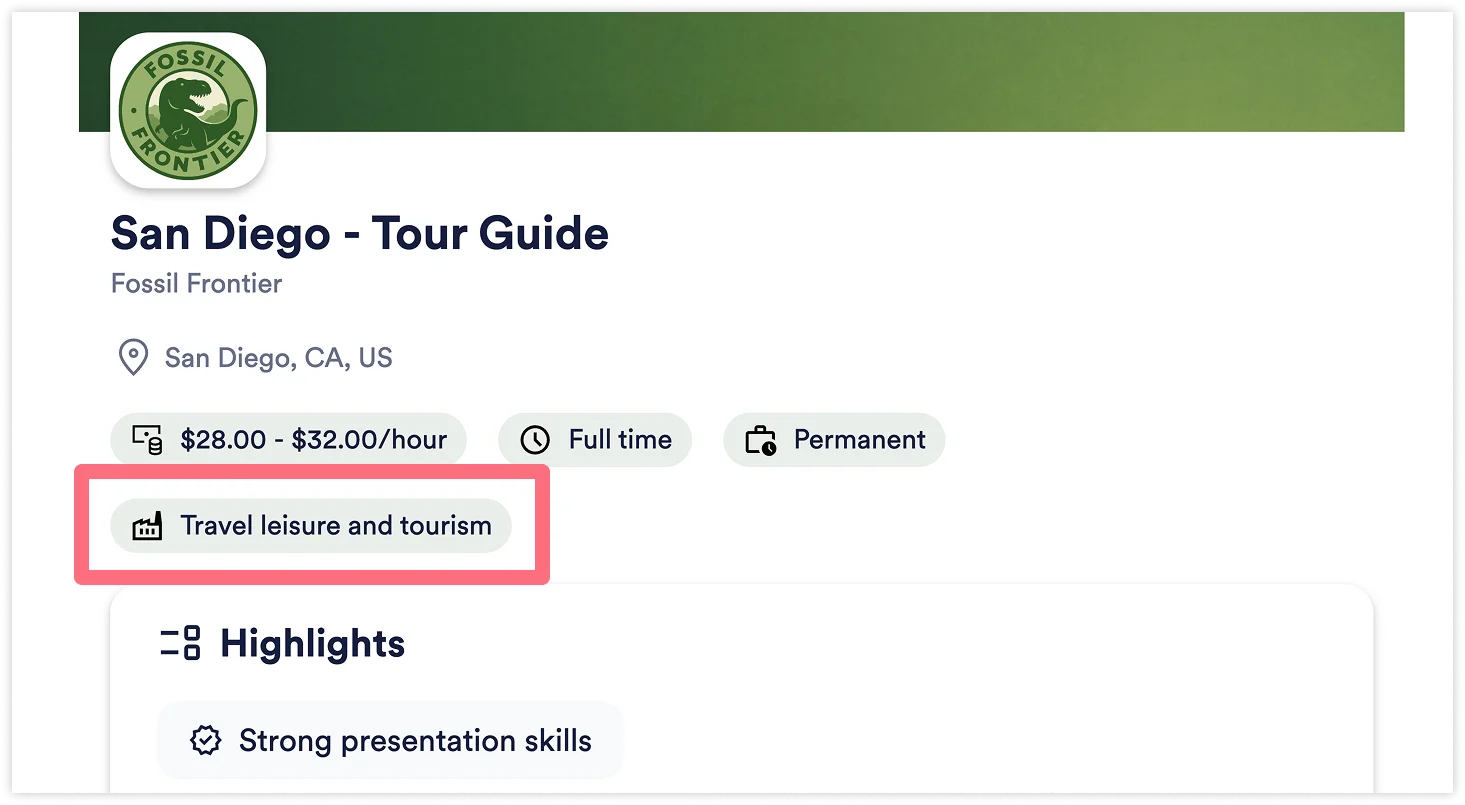
Industry Tag
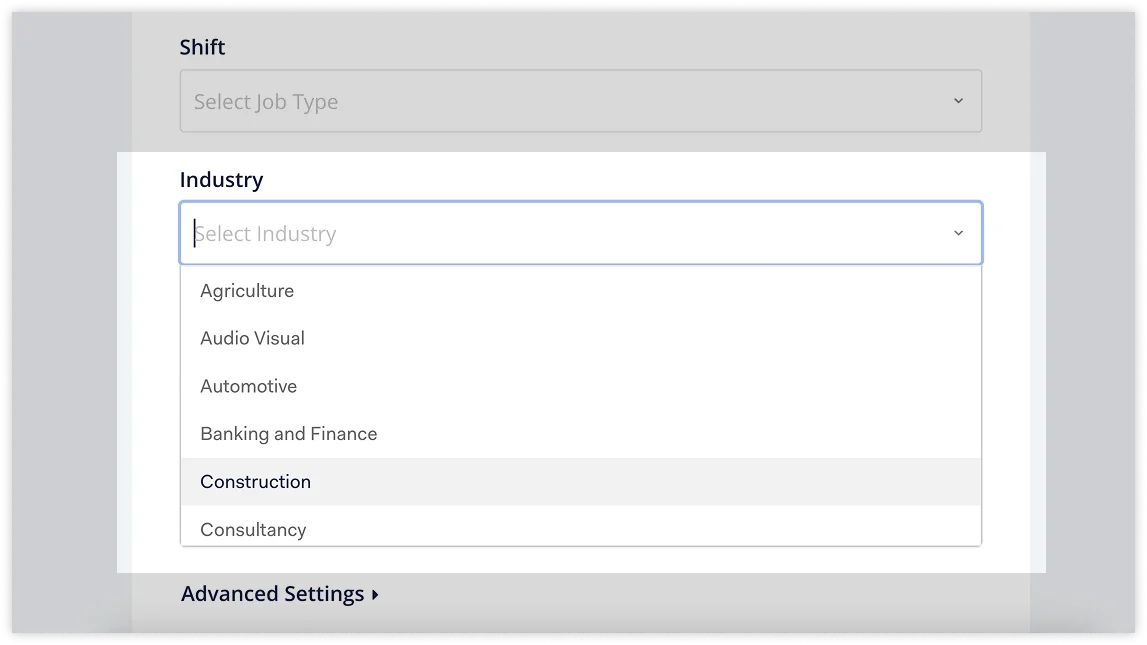
Section titled “Industry Tag”An industry tag appears below the job title, pulled from the Industry field on the Opening. If no industry is selected, the tag does not appear.
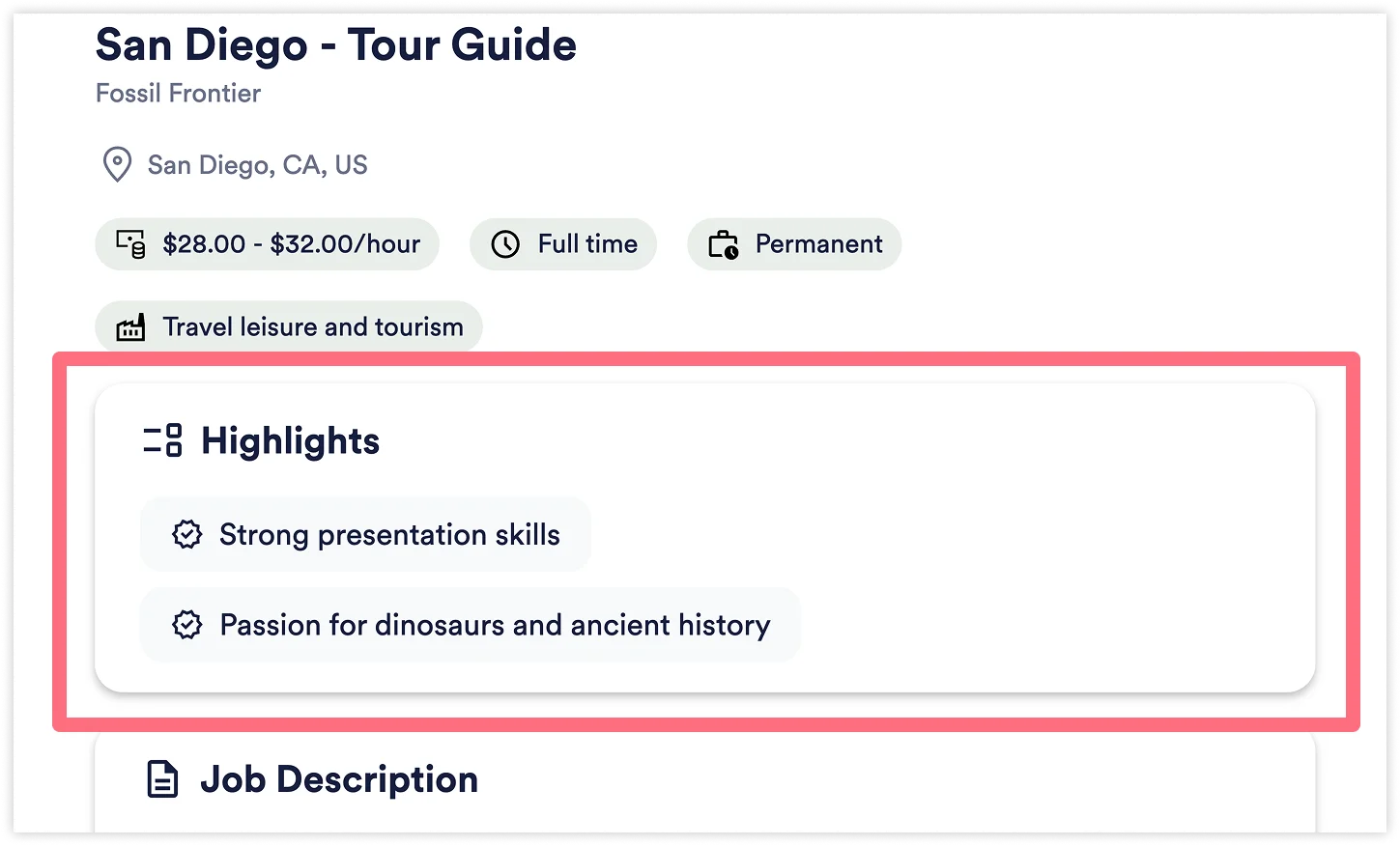
Highlights
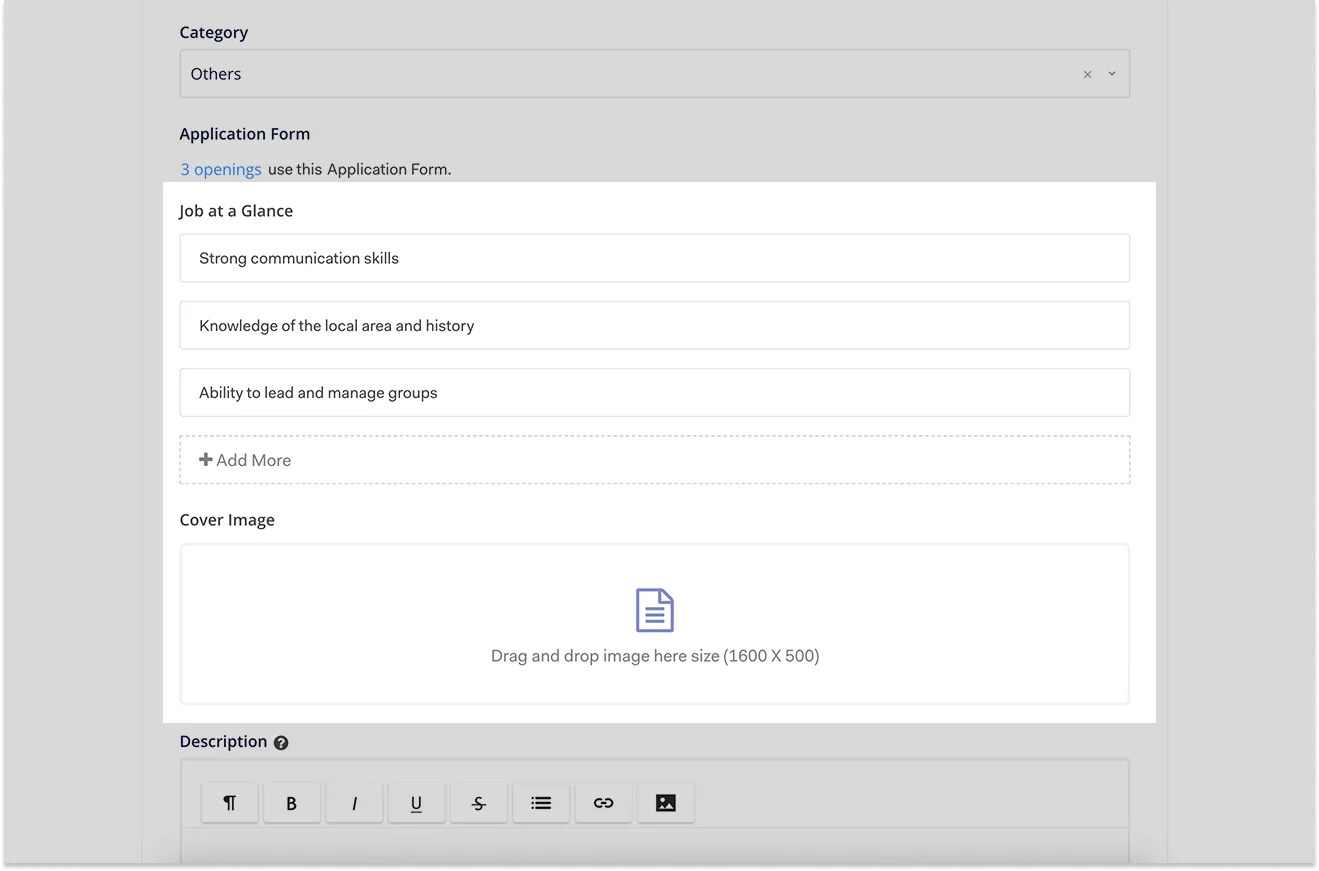
Section titled “Highlights”A Highlights section displays key role details above the form fields, sourced from the Job at a Glance field on the Position. If the field is empty, the section does not appear.
Sticky Apply Button and Navigation
Section titled “Sticky Apply Button and Navigation”As applicants scroll through the job information, a sticky Apply button remains visible so they can begin their application at any point. At the bottom of the form, a View all jobs link takes applicants to the jobs directory, and a Back to top button lets them return to the job details.
Edit the Application Form
Section titled “Edit the Application Form”The fields that appear on the application form are configured in two places in Rekrutek Hire.
| What applicants see | Where to configure | Menu option |
|---|---|---|
| Cover image | Position | Edit Position & Application Form |
| Job at a Glance (Highlights) | Position | Edit Position & Application Form |
| Industry tag | Opening | Edit Job Details |
Edit the Cover Image or Job at a Glance
Section titled “Edit the Cover Image or Job at a Glance”- Go to Jobs > Positions
- Click the Actions dropdown next to a Position
- Select Edit
- Click Customize Application Form
- Update the Cover Image or Job at a Glance fields
- Click Save
Edit the Industry Tag
Section titled “Edit the Industry Tag”- Go to Jobs > Openings
- Click the ⋯ icon next to an Opening
- Select Edit Job Details
- Update the Industry field
- Click Save
Edit the Job Description
Section titled “Edit the Job Description”You can format text, add images, and insert merge keys into the job description at both the Position and Opening level.
To edit the Position-level job description:
- Go to Jobs > Positions
- Click the Actions dropdown next to a Position
- Select Edit
- Click Customize Application Form
- Edit the Description
- Click Save
Customize the job description for a specific Opening:
Section titled “Customize the job description for a specific Opening:”The job description displayed on the application form is set at the Position level by default, and applies to all Openings using that Position. Individual Openings can override this with their own job description without affecting the Position-level default or any other Openings.
To customize the job description for a specific Opening:
- Go to Jobs > Openings
- Click the ⋯ icon next to an Opening
- Select Edit Position & Application Form
- Click Edit Job Description
- Select Customize job description for opening
- Edit the description and click Save
Add Form Fields
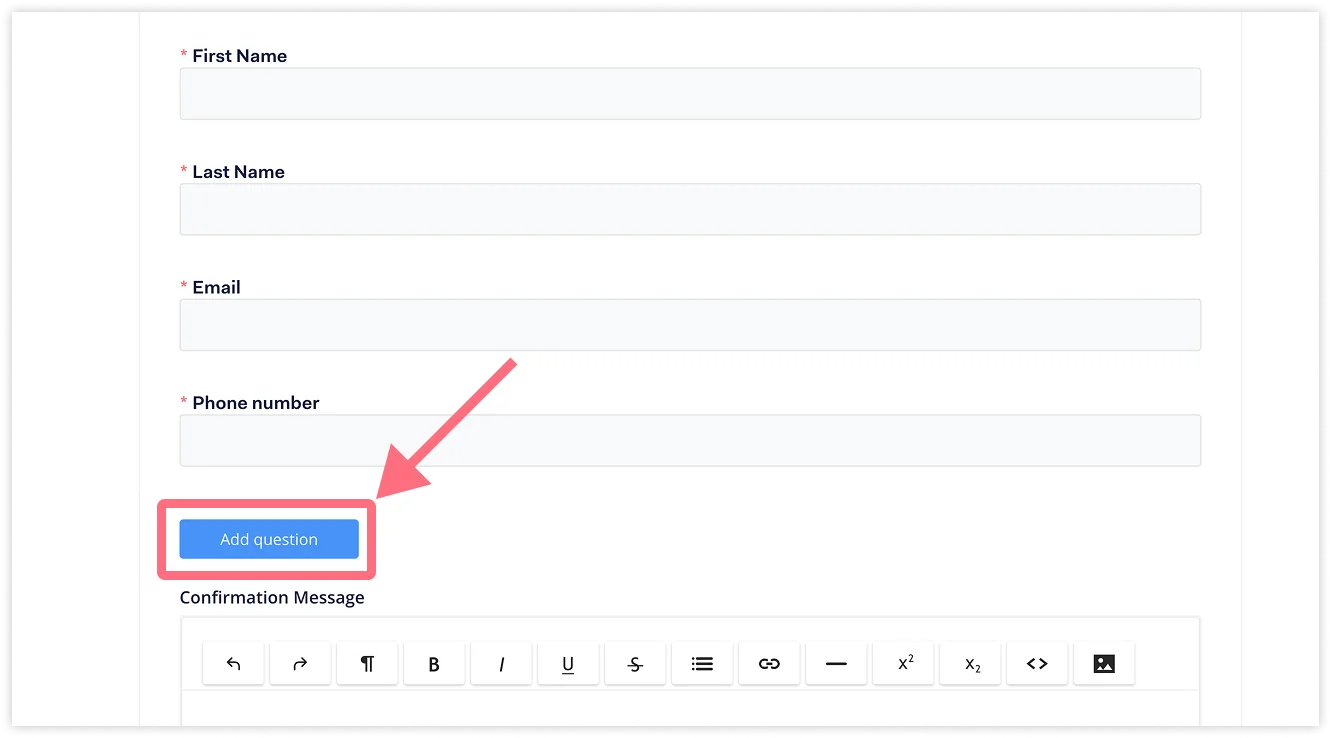
Section titled “Add Form Fields”Below the default required fields (First Name, Last Name, Email, and Phone Number), additional questions can be added to the form using the Add question button.
Questions can be selected from a library of standard and previously created questions, or created from scratch. The following question types are available: Short answer, Paragraph, Address, Multiple choice, Checkboxes, Dropdown, File upload, Datepicker, and Hidden.
Edit the Confirmation Message
Section titled “Edit the Confirmation Message”A confirmation message is displayed to applicants after they submit the application form. This message can be customized with formatted text using the editor below the form fields.
Application Form from the Jobs Directory
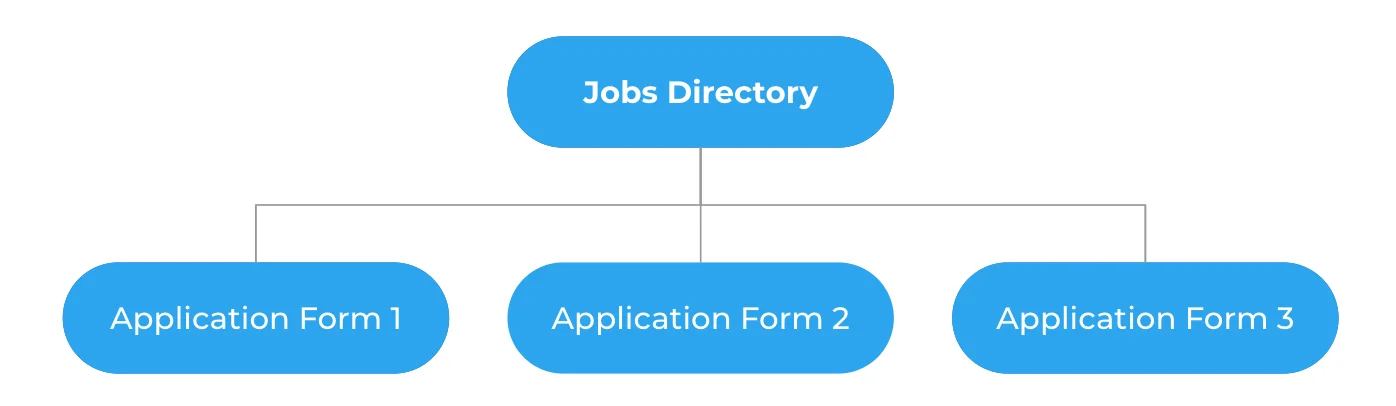
Section titled “Application Form from the Jobs Directory”When looking at the Jobs Directory, each link that goes to a position is an Application Form link.
To learn more about the Jobs Directory, click here. While you can use Rekrutek’s Jobs Directory and Application Form, there are other methods to customize your applicant’s experience.
Hosting Options for Application Form
Section titled “Hosting Options for Application Form”There are three primary ways of hosting Rekrutek on your site. The first uses Rekrutek’s Application Form, which conveniently links to any website or job board. Simply copy the URL and link where desired. You can also collect data via an external application through a website form, Google Form, or in-app then push data into Rekrutek. The last option is using an iFrame of Rekrutek’s site within your company’s website. We will explore all three here.
Rekrutek’s Application Form
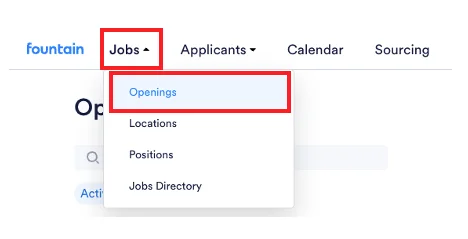
Section titled “Rekrutek’s Application Form”- Locate the Jobs tab in the top left corner and click to open the dropdown. Then click Openings.
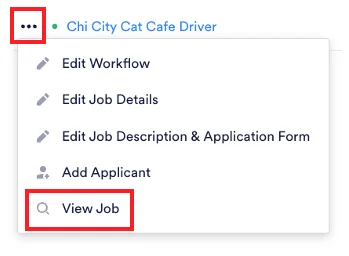
- Find the opening you want to retrieve the application form from. Click the 3 dots Actions button to the left of the Opening.
- Click View Job.
- Copy the link from the top address bar and link it to any job boards you are using.
External Application - Company’s Site
Section titled “External Application - Company’s Site”You can collect applicant data via a website form, Google form, or in-app form, then push that data into Rekrutek for further screening. Click here for Google form integration. This option gives users full control of the branding and visuals for their form. External applications also require a client-owned development team to build the API and manage the integration.
When building an external Application Form, users must create Sorting Conditions to filter applicants to the appropriate Openings. When an applicant matches the Opening’s Sorting Conditions, they will be automatically placed in that Opening.
Example: Using sorting conditions, applicants living in Seattle can be placed into an opening that is specific to Seattle.
- Missing Sorting Conditions: If Sorting Conditions are not set up, applications submitted through external Application Forms and webhooks will be sorted into the default Opening (typically the first Opening created).
- Incomplete Sorting Conditions: If Sorting Conditions are incomplete, or if an applicant does not match the sorting condition of any Opening, all applicants will be sorted into the default Opening (typically the first Opening created).
iFrame
Section titled “iFrame”Add an iFrame of Rekrutek’s application form to your company’s site. This requires a website builder on your side. View how to grab Rekrutek’s Application Form link here.