
Live Video
The live video feature is an interactive way for you to actively engage with applicants. This feature enables you to meet and speak to applicants virtually and imitates the traditional interview setting.
Whereby
All users who’ve been actively using the live video feature will now use Whereby by default. Whereby simplifies the candidates’ experience because it doesn’t require them to download a separate app. Candidates can simply access their live video rooms in their default browser when they click the link provided, which improves the live video experience for each party. Whereby live video supports up to 100 attendees per session, including the host. For more details on how to maximize your Whereby experience, visit the links provided below.
Adding Live Video to an Opening
Section titled “Adding Live Video to an Opening”To add live video to an Opening, follow the steps below:
-
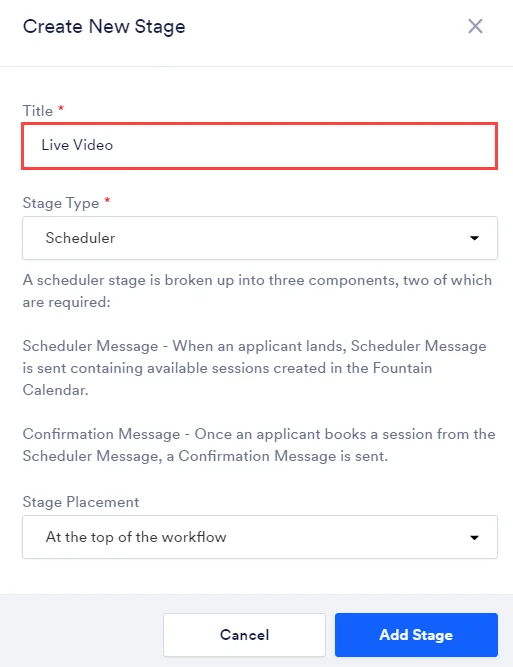
Add a Scheduler stage to the Opening’s workflow and name it Live Video, so it can easily be identified later.
-
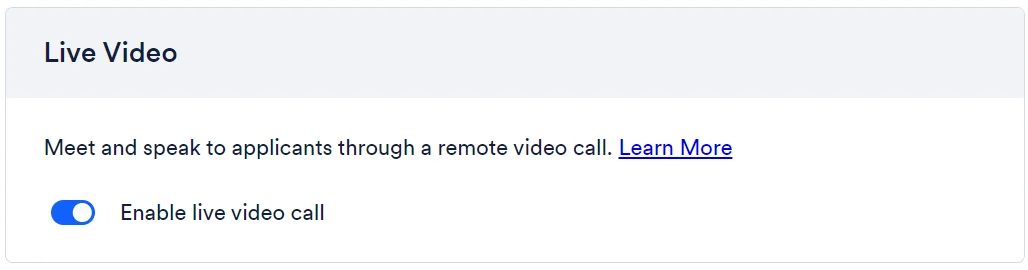
Turn on the Enable live video call toggle in the Live Video section.
-
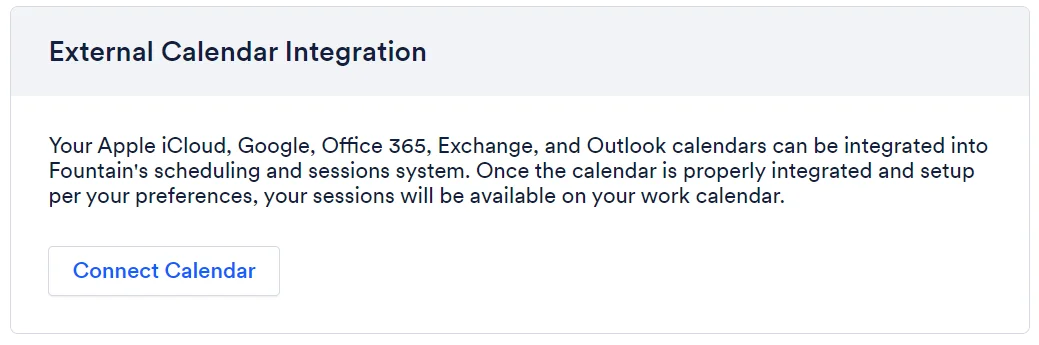
Once you enable live video, ensure you have connected your external calendar. Scroll to the top and click Connect Calendar. Be sure to also visit the Rekrutek Calendar page to add availability.
Customizing Live Video Messages
Section titled “Customizing Live Video Messages”The link to the live video stage can be shared with the applicant in the Confirmation and Reminder messages by inserting the merge key directly into the message body (SMS or email).
-
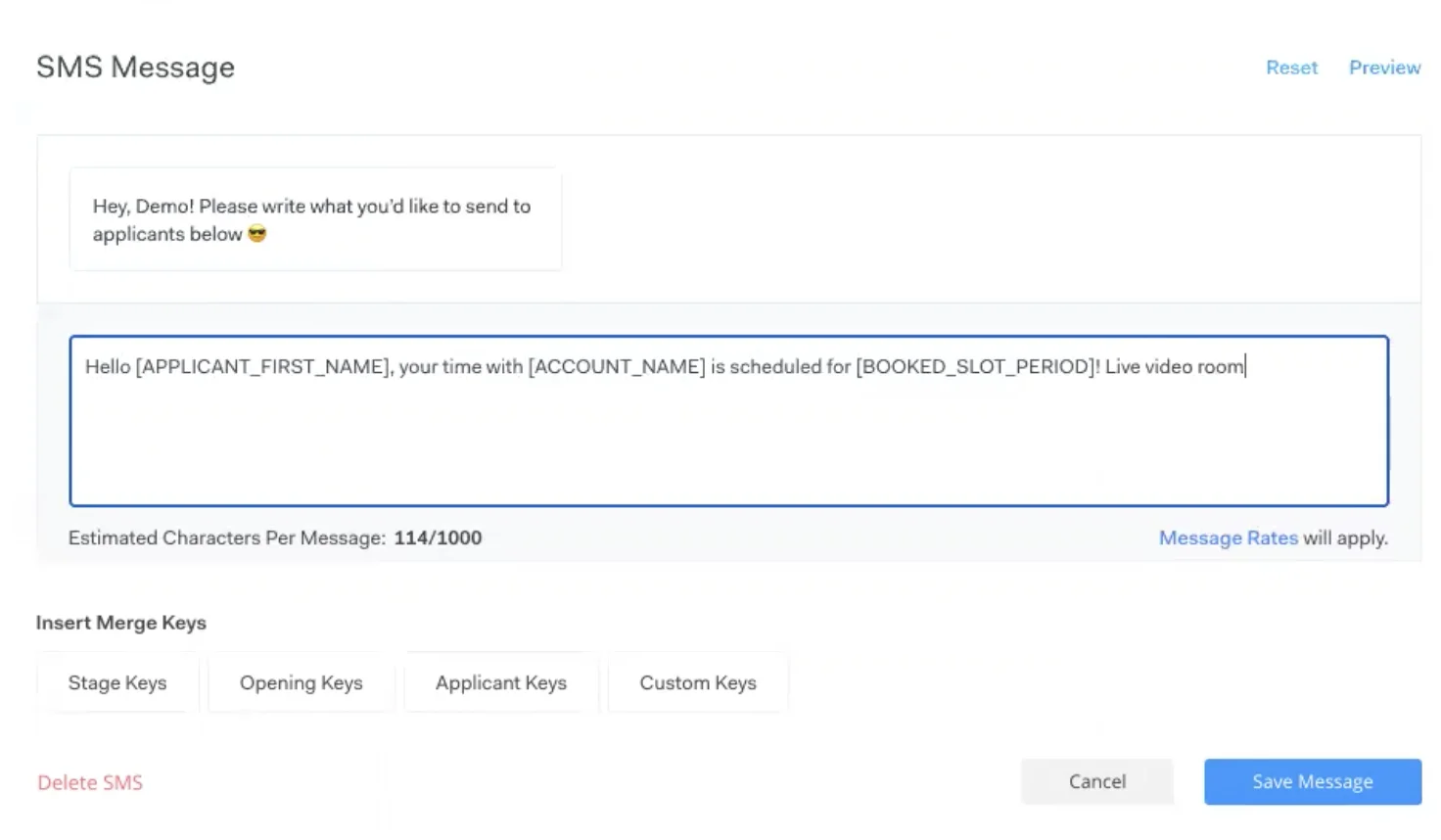
Select Edit Message and then Edit SMS.
-
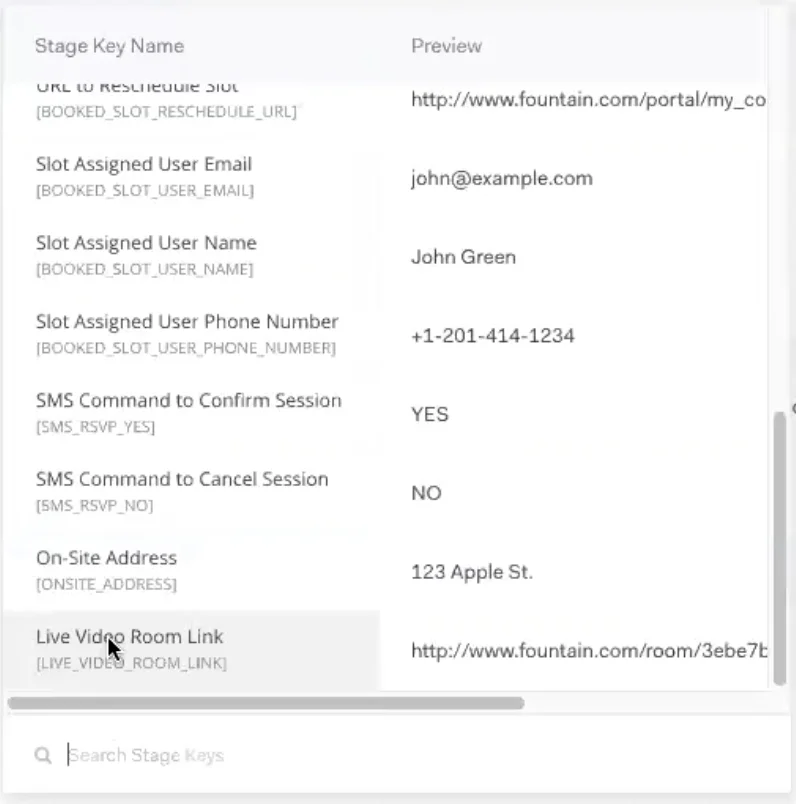
Insert the text (Live Video Room:) and then select stage keys.
-
Choose Live Video Room Link from the menu. This will automatically add the merge key to the SMS Confirmation message the applicant will receive.
-
Select Save Message and this Confirmation message along with the merge key will be included in the SMS message.
Messages in Live Video
Section titled “Messages in Live Video”There are multiple types of messages that can be used in the live video stage to maximize organization and initiate communication with the applicant throughout this stage in their interview process.
Reminder Message
The reminder message reminds the applicant that their live video session is scheduled at the time they initially selected.
Confirmation Message
The confirmation message confirms the date and time the applicant selected has been scheduled.
Accessing Live Video Session
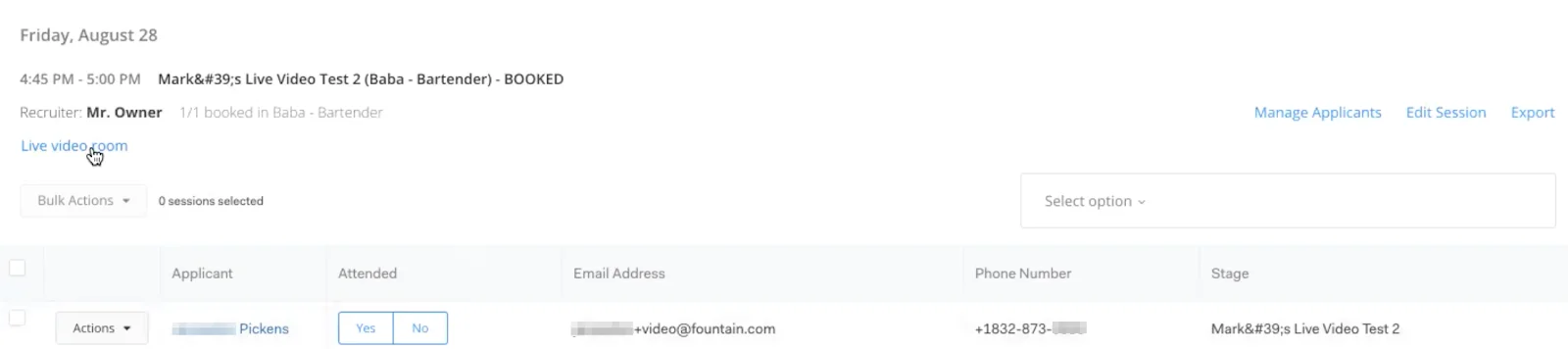
Section titled “Accessing Live Video Session”Once the applicant has scheduled a time slot with you, the scheduled time will be visible in the Scheduled sessions tab. The scheduled times will be labeled as Past, Today, or Upcoming.
To access the scheduled live video, click live video Room. The live video between you and the applicant will begin.
Live Interview (Applicant Experience)
Section titled “Live Interview (Applicant Experience)”When the applicant lands on the video scheduler stage, they will be prompted to select their live video session/interview time slot.
Once the applicant selects their desired time slot, a confirmation message with the link to the live video will be sent to the applicant via text and or email.
At the scheduled session time, the applicant should click the link that was provided and they will immediately be directed to the live session.