
SMS Messages
SMS messages are an effective communication medium with applicants; many of our customers see higher conversions and response rates using SMS. You can send automated SMS messages as part of the Stage message, Follow Up messages, etc.
In addition to this article, we also recommend reviewing our SMS Best Practices Help Center article.
Enable SMS
Section titled “Enable SMS”To enable SMS for your account, go to the Company Settings, and click SMS in the left navigator. If you’ve already submitted your billing information to Rekrutek, you’ll be directed to a page with the phone numbers in your account. You can also use this page to view your future SMS usage within Rekrutek.
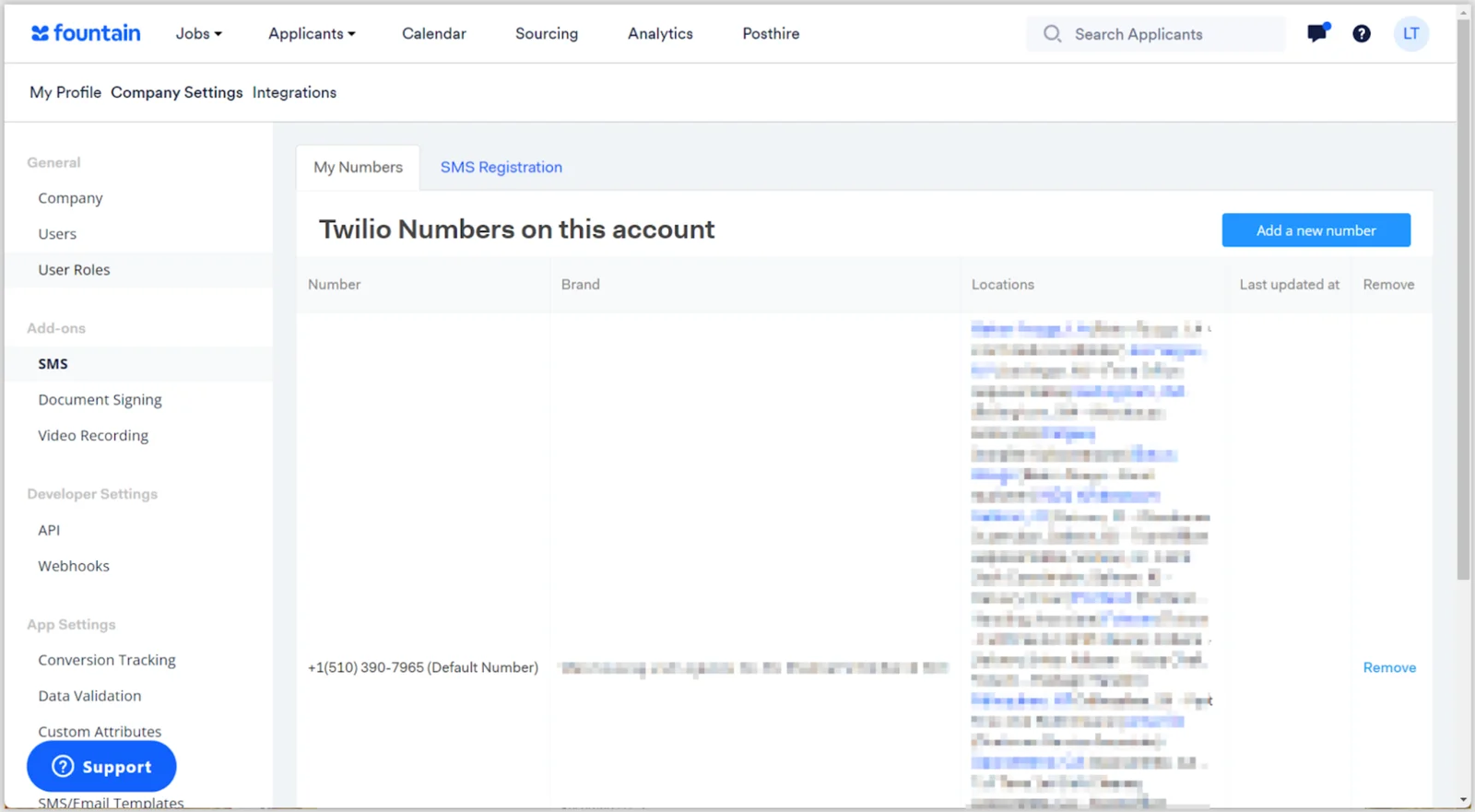
Add SMS Number
Section titled “Add SMS Number”We currently offer numbers for the following countries:
|
|
|---|
To add an SMS Number, follow the steps below.
-
Click your initials in the top right corner of any Rekrutek page. Then click Company Settings in the dropdown.
-
In the left side panel, click SMS under Add-ons.
-
In the My Numbers tab, click on Add a new number.
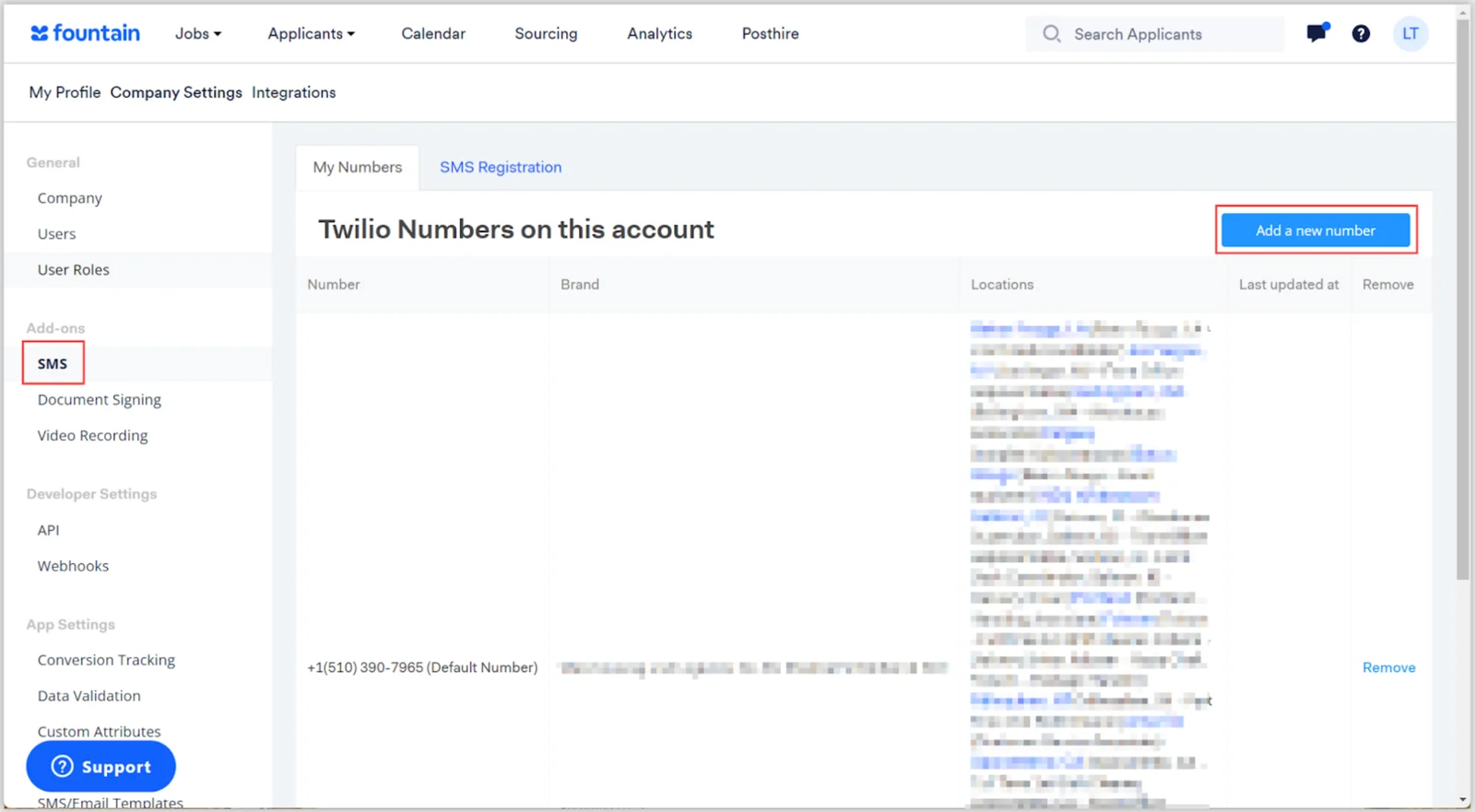
-
Select a country from the menu. For US numbers, designate an area code.
-
Click Add Number to confirm.
Send SMS Messages
Section titled “Send SMS Messages”You can send SMS messages to applicants throughout their application process. Click here to see how to use SMS when an applicant enters a stage, and click here to view how to send follow-up SMS messages. To learn more about our messenger feature, where you can view all applicant messages across all openings, click here. If your SMS messaging status is marked as undelivered, view here for possible carrier violations.