Checkr
Checkr is one of the background check providers available in the background check stage in Rekrutek. Checkr offers a wide range of checks, including criminal background checks and Motor Vehicle Reports (MVR).
Rekrutek’s enhanced Checkr integration allows background check data to be stored directly within the platform. Information such as SSN, driver’s license, date of birth, and zip code will be securely saved in Rekrutek Hire, making it easy for recruitment teams to access and manage all candidate details in one place. As candidates complete the background check process, their details will automatically appear in their Applicant Profile.
Package Types Supported
Section titled “Package Types Supported”- Criminal Checks with Motor Vehicle Reports (MVR) Combo
- Criminal Check Stand Alone
- Motor Vehicle Reports (MVR) Stand Alone
Account Setup
Section titled “Account Setup”After you have created your Checkr account, email your point of contact at Checkr and copy support@rekrutek.ai in the email. Ensure your email contains the following information:
- We’re integrating with Rekrutek.
- I need production access to Checkr’s API for my account.
- Which report(s) is my account authorized to run?
Next we will focus on inputting our API key into Checkr to integrate with Rekrutek.
-
Log in to your Checkr account.
-
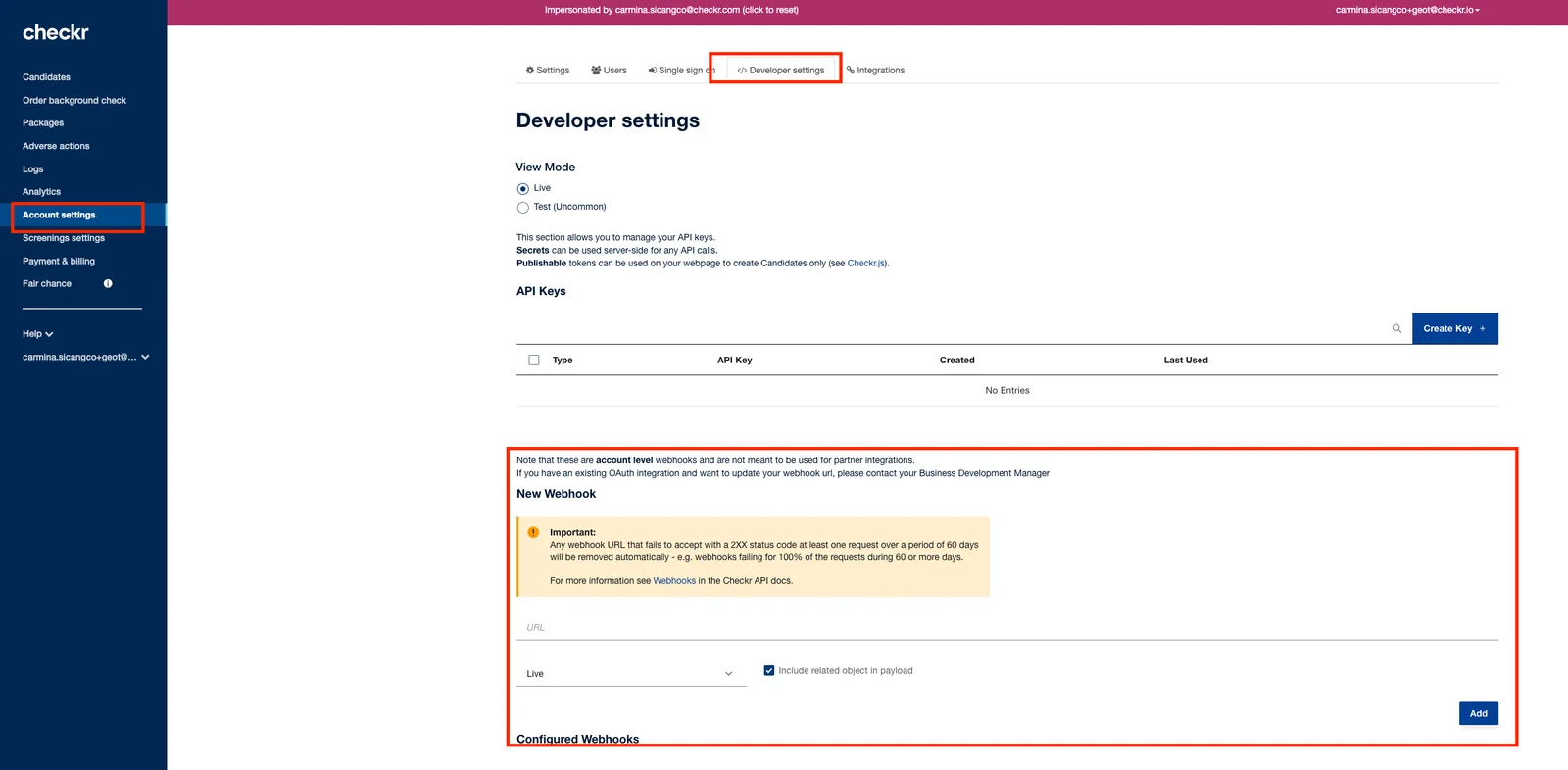
Select Settings, then select Developer Settings.
-
Add the appropriate URL as a webhooks:
-
For multi-tenant environments (most common), use the tenant listed before Rekrutek.ai (us-2 in the example below) and the callback listed after rekrutek.ai - https://us-2.rekrutek.ai/callbacks/integrations/checkr
-
For single-tenant or regional environments (less common), use the customer slug listed before rekrutek.ai and the callback listed after rekrutek.ai - https://<customer-slug>.rekrutek.ai/callbacks/integrations/checkr
-
-
Add a Live Private API key and copy it for the Rekrutek integration.
- For most customers, the default API domain will be http://hire.rekrutek.ai/api/v2/<SPI endpoint>
- For customers with single tenancy or regional environments, please use http://<your_Rekrutek_account_URL>.rekrutek.ai/api/v2/<API endpoint>
-
Log into your Rekrutek account.
-
Click your intials icon in the top right of the page and click Integrations in the dropdwon.
-
Click Screening on the left.
-
Paste the Live Private API key to connect to Checkr from your Checkr account into the following field:
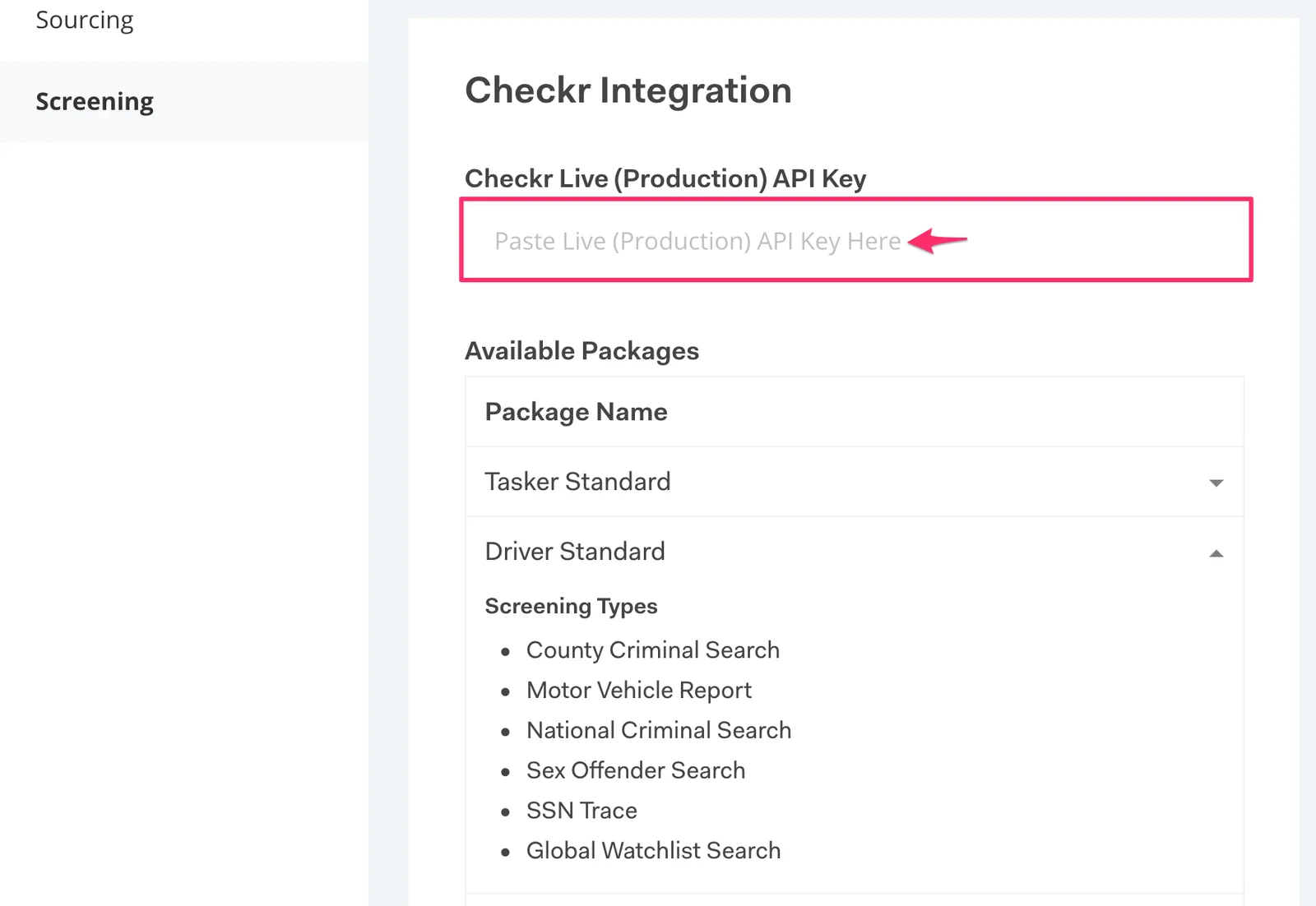
You can now add Checkr background check stages to your workflow and select which reports you’d like to run on applicants.
Background Check Stage
Section titled “Background Check Stage”Background Check with Checkr Stage (USA) is a stage that integrates with Checkr to enable the ability to run background checks and/or MVR reports in the workflow. This stage is very versatile allowing you to split the actions required for running a check (collecting consent then running a check) or performing both actions simultaneously.
Set up Package Type
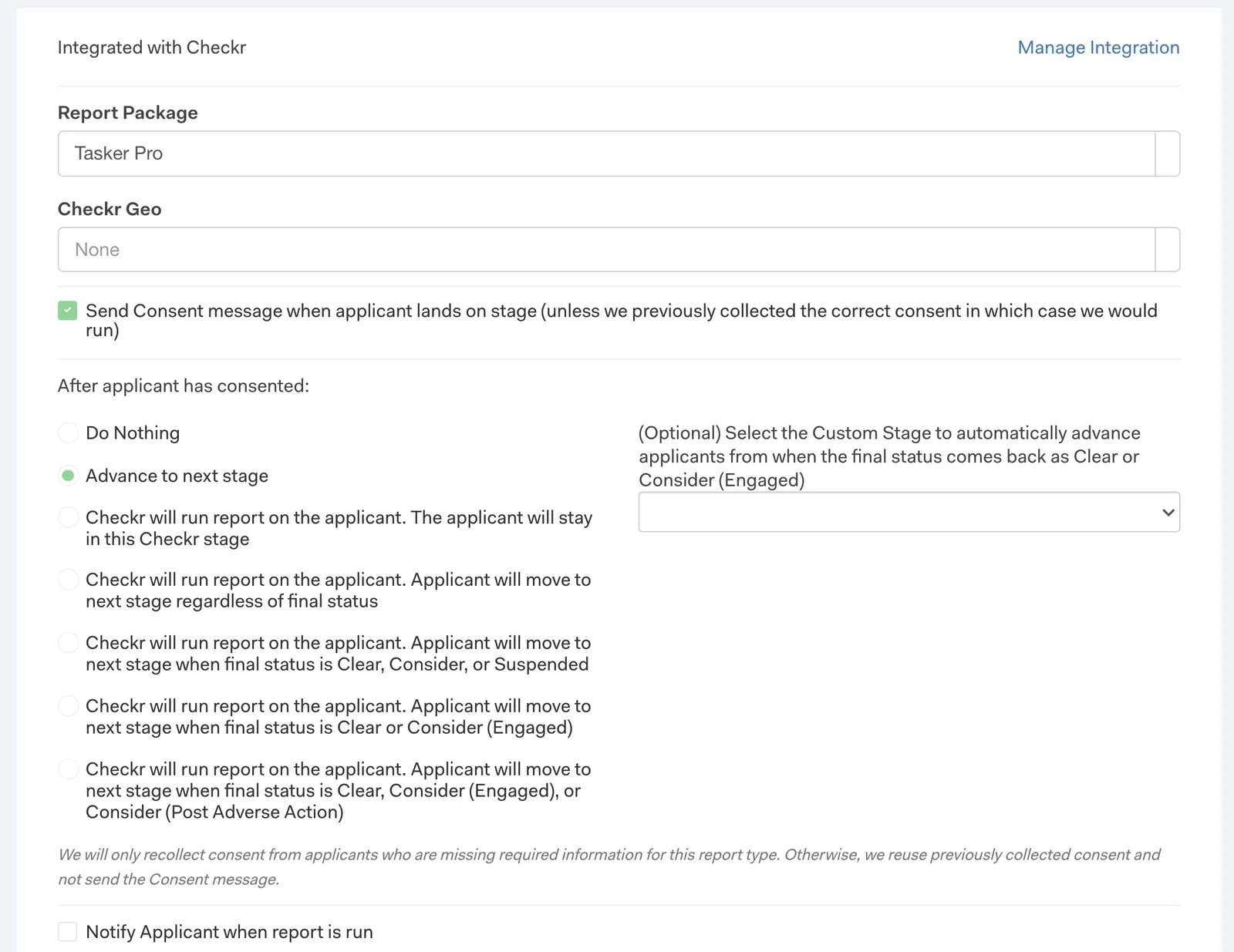
Section titled “Set up Package Type”Pick the Report Package type you want to run on the applicant. You can consider running a MVR first, and wait for the result of that report before running another package. To do so, add two Background Checks with Checkr Stage (USA), one for MVR and an additional one for a criminal check.
Collect Consent
Section titled “Collect Consent”In order to run any checks with Checkr, you’ll need the applicant to sign a consent to allow your company to run a check.
You can collect this consent when running the report, or you can collect the consent first and run the background check later. If you choose to run the background check later, be sure to add another Background Check with Checkr Stage (USA) later in the workflow and adjust the settings to run the check then.
Stage Action
Section titled “Stage Action”Select an action for this stage. You can choose to run the report immediately and keep the applicant in the stage until the report results return; it may take a few days depending on the package type. Or, you can advance the applicant forward and run the report later.
If you choose to skip or delay running the report now, be sure to add another Checkr (USA) Background Check Stage later in the workflow, and run the report in this stage.
We recommend choosing the option to Run report & advance upon final status: Clear, Consider (Engaged), Consider (Post Adverse Action) if you plan to use the Rule stage to automatically sort your applicants based on their report status.
Accepted Screen Types via Checkr
Section titled “Accepted Screen Types via Checkr”Some screen types are only supported via Checkr-hosted applicant consent flow. If a package contains one of the following screen types, a Note will appear beside the screen type and package. It can be viewed by selecting Company Settings > Integrations > Screening > Checkr > Manage Integration.
Shown below is an example of a package with screen types supported only via the Checkr-hosted flow:
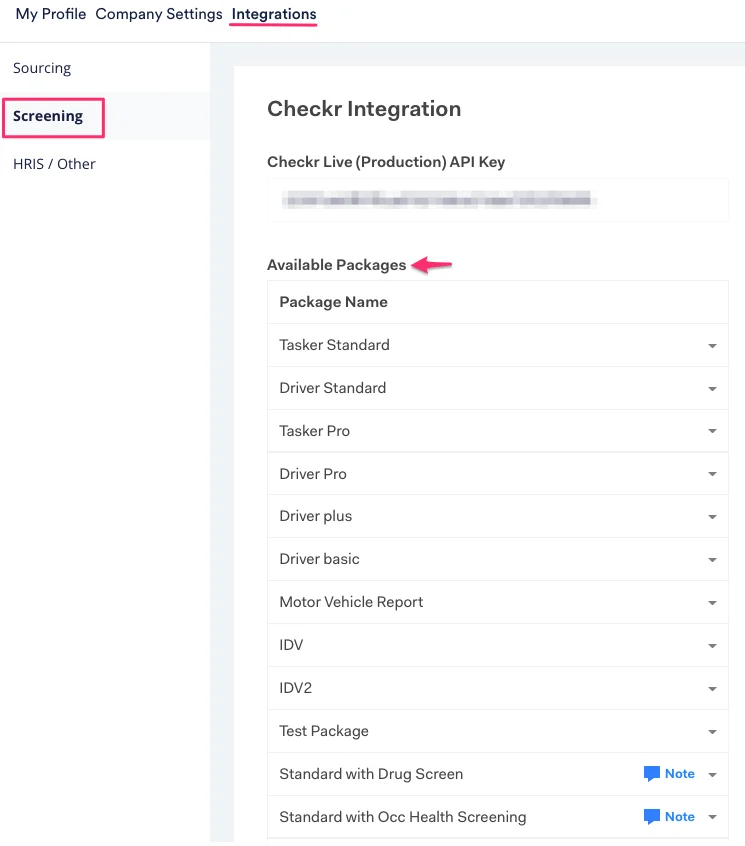
Screen types supported only via Checkr-hosted applicant consent flow:
- Drug Screenings
- Occupational Health Screenings
- Personal Reference Checks
- Professional Reference Checks
- Credit Reports
- Professional License Verification
Unsupported Screen Types
Section titled “Unsupported Screen Types”Some screen types are not supported by Rekrutek. If a package contains one of the below screen types, a Warning will appear beside the screen type and package. It can be viewed by going to Company Settings > Integrations > Screening > Checkr > Manage Integration.
An example package with unsupported screen type:
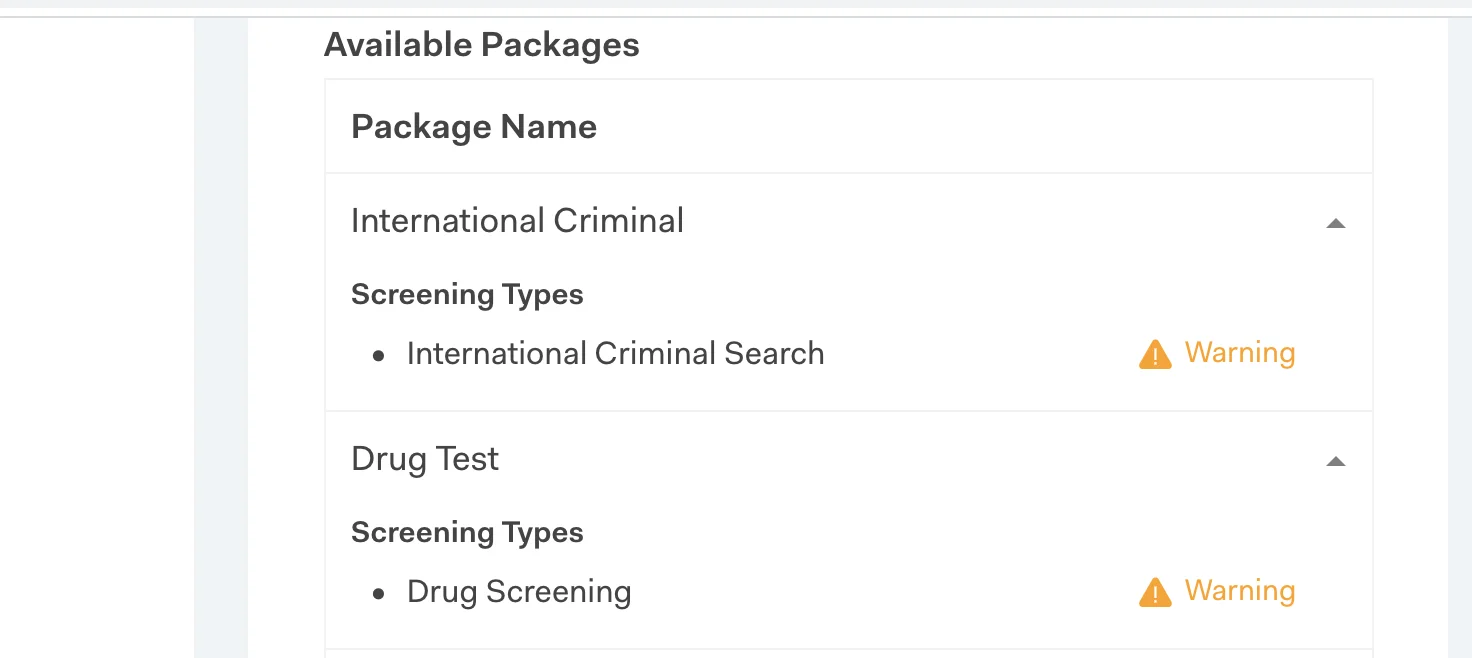
Screen types Rekrutek currently does not support:
- International Criminal Search
- International Education Verification
- International Employment Verification
- International Global Watchlist Search
Additionally, the Checkr Rekrutek integration doesn’t support the Checkr Account Hierarchy feature and should be checked if you are experiencing errors in the partner integration.
Notifications (Optional)
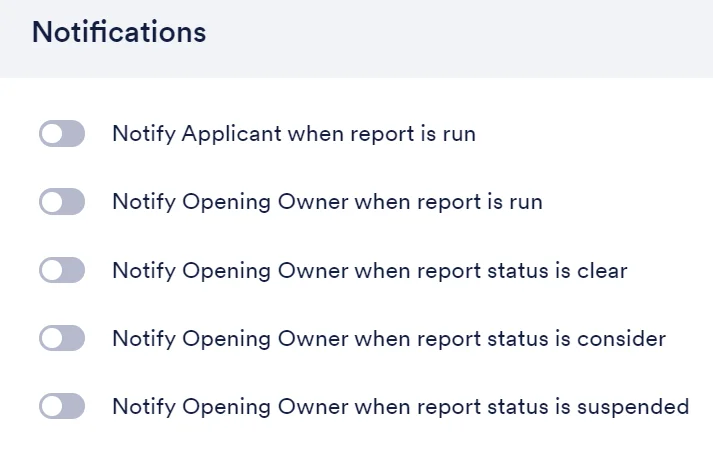
Section titled “Notifications (Optional)”Depending on your workflow setup, you may want to notify either the applicant or the Opening owner on the status of the report. If you choose to collect the consent first and run the background check later, we recommend notifying the applicant so they are aware that their report has begun.