
SAMLv2 SSO Setup
SAML2 SSO is a security standard that allows users to access multiple applications after signing in just once. SAML 2.0 (Security Assertion Markup Language) is an XML-based protocol that facilitates single sign-on (SSO) by securely passing authentication and authorization data between an identity provider (IdP) and a service provider (SP).
Instead of managing multiple logins, a user authenticates through their company’s IdP, which then sends a signed SAML assertion to the SP, granting the user access. Rekrutek is compatible with any Identity Provider (IdP) that supports the SAMLv2 protocol.
Enabling SSO
Section titled “Enabling SSO”To enable SAMLv2 SSO in your Rekrutek account, follow the steps below:
-
Click your company logo in the bottom left side panel and then Settings.
-
Under the Users section, click the User Access & Security link.
-
Click Start under the User Single Sign-on (SSO) section.
-
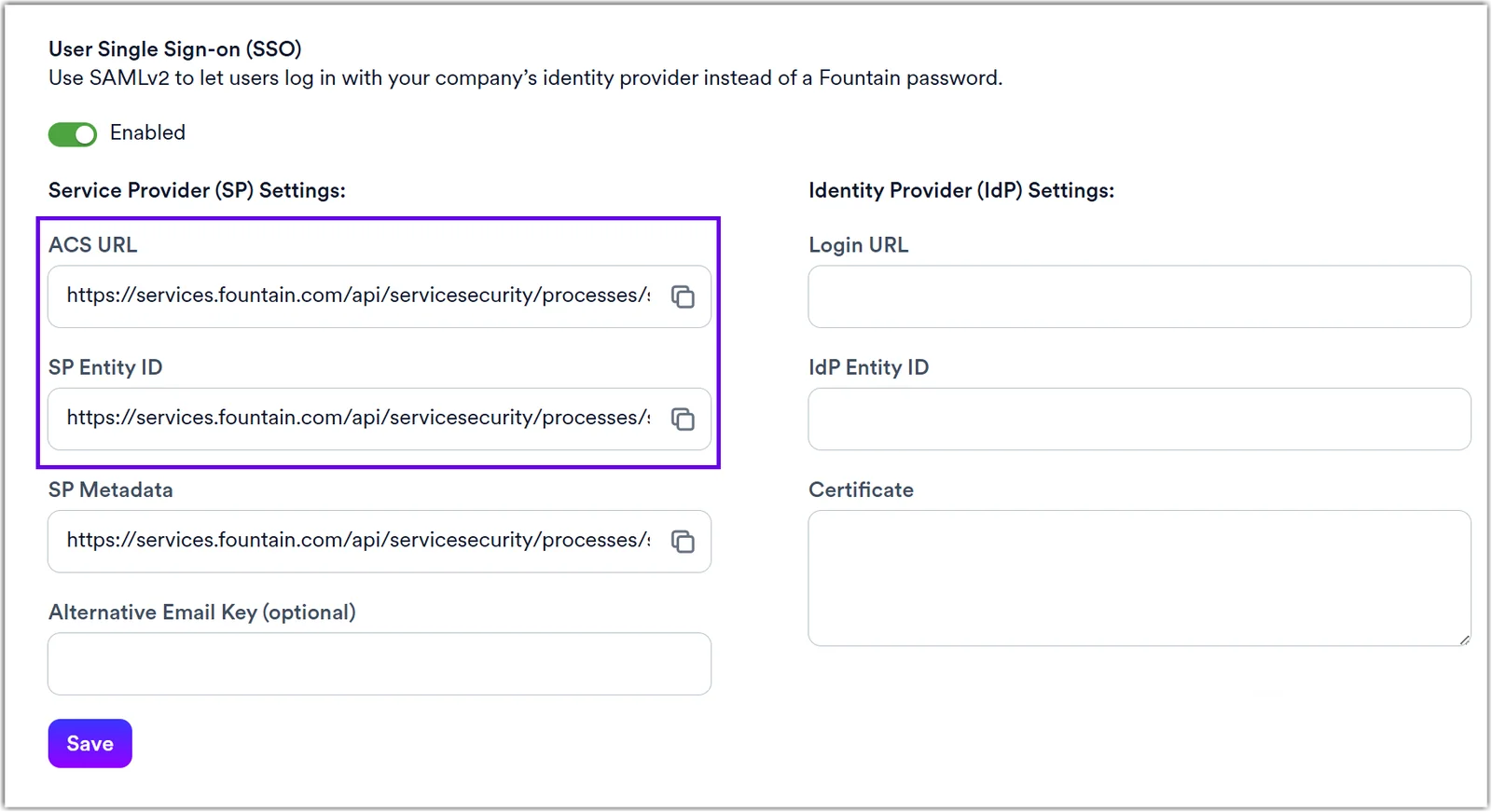
You’ll need to copy the Rekrutek Service Provider (SP) Settings, such as the ACS URL and SP Entity ID, and paste them into your Identity Provider (IdP).
-
Rekrutek also provides a SP Metadata URL, which can be directly pasted into most Identity Providers for your convenience.
-
-
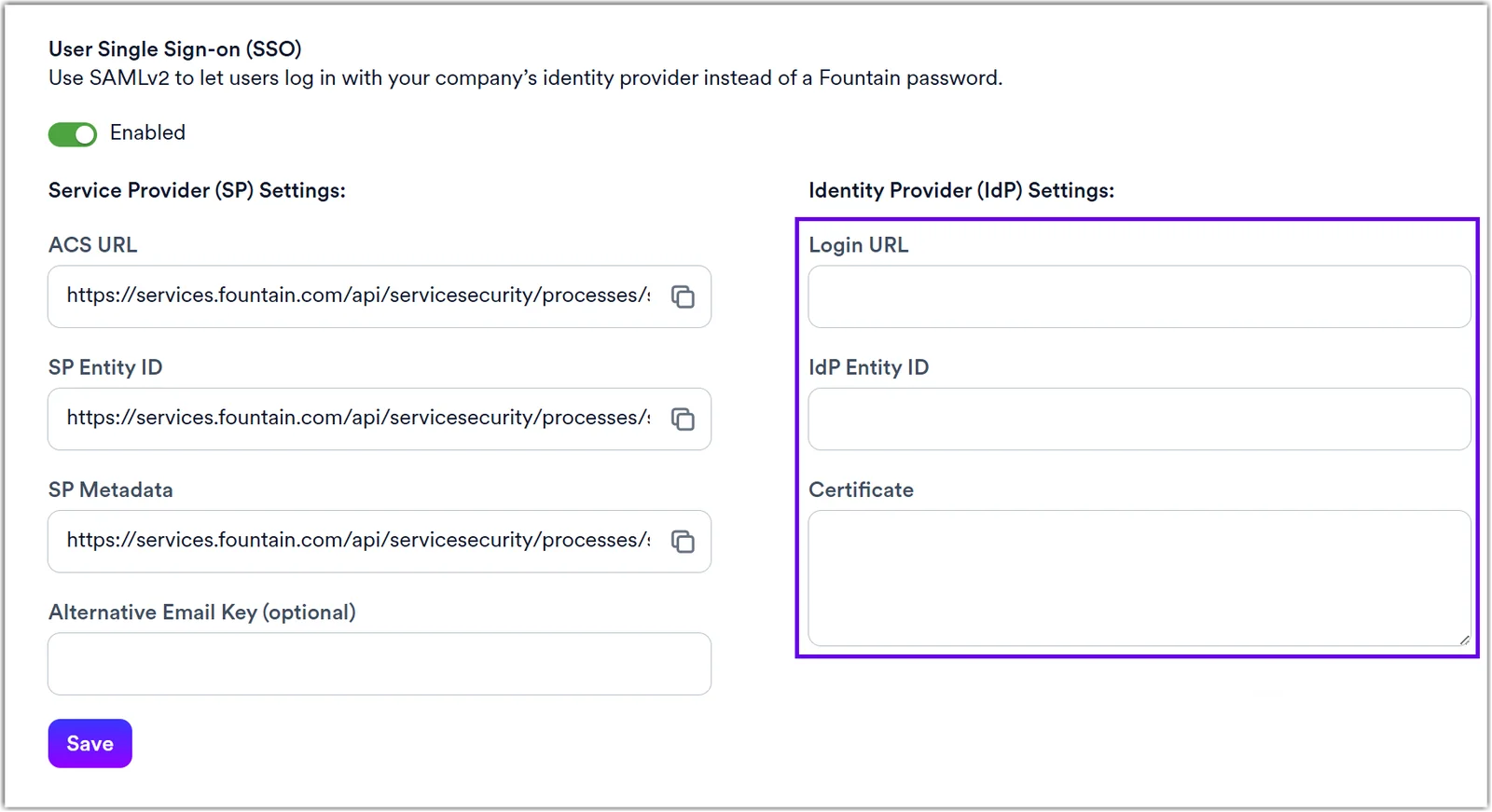
Locate the settings in your company’s Identity Provider’s platform. You’ll need the Login URL, IdP Entity ID, and Certificate.
-
Copy this information.
-
Turn the Enabled toggle to “on” which will unlock the IdP fields.
-
Paste the IdP information into the relevant fields in Rekrutek.
- You can typically leave the Alternative Email Key empty. More information on this field is in the next section of this article.
- You can typically leave the Alternative Email Key empty. More information on this field is in the next section of this article.
-
Click Save.
-
You can test the connection by logging in from an incognito browser.
Additional Considerations
Section titled “Additional Considerations”During SSO setup, it is important to maintain your Rekrutek session. Once enabled, SSO enforcement is strict. Any misconfiguration (on either the IdP or SP side) will lock you out of your Rekrutek account, requiring you to contact the Rekrutek support team (support@rekrutek.ai) to reset your company’s SSO settings.
You can typically leave the Alternative Email Key empty. This setting is only needed when the user’s common email address differs from the one used as the NameID. For example, users typically use addresses like john.doe@company.com, but the NameID returns a technical address such as 1593842082@internal.local. In this scenario, you should map the public email address as an additional property in the SAML assertion and enter that property name in this field.