
Status Labels
Interactive Status labels on the Applicant Table, Universal Applicant View, and within Applicant Profiles provide contextual information with labeled actions, so recruiters can easily monitor applicants’ progress and determine if there are any items that require their attention.
When viewing applicants with multiple status updates, you can collapse status labels to show only the most recent statuses per applicant. This improves readability on both the Applicant Table and Universal Applicant View. Learn more about collapsing statuses in the Applicant Table and Universal Applicant View articles.
Watch the following video for an overview of Status Labels:
Status Labels Color Key
Section titled “Status Labels Color Key”Color | Status Label | Details |
|---|---|---|
Yellow: Half Circle Icon  | Not Started | The applicant and/or third party have not started the required task. |
Purple: Partial Dial Icon  | In Progress or Waiting | An action is under way by the applicant, third party, or another user. |
Blue: Caret >  | Action Needed | You (the user) need to complete a task that you're solely responsible for. |
Green: Check Icon  | Successful | The task has been completed by all responsible parties. No further actions are required. |
Red: Triangle Error Icon  | Unsuccessful | This can be an error or an unsuccessful outcome. An action may be taken to resolve it. |
Text on Status Labels
Section titled “Text on Status Labels”The text on status labels is designed to display the most important details relevant to the status and associated tasks required. For example, when an applicant is scheduled for an upcoming meeting or interview the date and time is displayed so you can prepare for that meeting.
On the contrary if the applicant has canceled the meeting, the history or the amount of times the applicant has rescheduled, will be present when you select the status label and/or visit the applicant’s profile. (Add a note for the max reschedule setting available in the scheduler stage.)
Take Action via Status Labels
Section titled “Take Action via Status Labels”If additional actions are available on the status labels, the status label will have a caret (>) which indicates that it can be selected, and additional information is available.
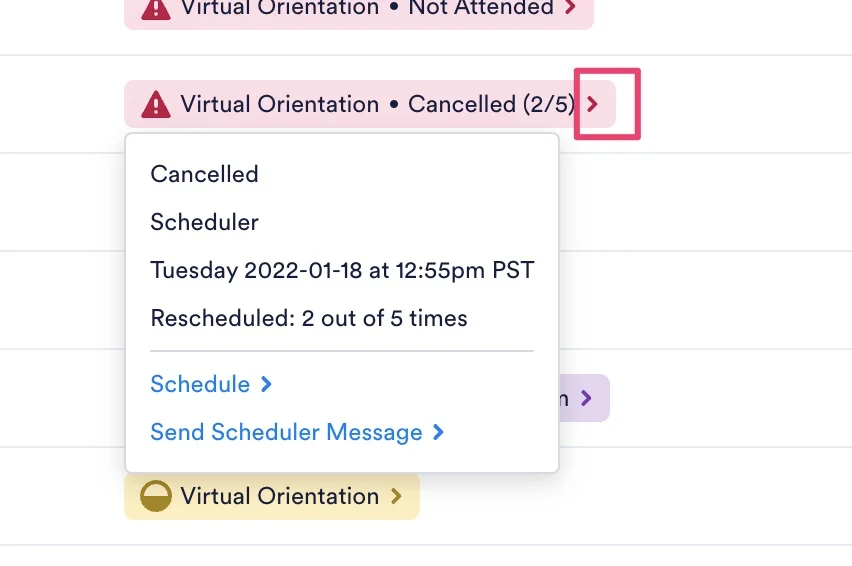
When you select the caret (>) on any status labels, there may be additional actions available once you select them.
Specific Examples of Status Label Use Cases
Section titled “Specific Examples of Status Label Use Cases”
Red: Not Completed/ Error
This status label indicates that additional actions are required, and the task is currently incomplete. An applicant may have canceled their appointment or interview. The details regarding how many times they’ve rescheduled will be available when you click it.
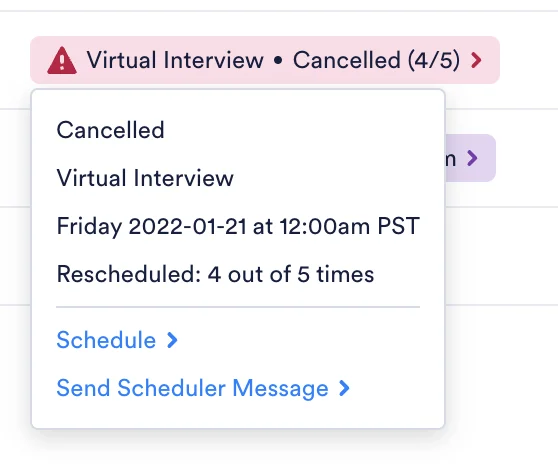

Blue: Action Required
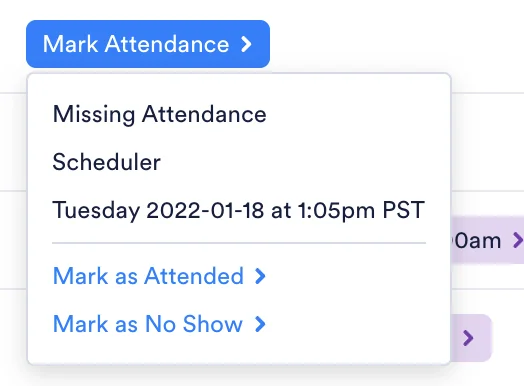
You, the user, are required to take action and complete a task. For example, once an applicant schedules a meeting, the status label will turn blue, prompting you to mark or update the attendance records for that meeting.
A document that requires your signature in order to complete it.
