
Google Drive for Applicant Documents
Use Rekrutek’s Google Drive integration to bulk-upload applicant documents via CSV. This is helpful if you have a large amount of applicant-related files previously stored, such as resumes, ID images, onboarding documents, etc. that you want to house in Rekrutek.
Connection Steps
Section titled “Connection Steps”To connect your Google Drive to Rekrutek, follow the steps below:
Google Drive
Section titled “Google Drive”-
Ensure you are logged in to the Google Drive account that you want connected to Rekrutek.
-
In a new tab, go to https://console.cloud.google.com and agree to the terms of service if prompted.
-
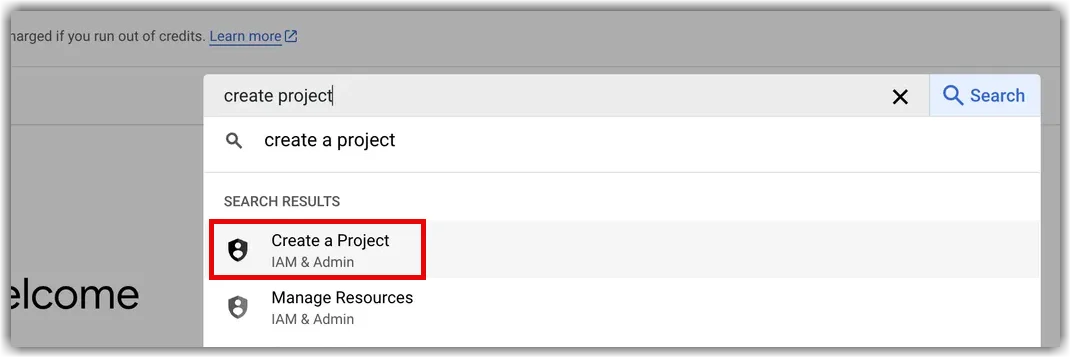
In the search bar at the top, type “create a project”.
-
Select Create a Project IAM & Admin from the search list.
-
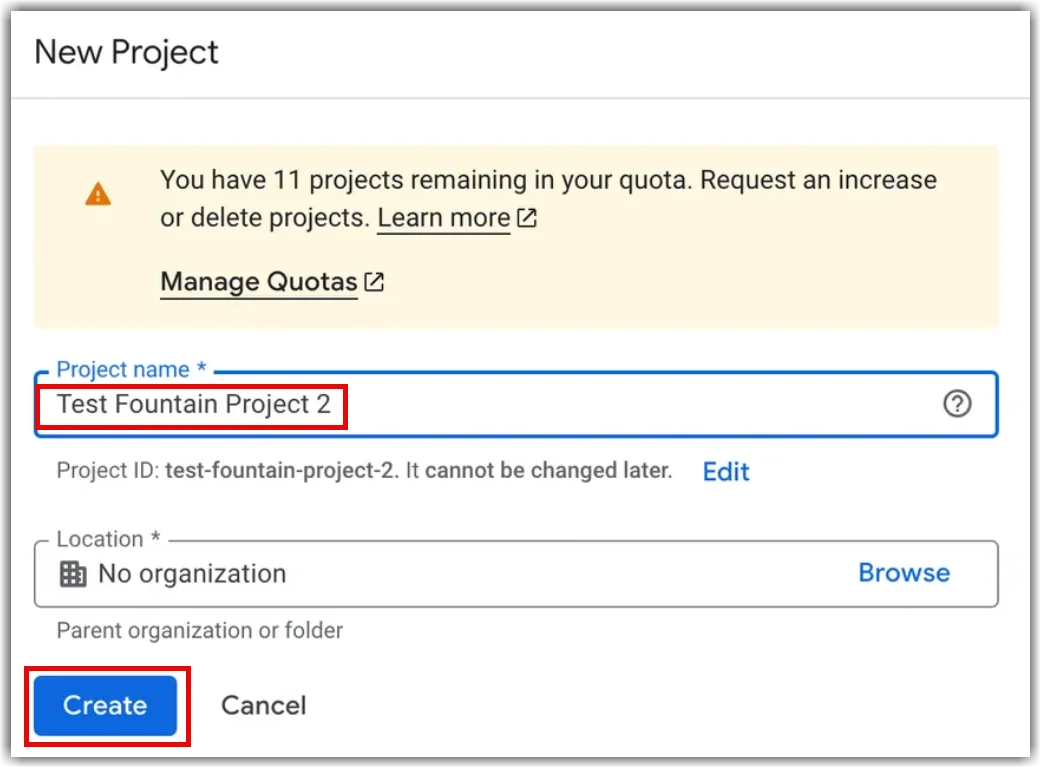
Type a name for the project, such as Rekrutek Integration. You do not need to enter a location.
-
Click Create.
-
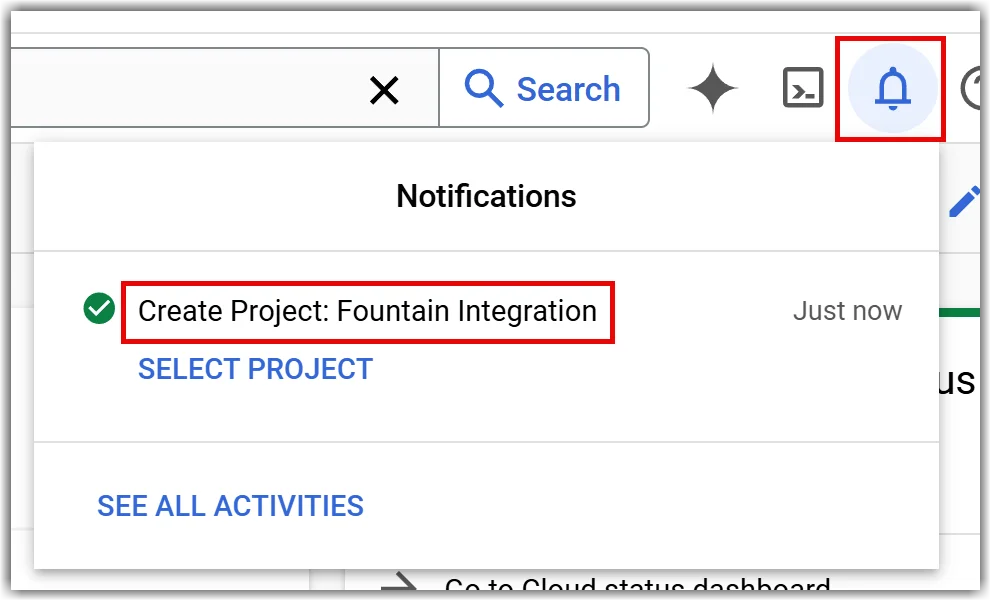
Click the bell icon in the top right corner. Then, select the project you just created.
-
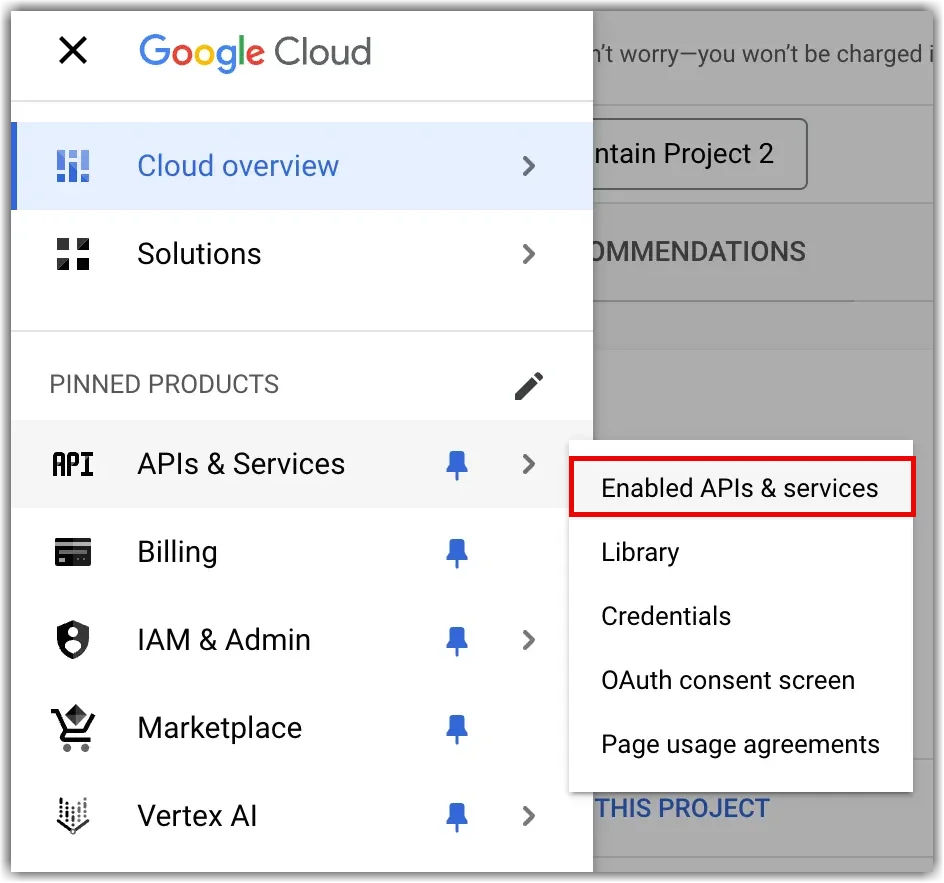
Click the hamburger icon in the top left corner. Then, hover over APIs & Services and click Enabled APIs & services.
-
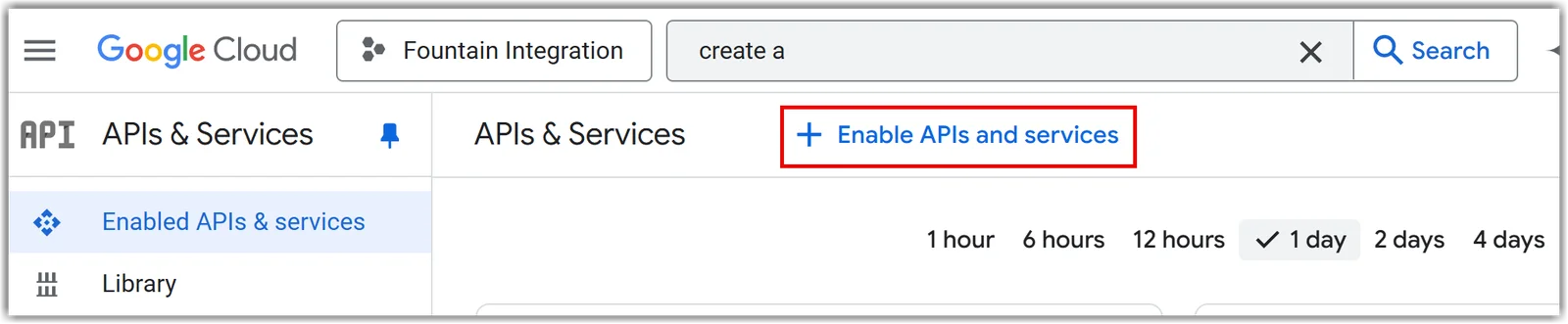
Click the +ENABLE APIS AND SERVICES towards the top by the search bar.
-
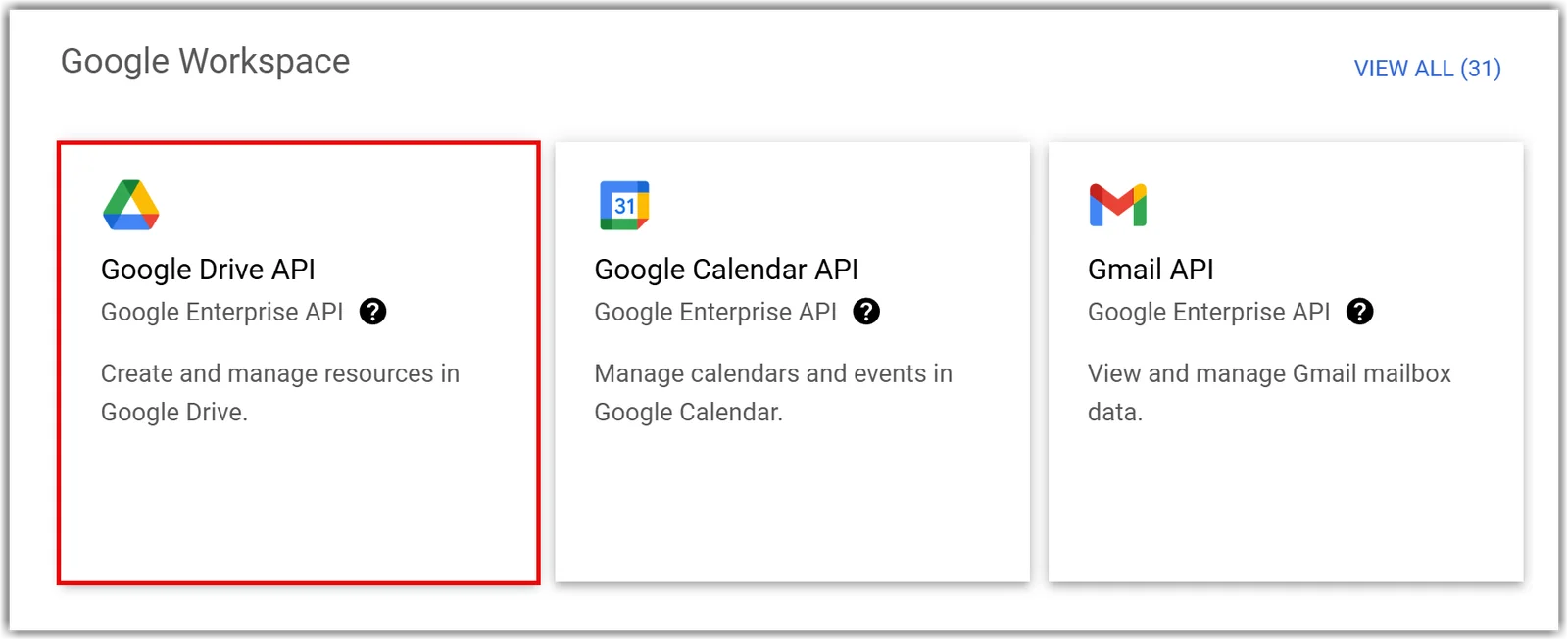
Click the Google Drive API tile under the Google Workspace section.
-
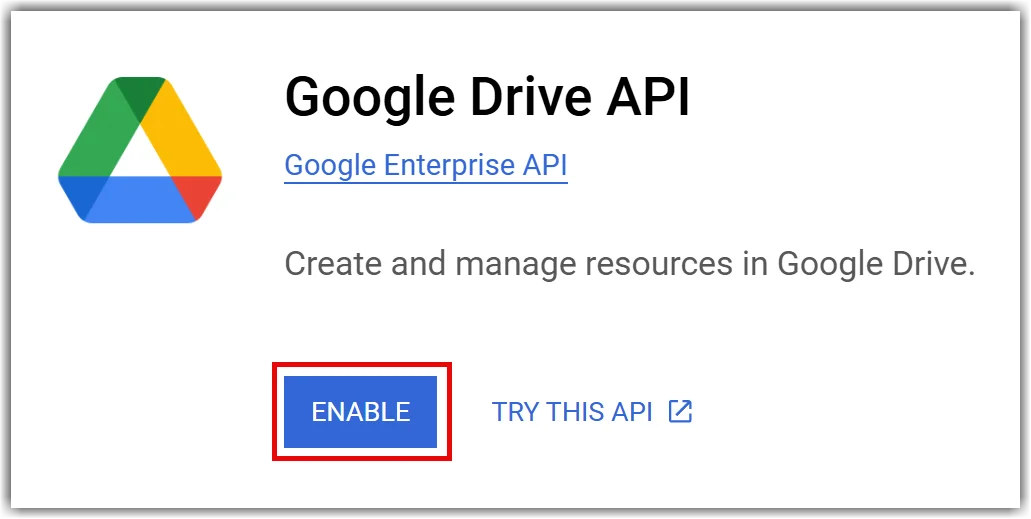
Click ENABLE.
-
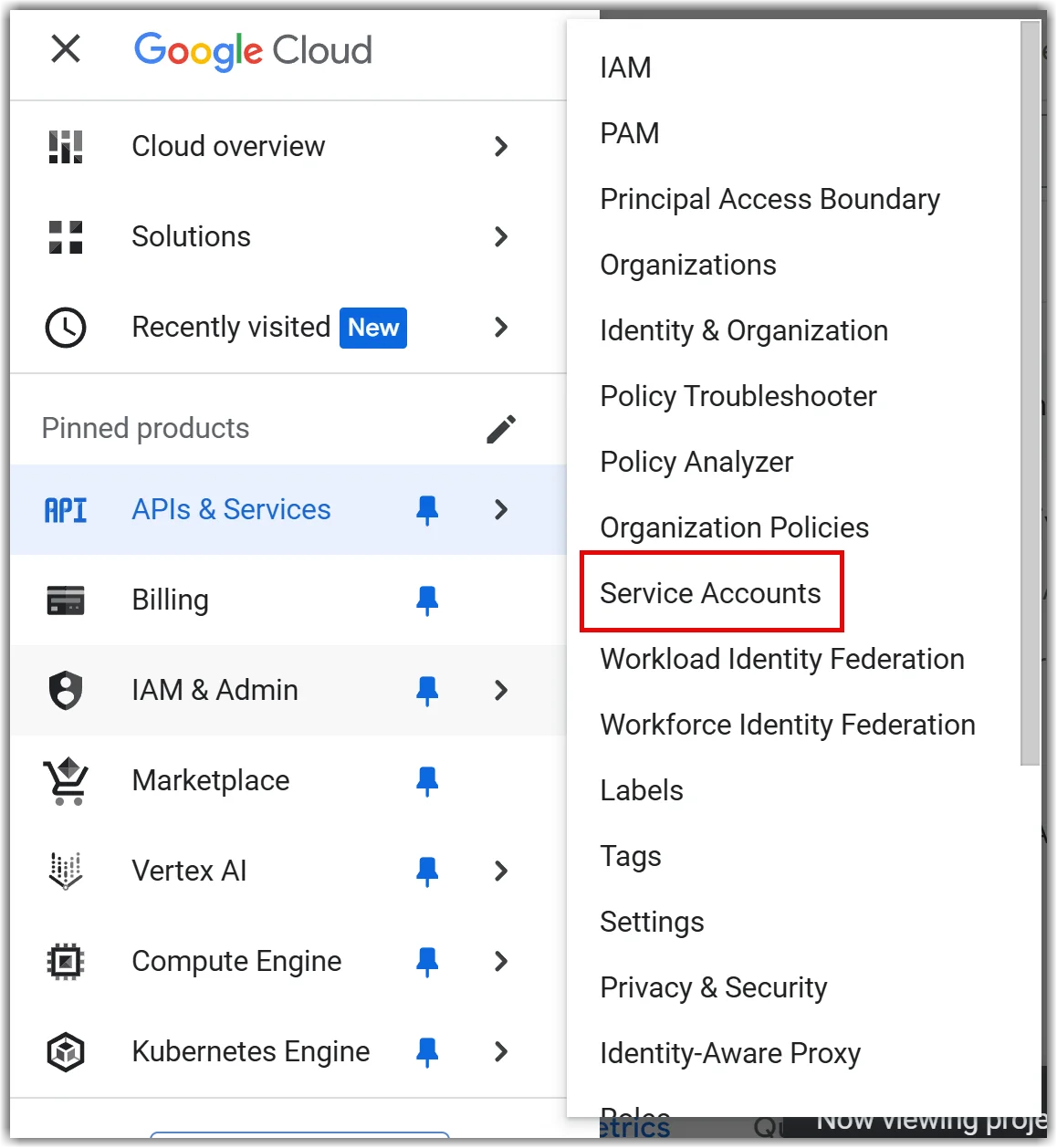
Click the hamburger icon in the top left corner again. Then, hover over IAM & Admin and click Service Accounts.
-
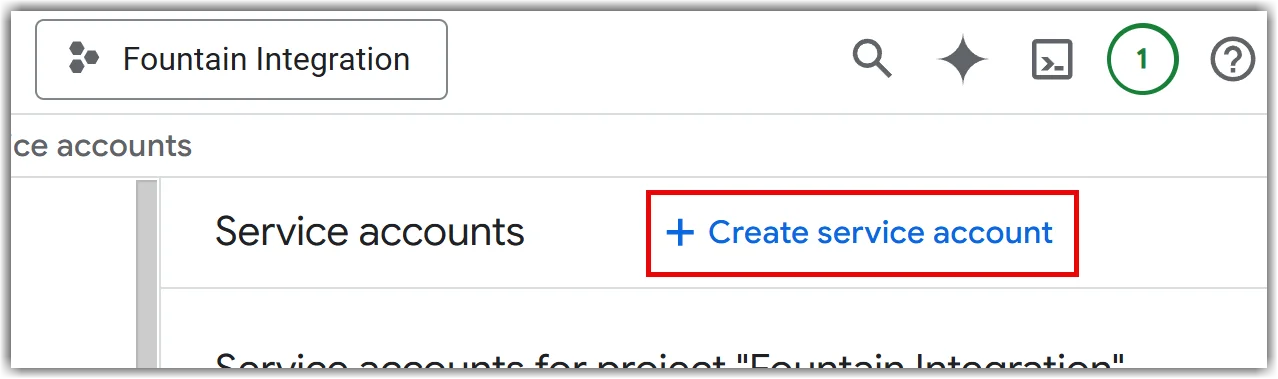
Click +Create service account towards the top by the search bar.
-
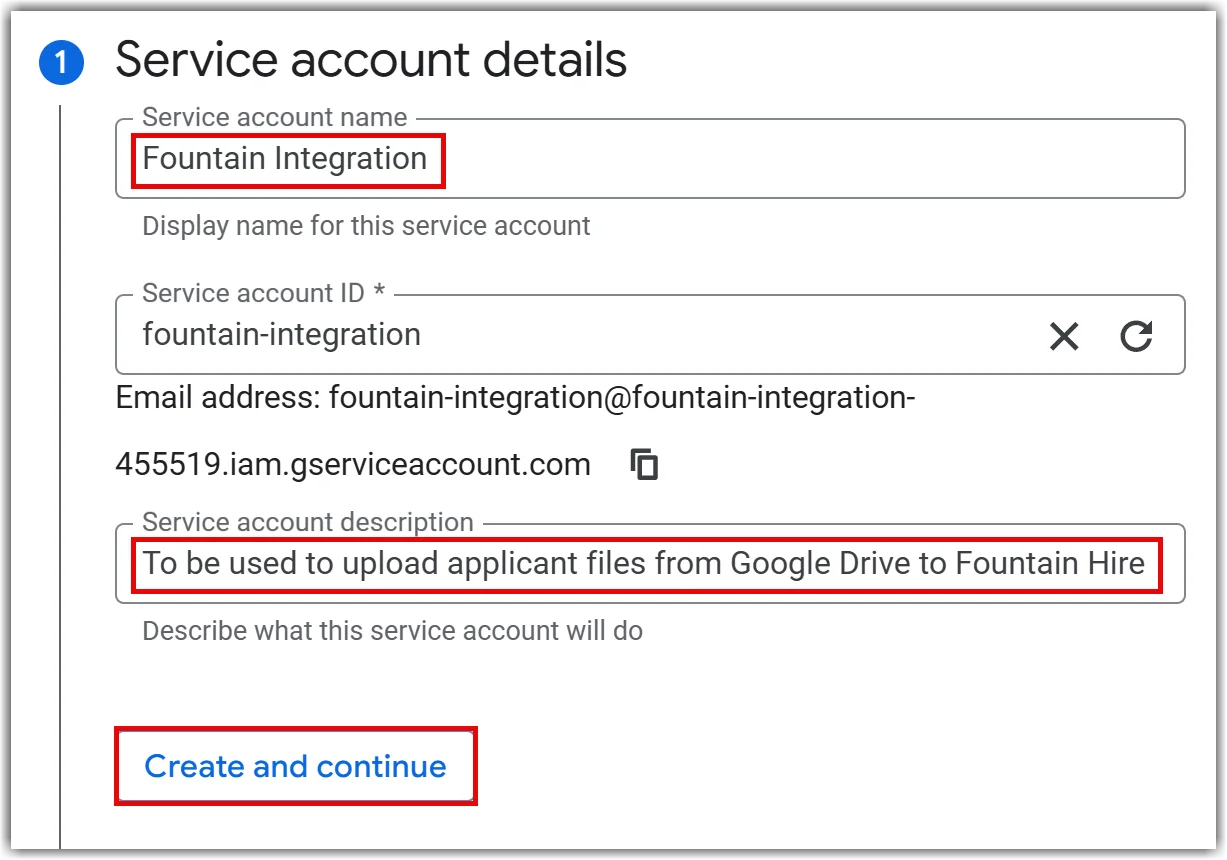
In step 1, type the name in the service accountname field. The Service account ID will autopopulate.
-
Next, type in a service description. Rekrutek recommends using “To be used to upload applicant files from Google Drive to Rekrutek Hire”.
-
Click Create and Continue.
-
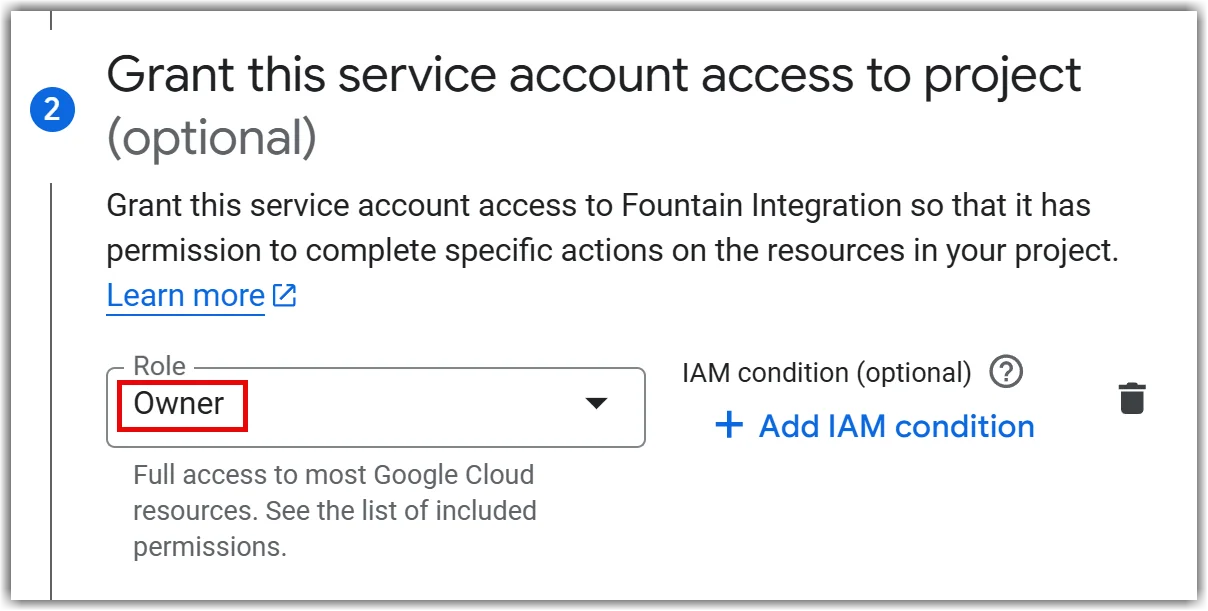
In step 2, select Owner in the Role field.
-
Click Continue. You do not need to make any changes in step 3.
-
Click Done.
-
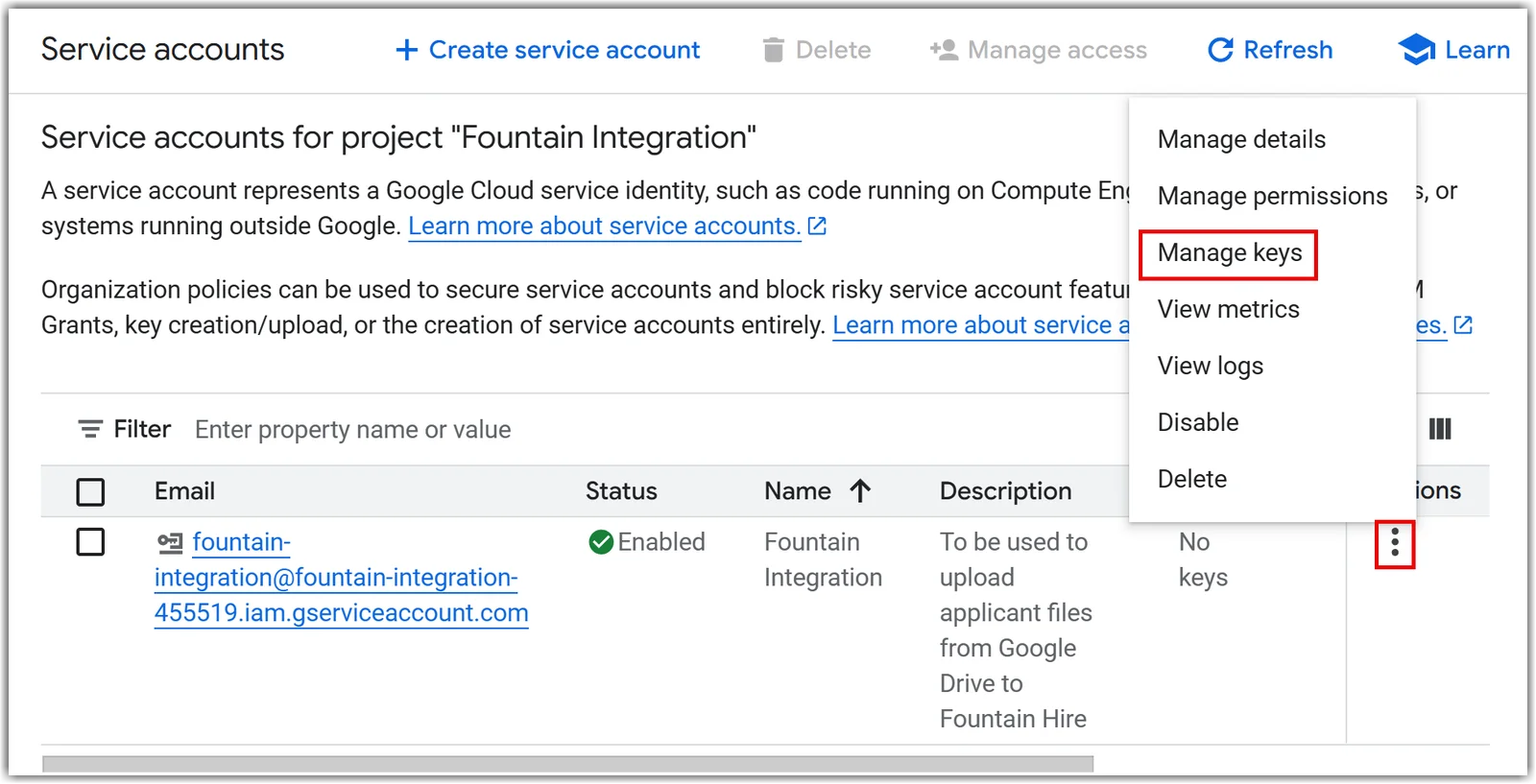
You will see the new service account listed. Click the 3 dots button to the right and then Manage keys.
-
Click Add key and then Create new key.
-
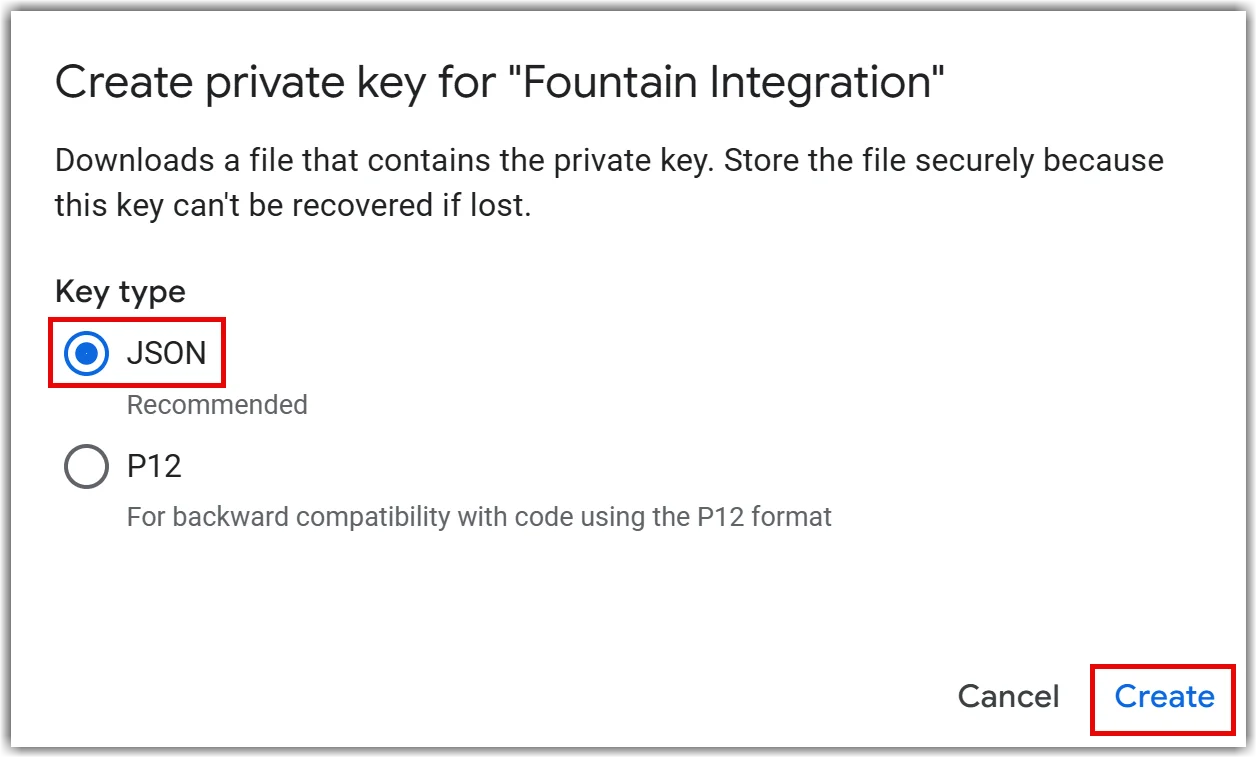
In the Create Private Key pop-up, select JSON and then click Create.
-
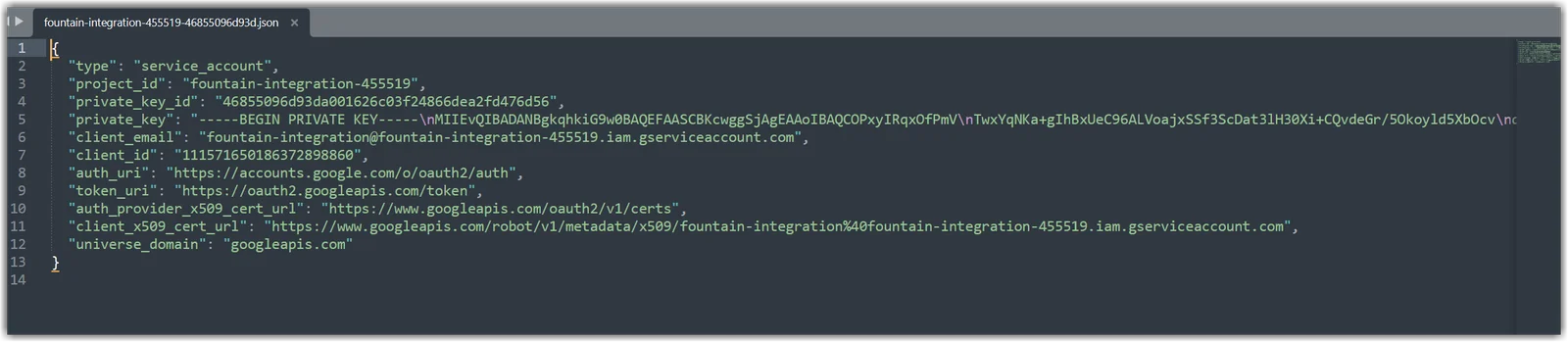
This will create a JSON file, which you’ll be prompted to save on your computer.
-
Once saved, open the file with a text editor. This will have the information you need to enter into Rekrutek.
-
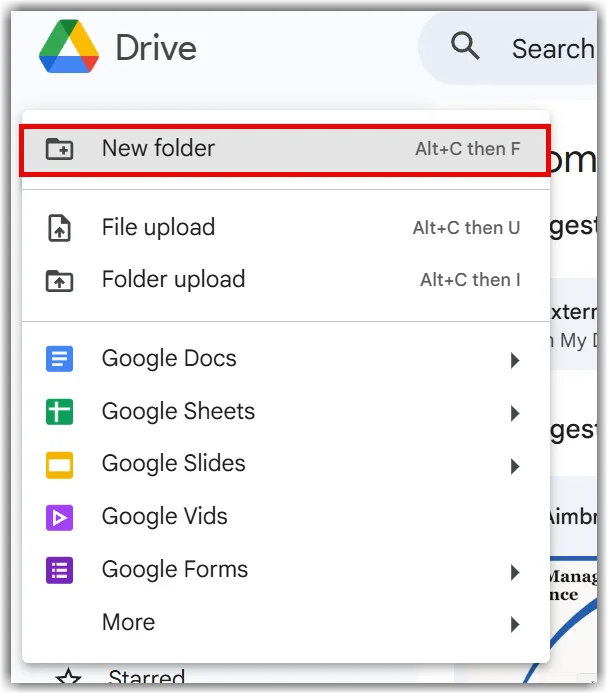
Go back to the browser tab that has Google Drive open.
-
Create a new folder.
-
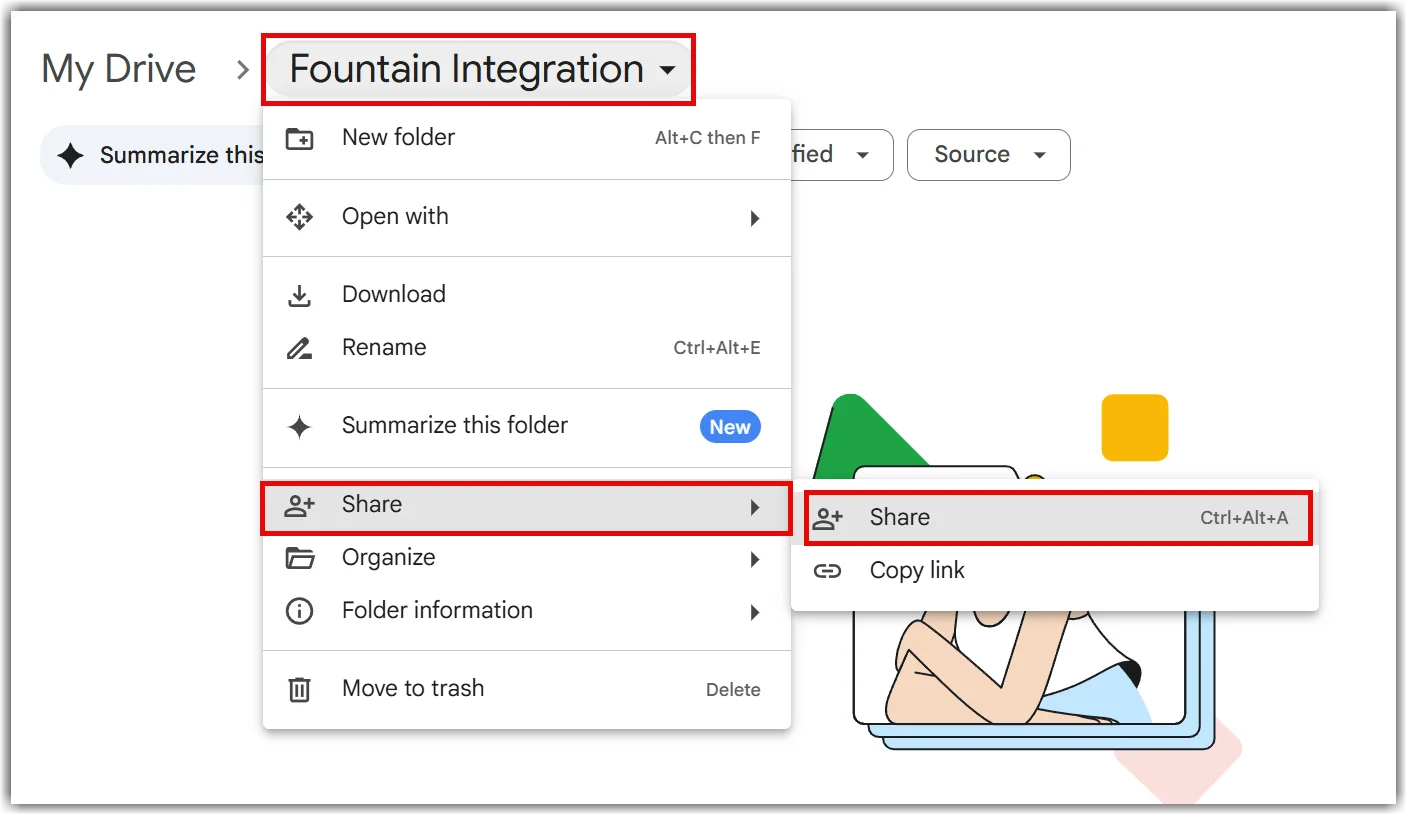
Share it with the email in the JSON file.
Rekrutek
Section titled “Rekrutek”-
Log in to Rekrutek.
-
Click your initial icon in the top right corner of any Rekrutek page and then click Integrations in the dropdown.
-
Click Screening on the left.
-
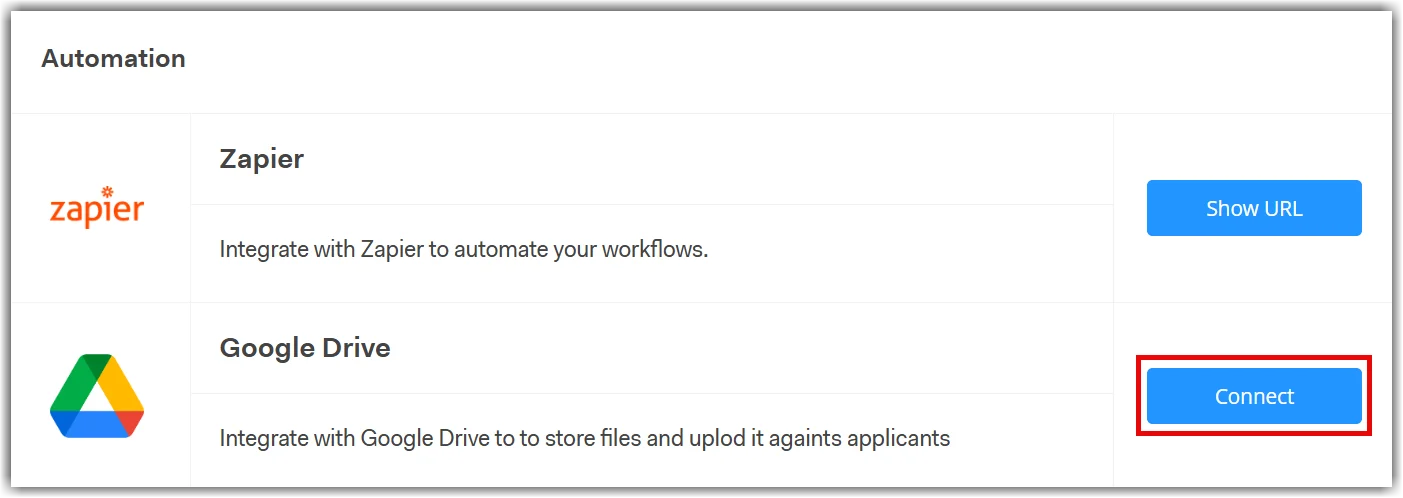
Under Automation, click Connect to the right of Google Drive.
-
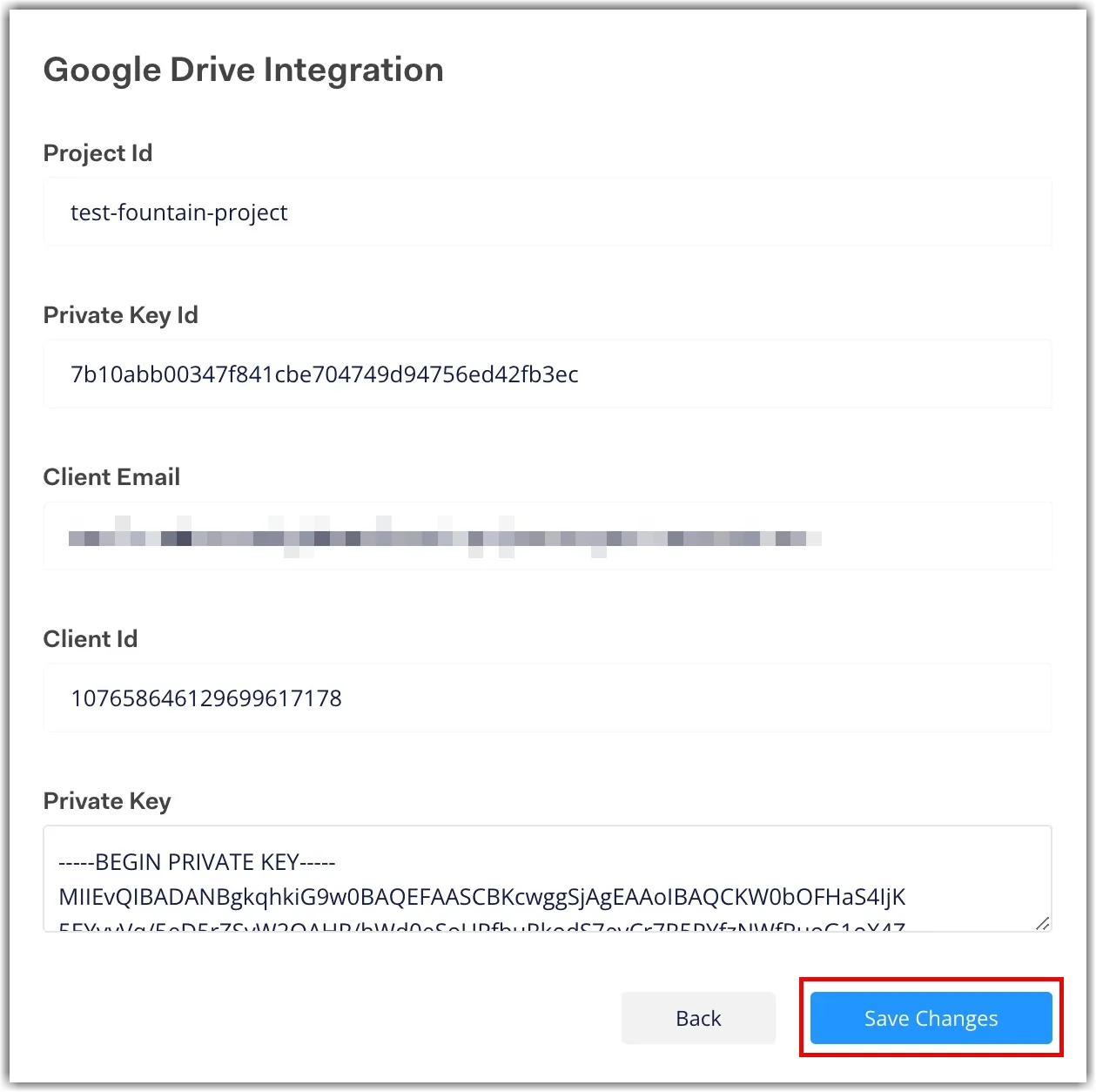
Enter the details from the JSON file into the fields.
-
While copying the private key, the text editor will add new line characters that will result in error (\n). You need to remove the \n characters (circled in the image below) before pasting the private key into Rekrutek. Contact support@rekrutek.ai if you have issues.

-
-
Click Save Changes.
Bulk Uploading Documents via CSV
Section titled “Bulk Uploading Documents via CSV”Once the integration is set up, follow the steps below to bulk upload applicant documents:
-
Within Rekrutek, navigate to the Applicant Table you want to import the applicants and documents into.
-
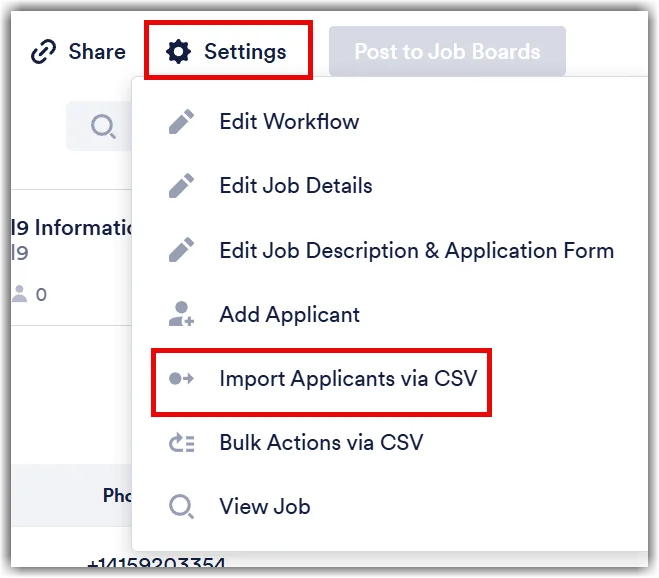
Click Settings and then Import Applicants via CSV.
-
Click Download Sample File.
-
Add a column with a header that begins with
file_, such asfile_resume. Thefile_prefix is required: Rekrutek uses it to recognize file-type fields. -
Paste the link for the file saved in the shared Google Drive folder into the column by the appropriate applicant. When you upload the CSV, that file will upload to the appropriate Applicant’s Profile!
