
Duplicate Applicants
If an applicant applies more than once to your job Openings, they can be identified as a duplicate in Rekrutek. These settings are managed within your Company Settings page.
View Duplicate Applicants
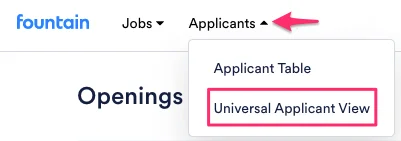
Section titled “View Duplicate Applicants”Duplicate applicants can currently be identified by email, phone number, and name. Navigate to the Openings page and click Applicant Table or Universal Applicant View from the Applicants dropdown menu.
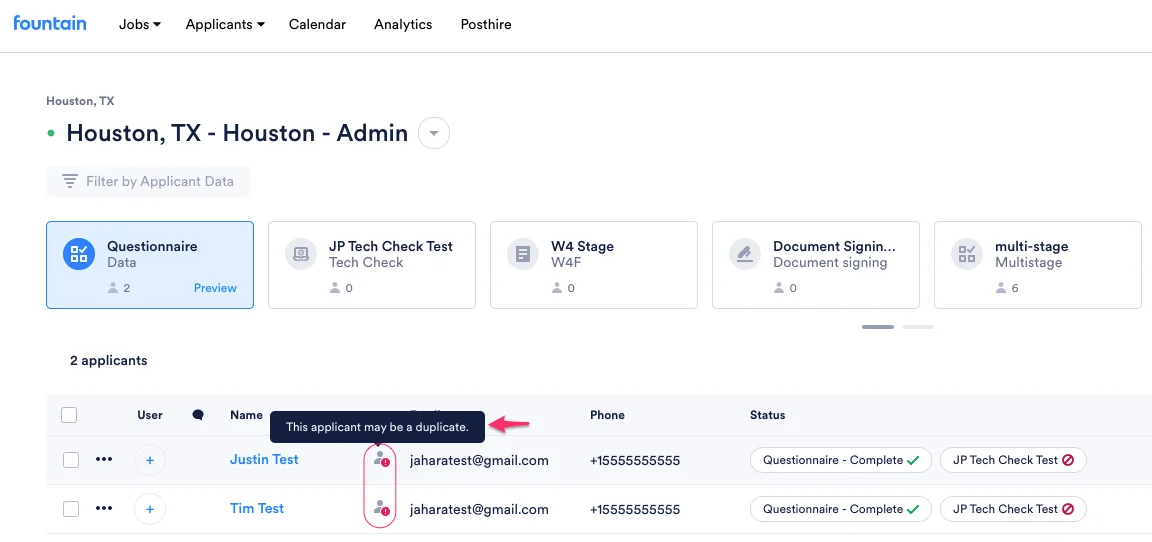
When an exclamation point icon appears next to an applicant’s name, it means that the applicant has a duplicate profile in Rekrutek.
Duplicate Applicants in Applicant Profiles
Section titled “Duplicate Applicants in Applicant Profiles”If you click on an applicant and open their profile, the number of duplicate applicants will be available in the top menu bar next to the applicant’s name.
If you click the dropdown arrow and choose View all applications, the list of duplicate applications containing the duplicate information will appear.
Duplicate Applicant Settings
Section titled “Duplicate Applicant Settings”You can customize how you want to identify and handle duplicate applicants via Company Settings.
- Hover over your initials icon in the top right corner, then click Company Settings in the dropdown.
- Under App Settings, click Duplicate Settings.
Duplicate Criteria
Section titled “Duplicate Criteria”To set the parameters for duplicate applicants in your account, you can utilize any of the data keys displayed below. Rekrutek will flag Applications if any of the data fields you select are an exact match.
Duplicate Rules
Section titled “Duplicate Rules”You can prevent applicants from applying more than once by choosing certain rejection reasons to automatically block. After that, you can define what happens when an identified duplicate applicant re-applies.
- Can apply more than once without restrictions - applicants can apply more than once to any job
- Can apply to each Job Opening once - applicants cannot apply more than once to any Opening. You can apply a timeframe restriction by using the Time-Bound Duplicate Applications feature listed below.
- Can NOT apply again - applicants cannot apply to any other position listed in your Public Directory if they have already submitted an application to one. You can apply a timeframe restriction by using the Time-Bound Duplicate Applications feature listed below.
Time-Bound Duplicate Applications
Section titled “Time-Bound Duplicate Applications”If you have restrictions at the account level or Opening level around whether an applicant can apply more than once, you can define how many days need to pass until the second application will be permitted. This toggle will only appear if the Can apply to each Job Opening once or Can NOT apply again options are selected. The number of days that need to pass can be adjusted by typing in the __days box. You must enter a number higher than zero in this box. This feature is especially helpful for seasonal roles where someone might be eligible to apply again once it is a new season.
Utilizing this toggle does not affect how applicants are defined as a duplicate in the system. This is still determined by the selected duplicate criteria.
Duplicate Message
Section titled “Duplicate Message”You can customize the message that will be shown to applicants that are blocked by Duplicate Rules.