Internal Career Site
Rekrutek’s Internal Career Site is a powerful addition to Rekrutek’s traditional Jobs Directory that enables you to prioritize your internal talent pipeline. With the Internal Career Site, you can exclusively publish job Openings to your active employees for a customizable period before making them available to the general public.
Through secure SSO integration, your employees will gain streamlined access to these internal job opportunities. Rekrutek then automatically tags those internal applicants with unique identifiers, enabling your recruiters to easily identify and prioritize them in your applicant pool in Rekrutek Hire
Ultimately, the Internal Career Site helps build stronger employee retention, optimizes your recruitment costs, and improves your candidate quality.
Key Benefits
Section titled “Key Benefits”- Prioritize Internal Talent - Boost employee engagement by providing exclusive first access to job opportunities through s seamless SSO login
- Intelligent Publishing Controls - Empower recruiters with flexible options to publish jobs internally first, with automated rules that transition postings to the public after a customizable timeframe
- Streamlined Workflow Integration - Seamlessly aligns with existing approval processes and allows for customized applicant workflows using Rule stages, creating preferential treatment for internal candidates
- Enhanced Recruitment ROI - Reduce sourcing costs and improve candidate quality by leveraging your pre-vetted internal workforce before opening positions to external candidates
Activation
Section titled “Activation”If your company is using SSO and you are interested in using the Internal Career Site, contact your Rekrutek Customer Success contact or support@rekrutek.ai to enable the Internal Career Site in your account.
SSO Configuration Requirements
Section titled “SSO Configuration Requirements”The Internal Career Site requires two separate SSO configurations to function properly:
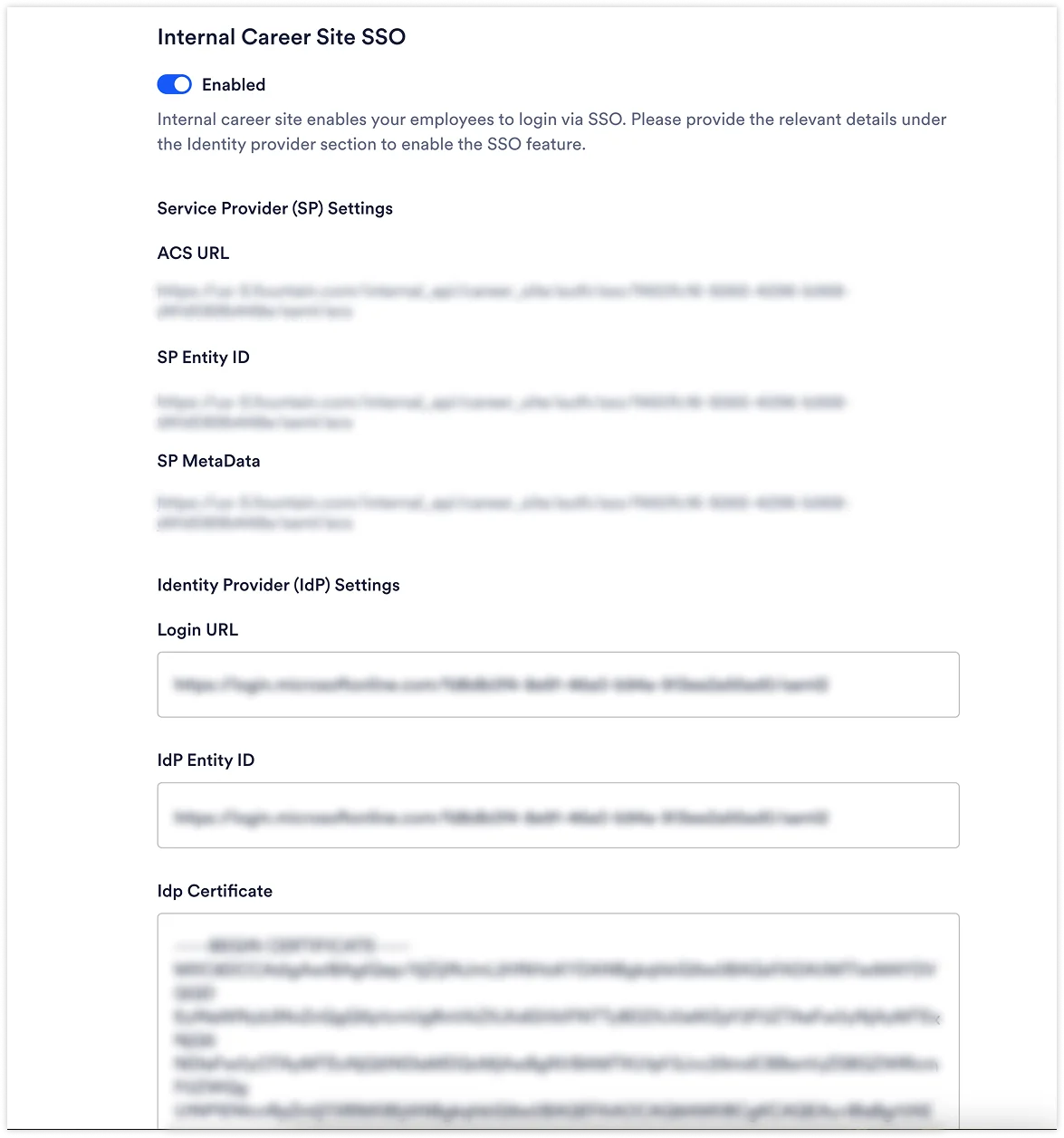
1. Jobs Directory SSO (for Internal Career Site workers)
-
Purpose: Allows your employees/workers to log in to the Internal Career Site
-
Configuration location: Jobs Directory settings in Rekrutek Hire Company Settings
-
Who uses it: Your workforce accessing internal job postings
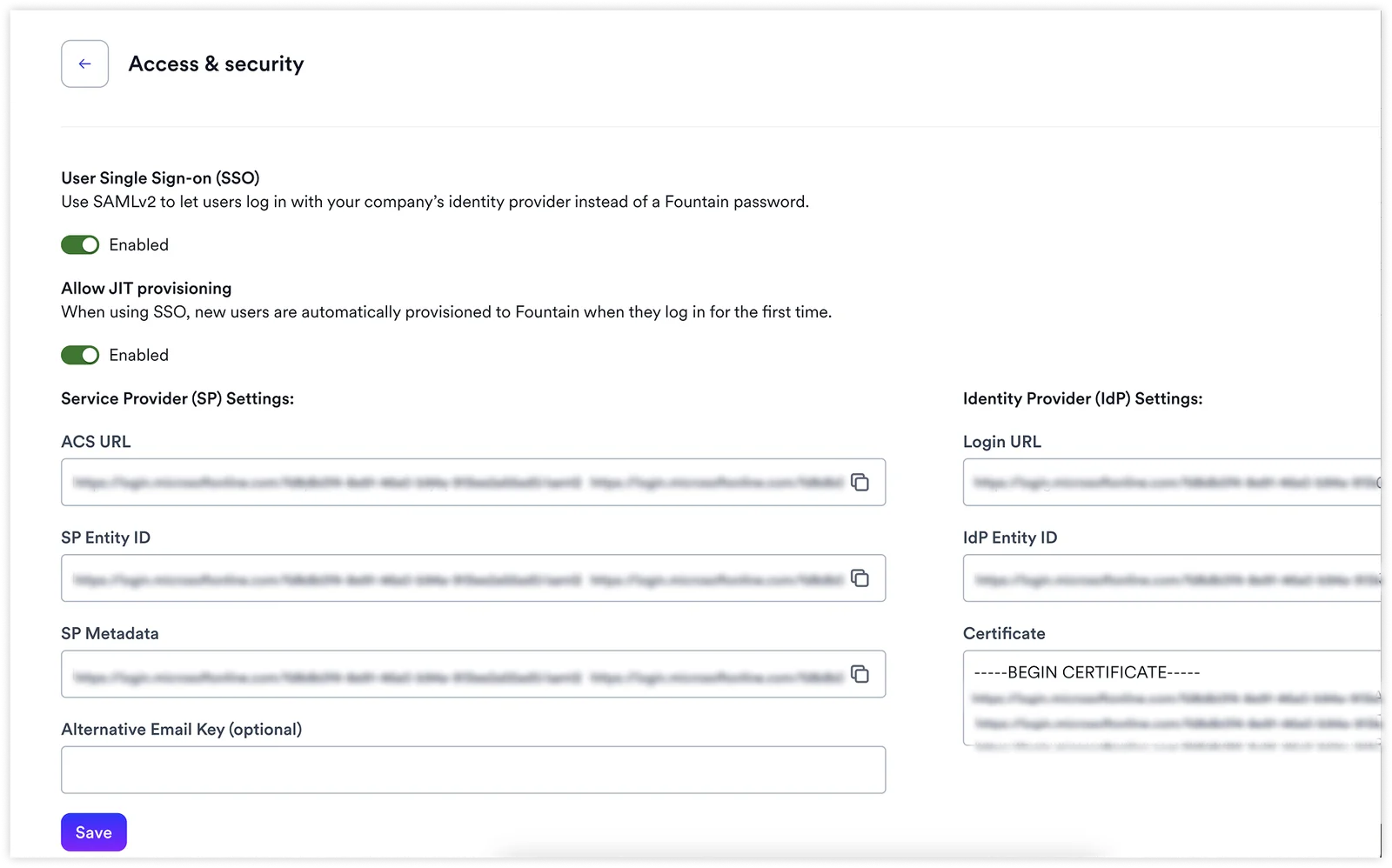
2. Platform SSO (for Rekrutek users)
-
Purpose: Allows your recruiting team to log in to Rekrutek products
-
Configuration location: Platform SSO in Settings > Security
-
Who uses it: Your Rekrutek users accessing Rekrutek products to use and manage them
Adding Openings
Section titled “Adding Openings”When recruiters create a new Opening, they will need to indicate that this should be included in the Internal Career Site and, optionally, the timeframe before this Opening is visible to the public.
Follow the steps below to add the Opening to the Internal Career Site:
-
On the Rekrutek Hire Job Openings page, click the Create Job Opening button towards the top right.
-
Select a position and location. Update the Opening name if desired.
-
Click Next.
-
Complete the Job Details screen fields.
-
Click Advanced Settings.
-
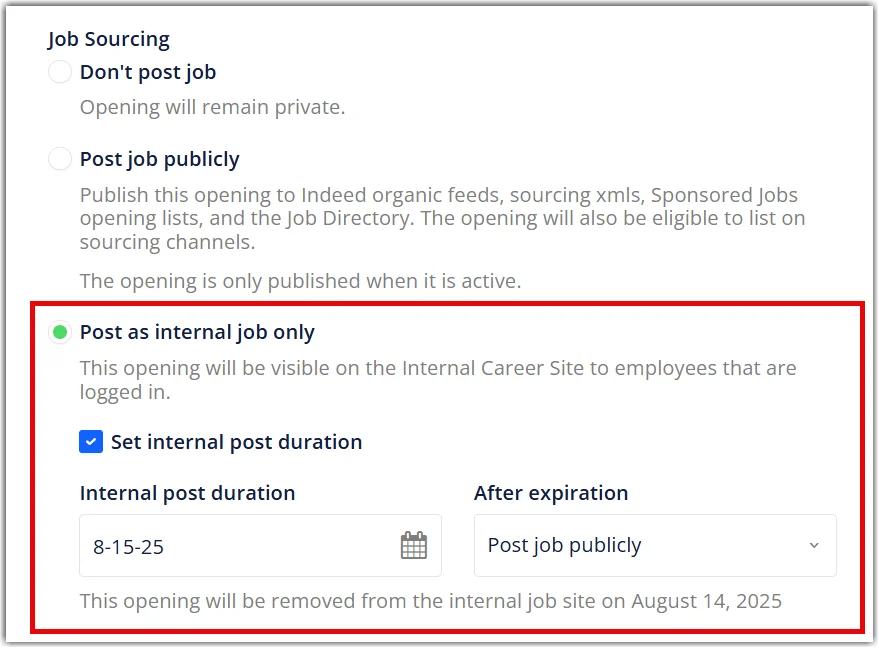
In the Job Sourcing section, click the Post as internal job only bubble to enable.
- If you want to set a duration until the post automatically moves to public, check the Set internal post duration checkbox and select a date.
-
Click Save.
-
Continue with the Opening creation process outlined in this article.
Viewing & Sharing the Internal Career Site
Section titled “Viewing & Sharing the Internal Career Site”To view or share the Internal Career Site, follow the steps below:
-
In Rekrutek Hire, click Jobs in the top toolbar and then Jobs Directory.
-
Click Login in the top right corner.
- If sharing the Internal Career Site SSO, this screen (after clicking Login) is the URL link that should be shared.
-
Log in through your company SSO.

Reviewing Internal Candidates
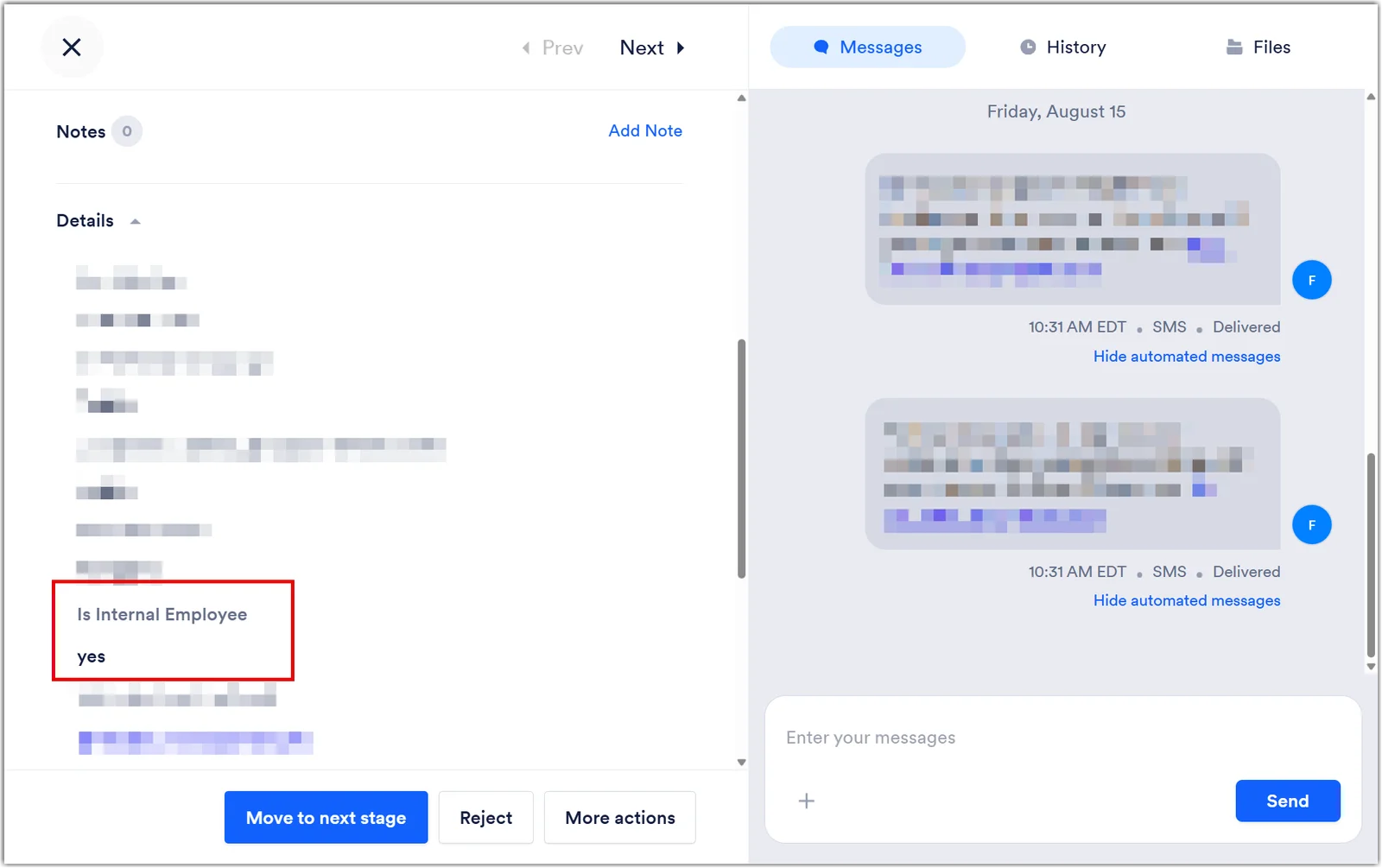
Section titled “Reviewing Internal Candidates”Recruiters can see if an applicant has applied through the Internal Career Site by reviewing their Applicant Profile in Rekrutek Hire. This will be indicated in the Details section with a “yes” under the “Is Internal Employee” question, as seen below.
Filters
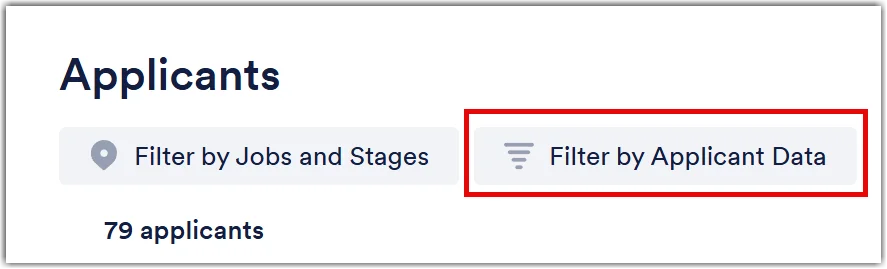
Section titled “Filters”If recruiters want to filter for only Internal Career Site candidates, they can use the Filter by Applicant Data button on either the Applicant Table or Universal Applicant View.
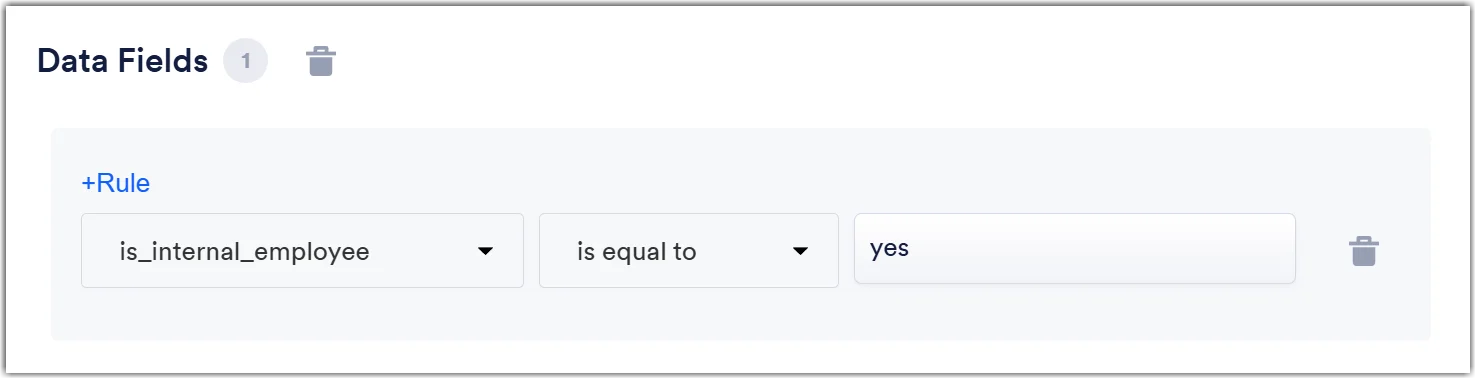
Create the filter for the is_internal_employee Data Field as seen below.