
Recruitics Conversion Tracking Setup
Recruitics is a data-powered recruitment marketing firm. They partner with the world’s leading brands, accelerating their ability to attract and hire top talent.
Rekrutek’s Conversion Tracking Manager enables you to manage your Recruitics tracking scripts within the Rekrutek Platform.
Activate Recruitics Javascript
Section titled “Activate Recruitics Javascript”In order for Recruitics to operate correctly, you will need to activate the Recruitcs Javascript in Rekrutek. Follow the steps below to activate the javascript:
-
Once logged into Rekrutek, click your initials icon then click Company Settings.
-
On the Company Settings page, click Conversion Tracking under App Settings.
-
Click Add Conversion Tracker.
-
Select Recruitics in the Network dropdown menu and type a description for the tracker.
-
Click Next Step.
-
Type generic_recruitics in the Parameters field. Please note: there is no formal Tracker ID or API Key for the Recruitics script.
-
Click Next Step.
-
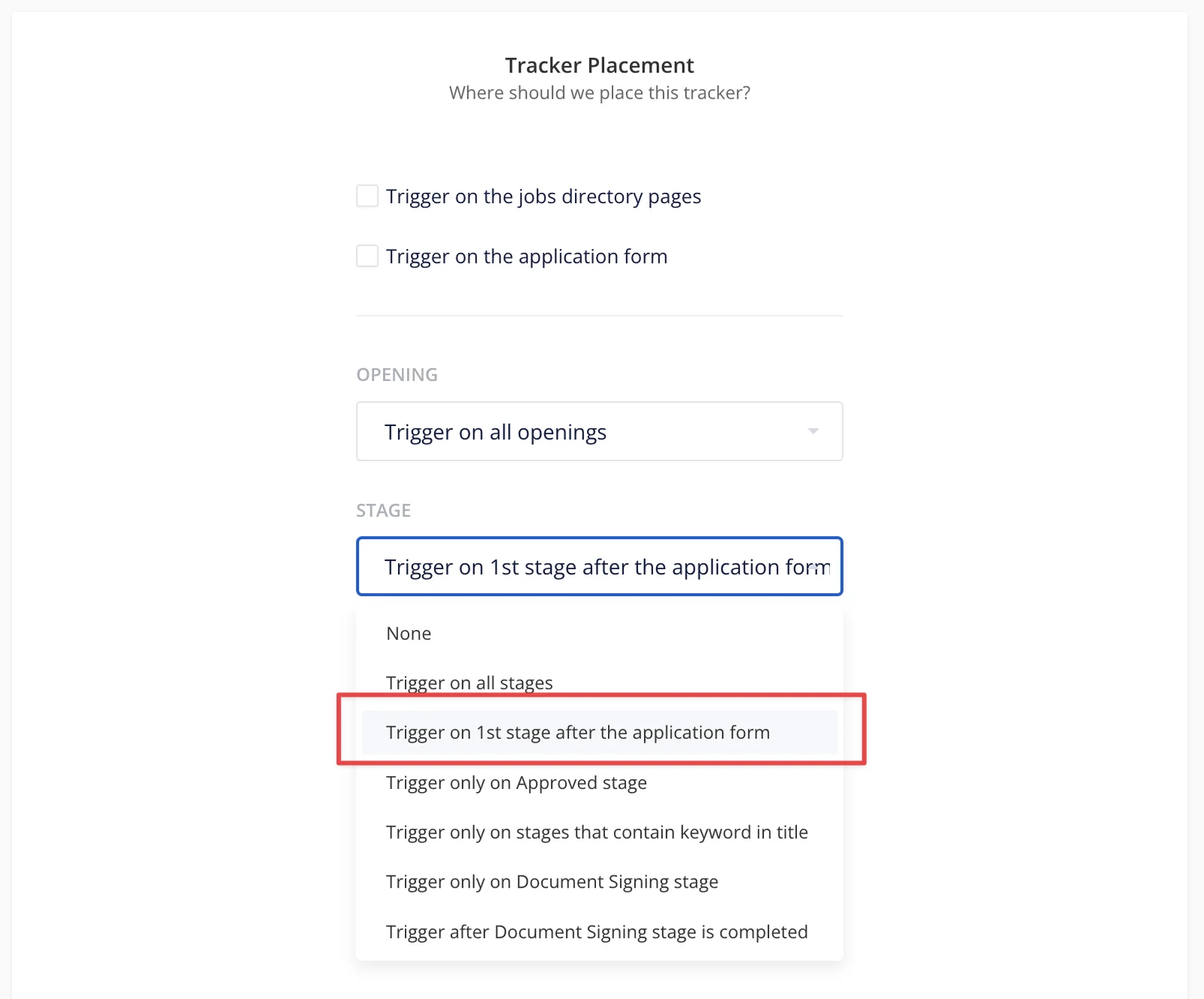
Check the box next to Trigger on the jobs directory page if your company is using the Rekrutek’s Job Directory. Also, check the box by Trigger on the Application form. Leave the Opening dropdown with Trigger on all openings selected. In the Stage dropdown, select Trigger on 1st stage after the application form. This will cause the trigger to fire once an applicant completes the application form.
-
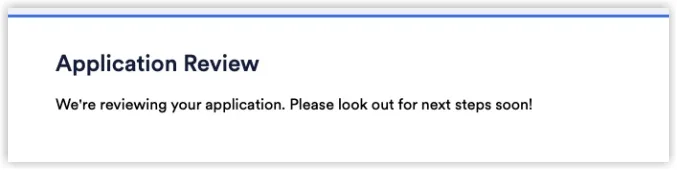
To track Hire (completed Rekrutek workflow), you will need to identify which stage in the Rekrutek workflow the applicant is taken to upon completion and leverage the keyword functionality in the conversion tracker instead of “after the application form.”
-
-
Click Next Step.
-
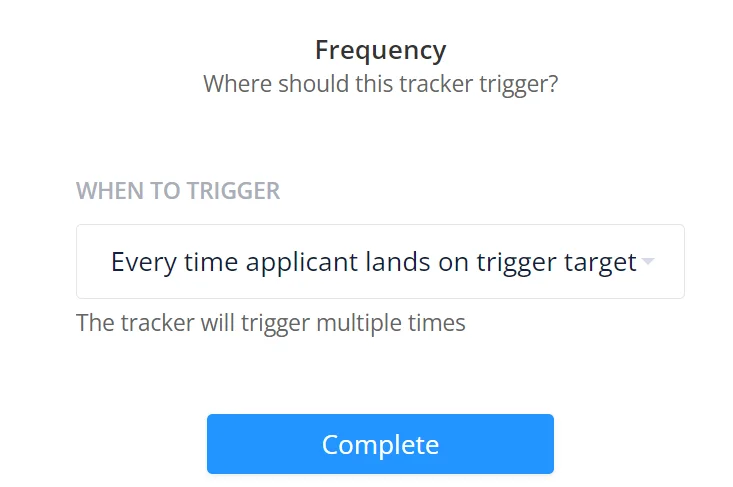
In the Frequency When to Trigger dropdown, leave Every time applicant lands on trigger target selected.
-
Click Complete.
Expose Anonymous Applicants’ IDs
Section titled “Expose Anonymous Applicants’ IDs”In order for Recruitics to successfully track all applicants moving through your Opening’s workflows, you must set up Rekrutek to expose anonymous applicants’ IDs. Follow the steps below to expose anonymous applicants’ IDs:
-
Once logged into Rekrutek, click your initials icon then click Company Settings.
-
On the Company Settings page, click Conversion Tracking under App Settings.
-
Click Add Conversion Tracker.
-
Select Custom in the Network dropdown menu and type a description for the tracker. We recommend typing Applicant ID as the description.
-
Click Next Step.
-
In the Custom Javascript Step box, enter:

-
Click Next Step.
-
Check the box next to Trigger on the jobs directory page if your company is using the Rekrutek’s Job Directory. Also, check the box by Trigger on the Application form. In the Opening dropdown select Trigger on all openings. In the Stage dropdown, select Trigger on all stages.
-
Click Next step.
-
In the Frequency When to Trigger dropdown, select Every time applicant lands on trigger target selected.
-
Click Complete.