Onfido
Onfido is an IDV (ID Verification) provider based out of London, UK. They provide ID Verification services using the most cutting-edge technology with AI for face detection, ID verification, etc. Onfido helps companies with various use cases like KYC (Know Your Customer), User Onboarding, User Verification, Fraud Detection, etc.
Get Onfido Account
Section titled “Get Onfido Account”In order to enable our Onfido integration, you’ll need to create an account by reaching out to the Onfido team here. Already have a Onfido account? Please skip to the next section.
Set up Onfido Integration
Section titled “Set up Onfido Integration”-
Reach out to support@rekrutek.ai or the Customer Success team to enable this feature on your account. Once Onfido has been enabled for your account move to step 2.
-
Contact the Onfido team to request the relevant API Key and Account ID.
-
Copy it for use in Rekrutek.
-
Go to the Rekrutek page. Hover over your username on the top right, and click Integrations.
-
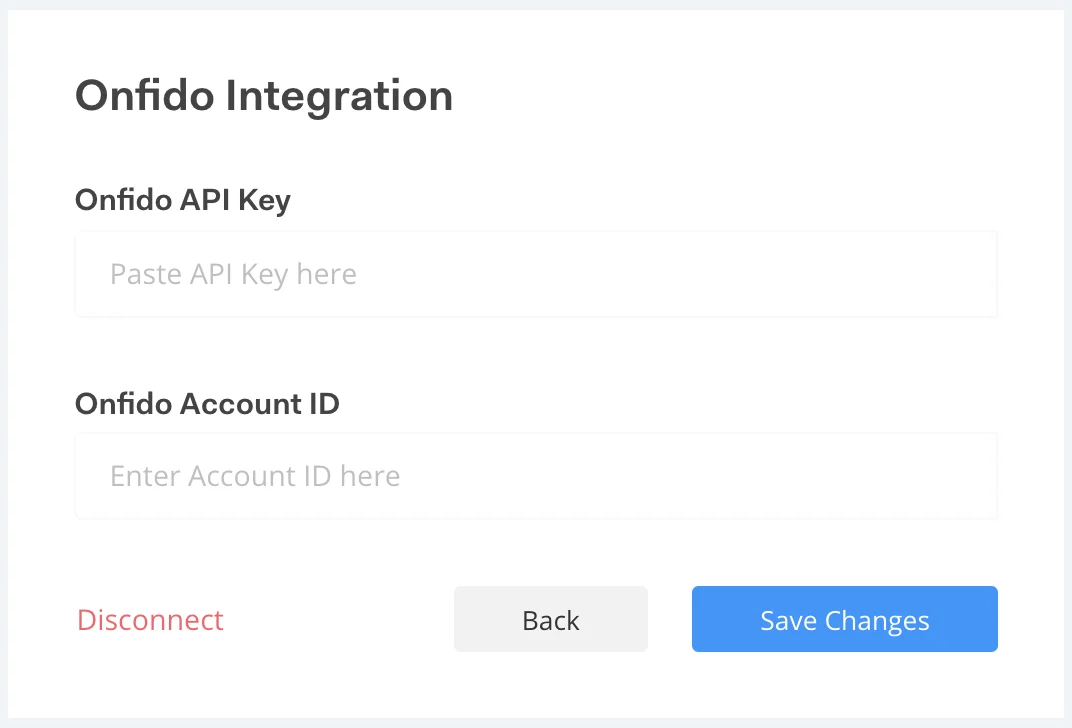
Click on Screening tab on the left side. Click Connect to the right of Onfido.
-
Enter your Onfido API Key and Account ID.
-
Click Save Changes, and you’re done!
Set up Webhooks
Section titled “Set up Webhooks”-
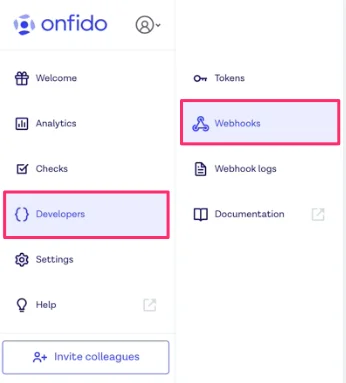
Log in to your account in Onfido’s website and select the Developers tab in the left menu.
-
Select Webhooks.
-
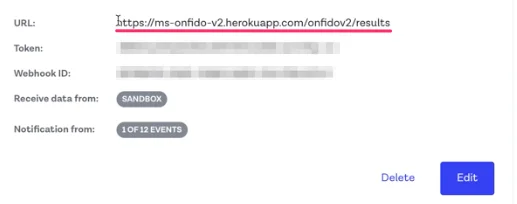
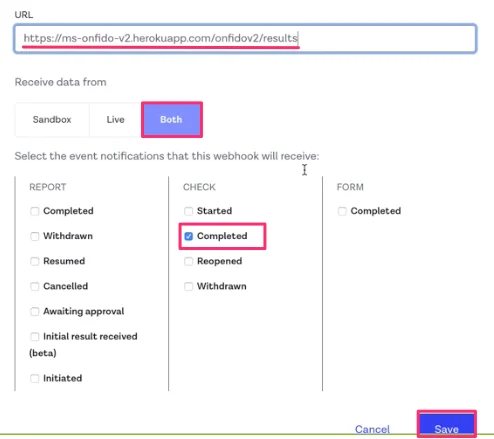
To create a webhook you will need to copy this URL: **https://ms-onfido-v2.herokuapp.com/onfidov2/results**
-
Select Create Webhook.
-
Uncheck all of the check boxes located in the create webhook window; except the Completed box in the CHECK section.
-
Paste the URL we copied in step 3 into the URL field.
-
Select Save.
Add Onfido Stage to Workflow
Section titled “Add Onfido Stage to Workflow”- Choose Onfido Partner Stage to add the stage to your Opening’s workflow. Check out our article on how to add a stage here.
- When an applicant lands in the Onfido Partner Stage in the application workflow, he will be going through a seamless Rekrutek-hosted iFrame flow for Onfido’s IDV.
- Once an applicant submits relevant info, they will automatically move to the next stage depending on the stage configuration.
Onfido Partner Stage Rule
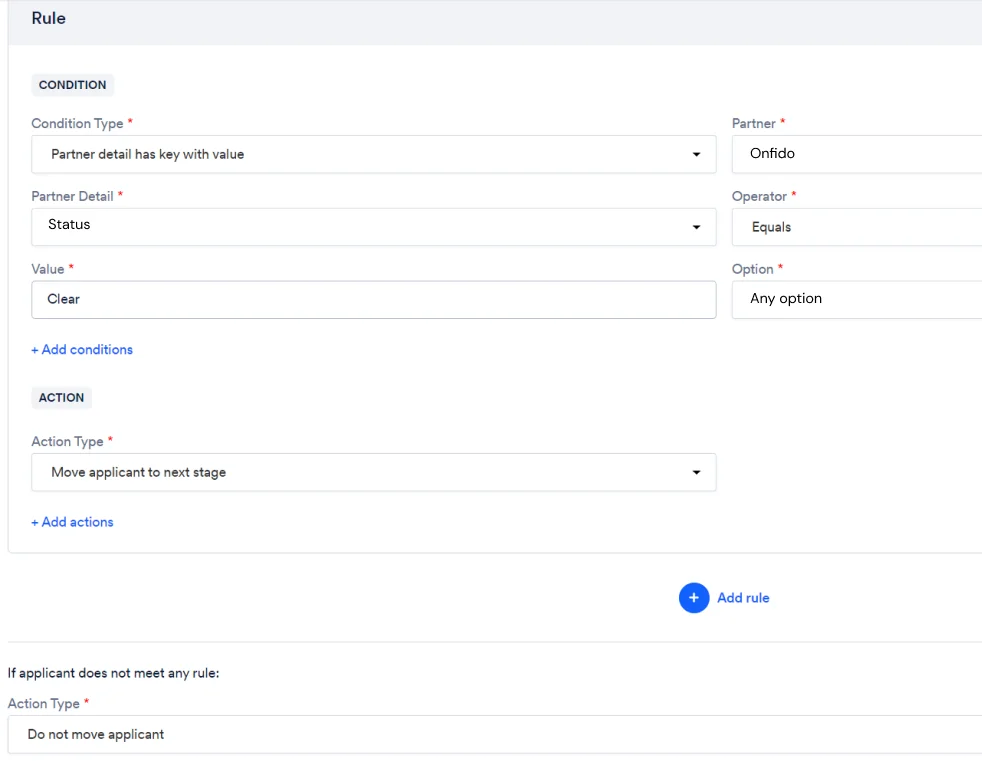
Section titled “Onfido Partner Stage Rule”You can create partner stage rules on applicants in the Onfido stage in the workflow editor. There are six statuses you can take action on Incomplete, In Progress, Waiting, Clear, Consider, and Error. Explanation of the status and their values are:
- Incomplete indicates an applicant hasn’t started the IDV process yet for Onfido workflow
- In Progress indicates an applicant is in the process of submitting all data to Onfido
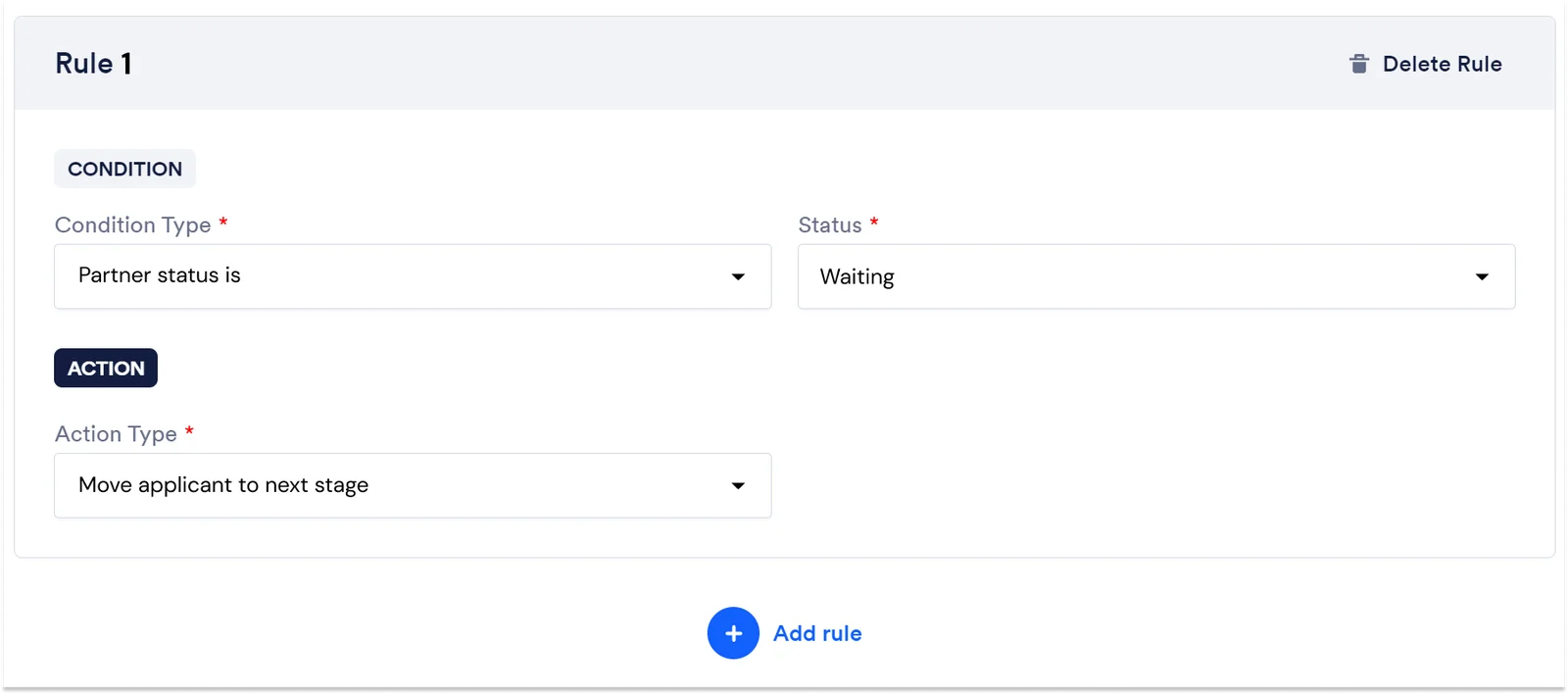
- Waiting indicates an applicant submitted all data to Onfido, awaiting final result from Onfido
- Clear indicates an applicant passed the IDV screening from Onfido
- Consider indicates an applicant failed the IDV screening from Onfido
- Error indicates there is an error, canceled, etc. for Onfido status
This integration also supports Partner Detail functionality. Partner Details are detailed reasons why an applicant might fail the ID Verification process. Users can create rules in the Onfido partner stage or the Custom stage with rules depending on the use case to move the applicants through the funnel.
An example of the Partner stage with rule in the Onfido partner stage:
An example rules setting in the Custom Stage with Rules: