
Rekrutek's Candidate AI Agent (CAI)
Your recruiters spend hours responding to applicant questions; Rekrutek can help them reclaim that time with Candidate AI Agent (CAI). Candidate AI Agent is an AI-powered feature that sits on top of your Job Directory website or the Rekrutek Applicant Portal in the form of a chat widget. It is designed to help save a recruiter’s time and unblock applicants by responding to the most common applicant questions.
Rekrutek’s Candidate AI Agent, or CAI for short, is an AI-powered chat widget that sits on top of your career website, Jobs Directory, or within the Rekrutek Applicant Portal. It is designed to help save recruiters’ time and unblock stuck applicants by responding to the most common applicant questions.
▶ Watch how to create a Candidate AI Agent
Section titled “▶ Watch how to create a Candidate AI Agent”AI Agent Setup
Section titled “AI Agent Setup”There are three components to setting up your AI Agent - personalizing the AI agent, setting the AI agent functions, and training the AI agent. To set up your widget, follow the steps below:
-
Navigate to Company Settings by clicking on your initial icon in the top right corner of any Rekrutek page. Then click Company Settings in the dropdown.
-
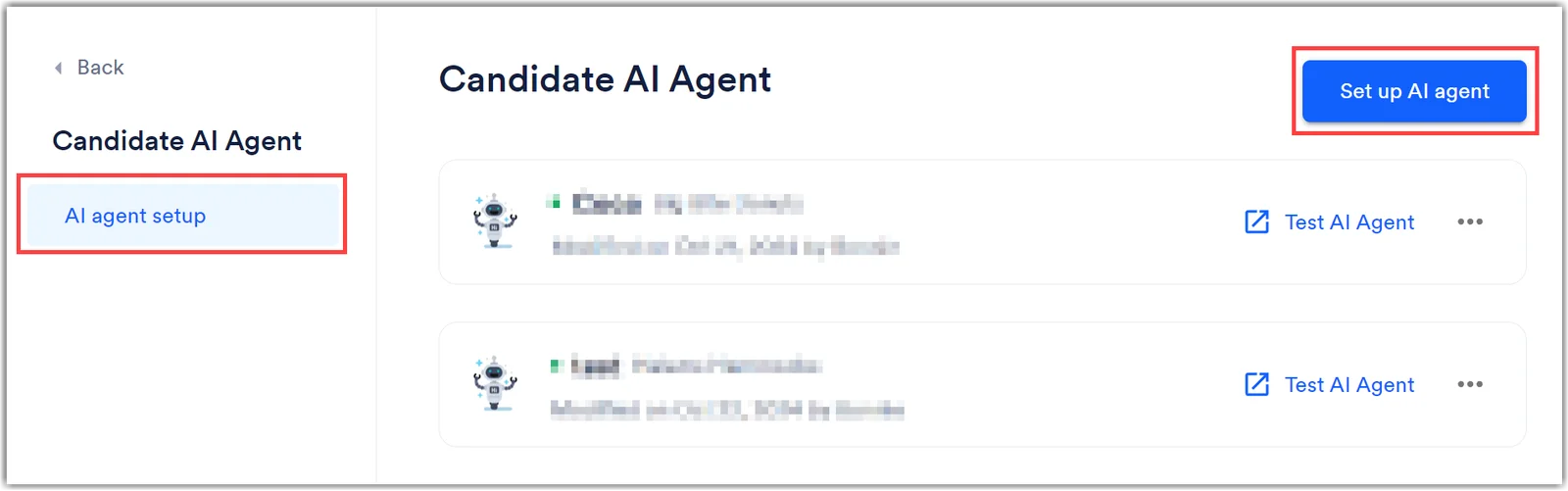
Click Candidate AI Agent in the toolbar on the left.
-
Click Set up AI agent. Please note, a preview of the widget will be visible on the right as you customize the options throughout the next steps.
-
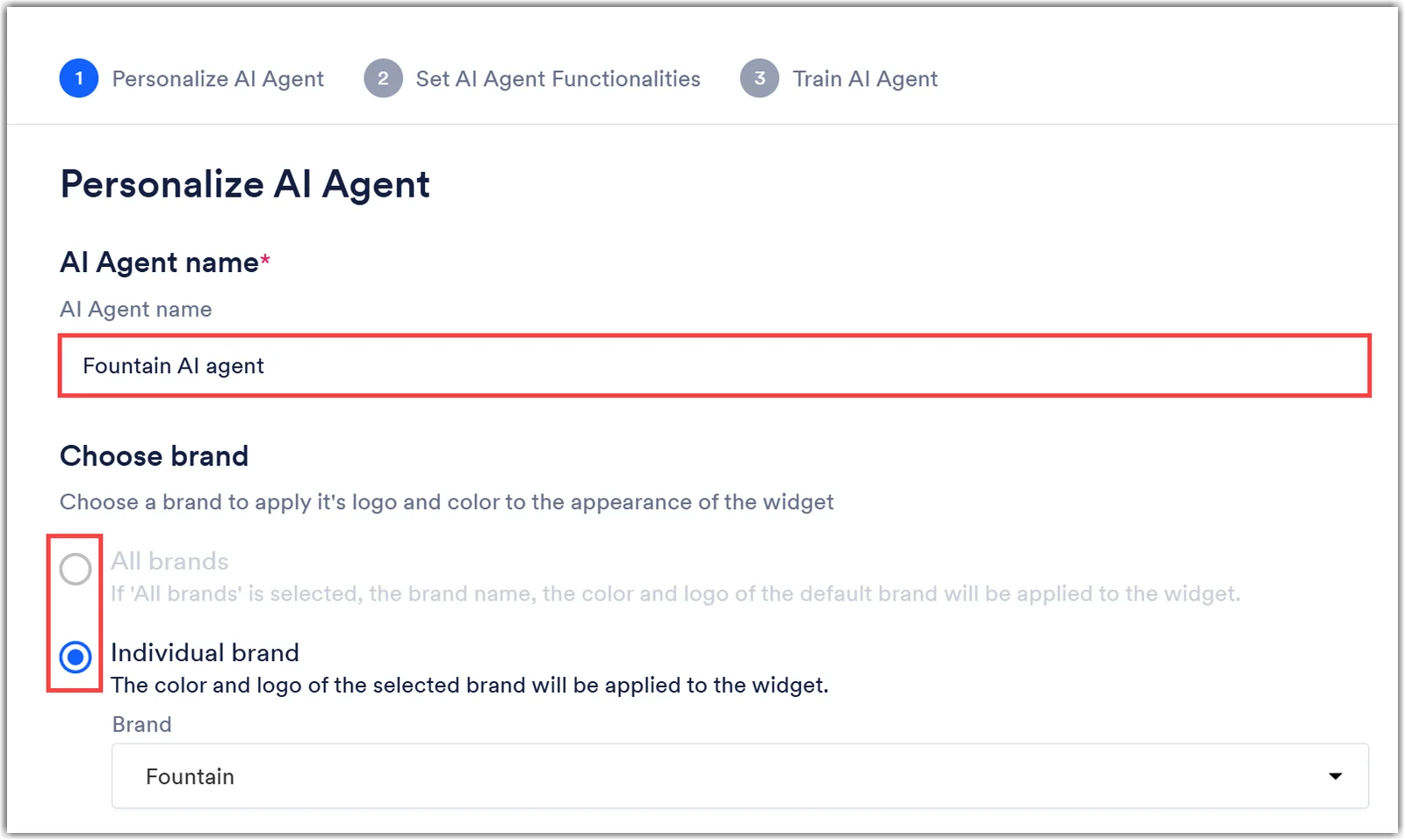
Type a name for the AI Agent. Rekrutek recommends choosing a name that represents your company and adds a personal touch to interactions. Some examples are “Stephanie” or “AI Recruiter Rex”.
-
Choose whether you are creating the widget for all brands under your company’s account or an individual brand. If you choose an individual brand you must select the brand in the dropdown. With the individual brand option, you will also have the ability to create additional AI Agents for other brands in your account.
-
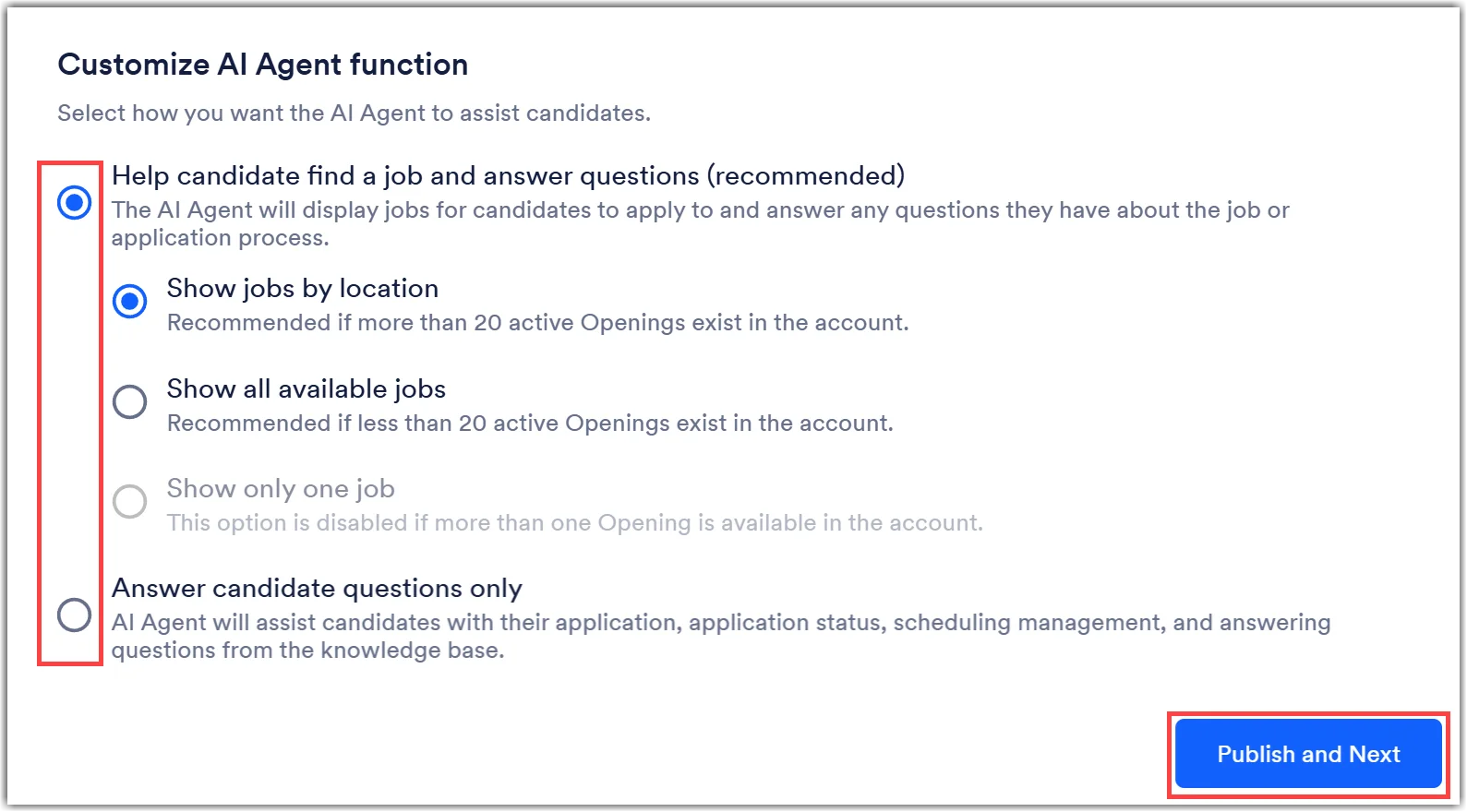
Customize the AI Agent functions. You have two options:
- Help candidates find a job and answer question: With this option, you will choose to either show jobs by location, show all available jobs, or show only one job. Rekrutek recommends showing by location if you have more than 20 active Openings and use show all available jobs if you have less than 20 active Openings.
- Answer candidate questions only: With this option, the AI Agent will only answer questions and the applicant will not be able to apply for a job via the widget.
-
Click Save and Next.
-
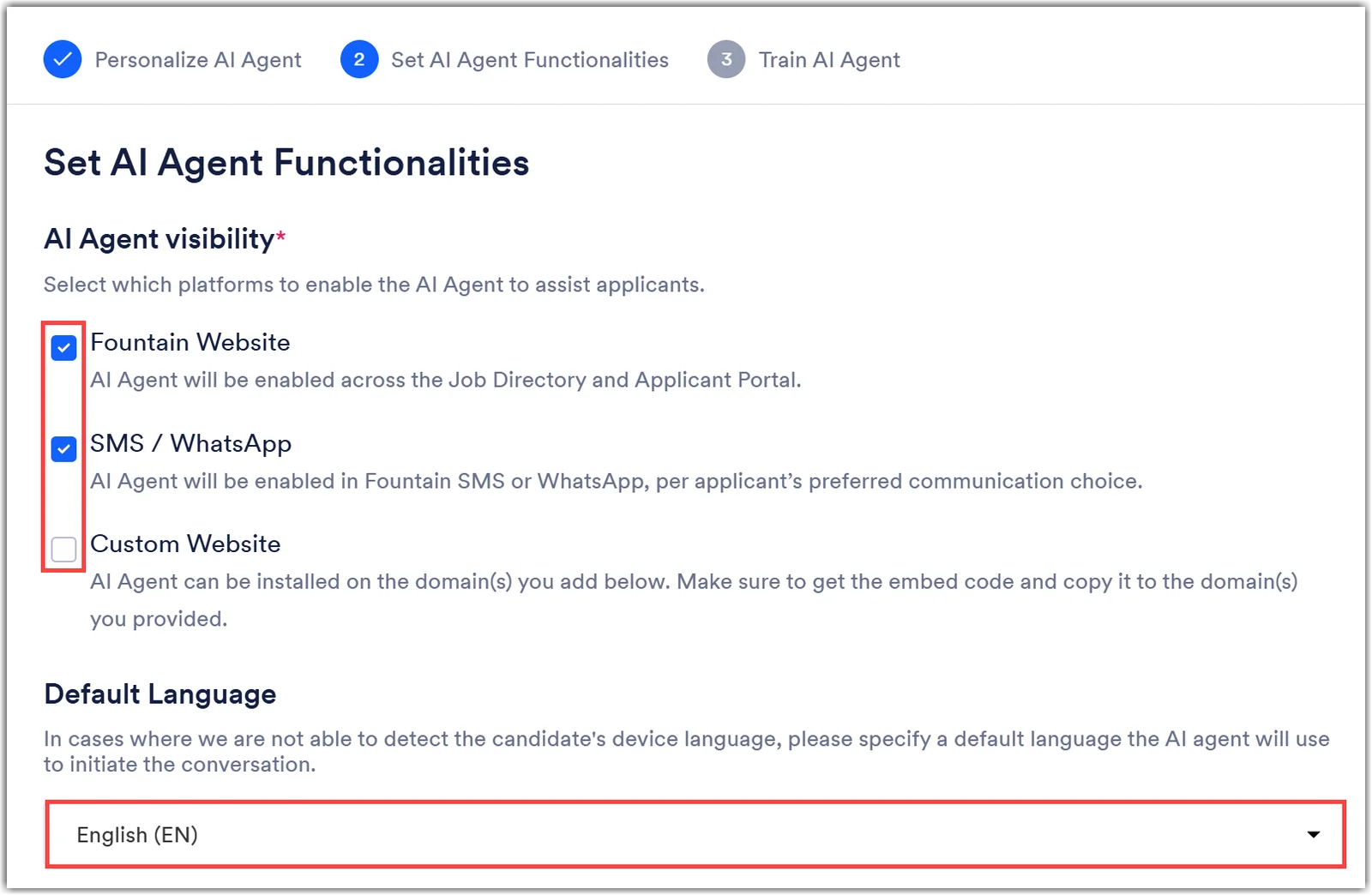
Select your AI Agent visibility. This will identify which platforms the AI Agent will assist applicants on. You can choose one, two, or all three options below:
- Rekrutek website: included on the Jobs Directory and Applicant Portal.
- SMS/WhatsApp: included in SMS or WhatsApp communications per the applicant’s communication preferences. Please note, you will need to work with your Rekrutek Customer Success contact or support@rekrutek.ai to enable the Chat Apply feature.
- Custom Website: Included on a website domain of your choice. When checking this box you will have the ability to copy the embedded code and add a website domain address. Click Save when finished.
-
Choose the Default Language in cases where the AI agent cannot detect the candidate’s device language. This language will also be used to initiate the conversation.
-
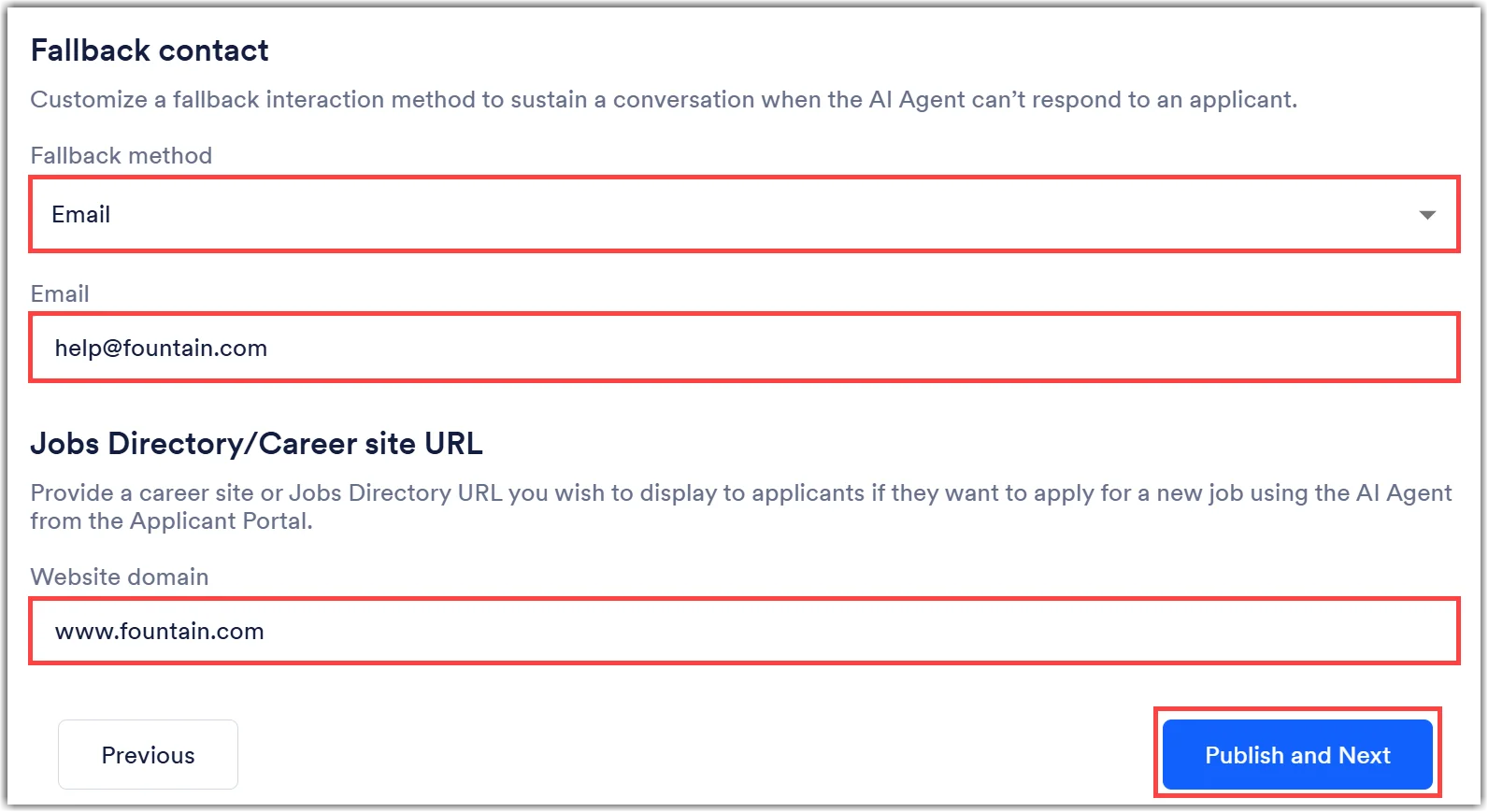
Choose the Fallback Contact. If the AI agent cannot answer a question due to missing information in the Knowledge Base, adding an option in this section will ensure that the applicant can contact someone for human assistance. You can add an email, phone number, or website as the fallback.
-
Enter a Jobs Directory or Career site link for applicants if they want to apply for a new job Opening using the AI agent when in the Applicant Portal.
-
Click Save and Next.
-
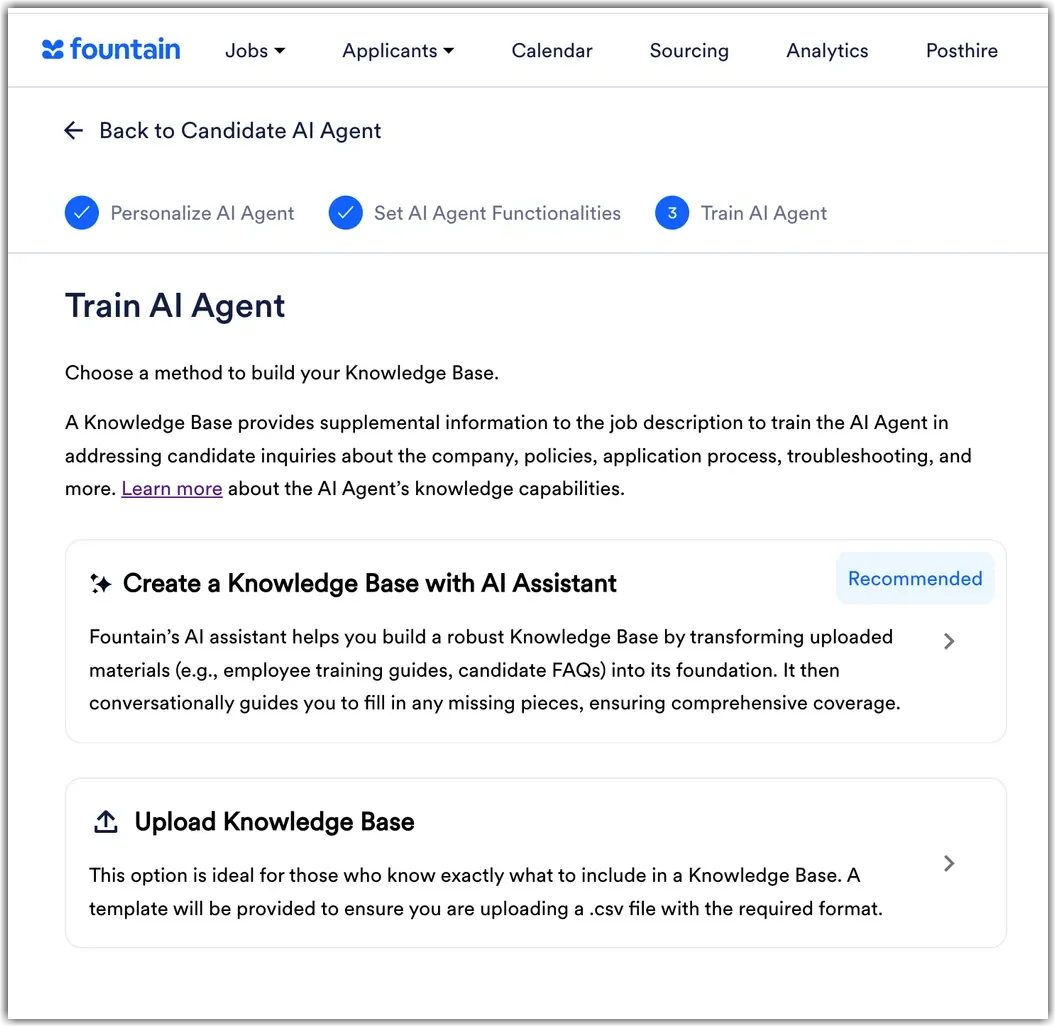
Choose to create your Knowledge Base via help from an AI Assistant or manually be CSV file. Learn more about creating your Knowledge Base by reviewing this Help Center article.
-
Click Publish to finish AI Agent creation.
View AI Agent Applicant Conversations
Section titled “View AI Agent Applicant Conversations”To view any conversations between the AI Agent and the applicant during the application process, navigate to the Applicant’s Profile via the Applicant Table or Universal Applicant View.
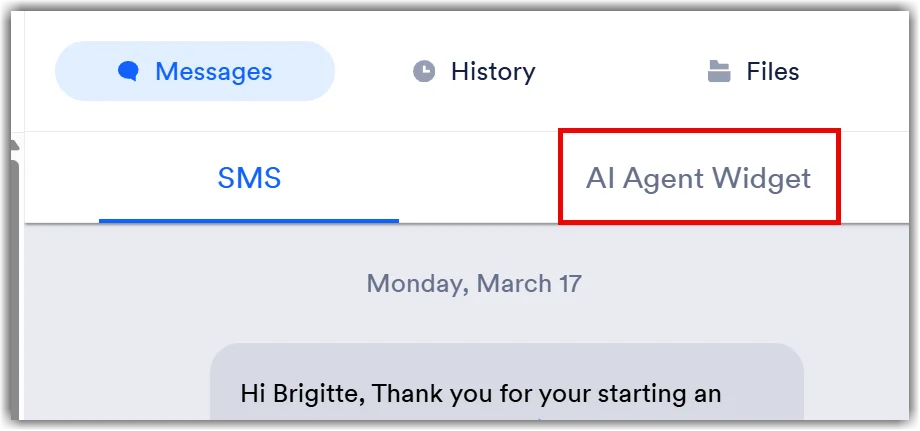
In the right side of the Applicant Profile, click the AI Agent Widget tab to review any conversations.
Edit the AI Agent
Section titled “Edit the AI Agent”To edit, update, or change any information in your AI Agent Knowledge Base, follow the steps below:
-
Navigate to Company Settings by clicking your initial icon in the top right corner of any Rekrutek page. Then click Company Settings in the dropdown.
-
Click Candidate AI Agent in the toolbar on the left.
-
Click the 3 dots button to the right of the Candidate AI agent you want to update and then Edit in the menu.
- Make any adjustments in the Personalize AI Agent and Set AI Agent Functionalities screens. If no changes are needed, simply click Save and Next to get to the Train AI Agent screen.
-
You will now update the Knowledge Base:
-
If you used the AI Assistant to originally create the Knowledge Base, you will be brought back to the conversation where you can ask the AI Assistant to change any previous information.
- You can also click the View Knowledge Base button to manually edit or add new topics.
- Click Publish to finalize the updates.
-
If you created the Knowledge Base via manual CSV file, you will be brought to the CSV creation screen.
- Click Download to replace the current Knowledge Base with updated information.
- Update the information directly in the CSV file. The CSV file you download will have a new column called “uuid”. It is important not to make changes to that column as it is used by the AI Agent when updating. Make changes only to other columns.
- Click Reupload. A success message will appear at the top of the screen.
- Click Publish to finalize the changes.
-