
Testlify Assessments
Testlify was built to solve the challenge of hiring the right people quickly. Today, over 1500 companies trust the Testify platform to hire with speed, accuracy, and confidence, with over 100,000 candidates assessed each month.
Testlify helps companies hire top talent faster and smarter by offering a data-driven, bias-free assessment platform. Testify’s AI-powered talent assessment tool allows recruiters to evaluate candidates objectively, ensuring efficiency, accuracy, and fairness throughout the hiring process.
Key Features of Testlify:
Section titled “Key Features of Testlify:”- 3000+ ready-to-use tests across various skills and industries
- 10+ languages supported for global hiring needs
- Customizable assessments with video, audio, and coding questions
- Live coding challenges to evaluate real-world technical skills
- Automated candidate screening to shortlist the best talent instantly
- AI-powered proctoring to prevent cheating and ensure assessment integrity
- Advanced analytics and reports for data-driven hiring decisions
- Optimized candidate experience with mobile-friendly and engaging assessments
These features help deliver a world-class hiring experience not just for job candidates but for recruiters as well. With Testlify, companies can streamline hiring, improve recruiter productivity by 6x, and reduce hiring time by 55%, all while making confident, data-driven hiring decisions.
Obtaining a Testlify Account
Section titled “Obtaining a Testlify Account”In order to enable Foutain’s Testlify integration, you will need to create an account bygoing to this URL: http://app.testlify.com/register.
Set Up Testlify Integration
Section titled “Set Up Testlify Integration”-
Reach out to support@rekrutek.ai or the Customer Success team to enable this integration in your company’s account. Once Testlify has been enabled, follow the steps below:
-
Log in to your Testlify account via the Testlify website.
-
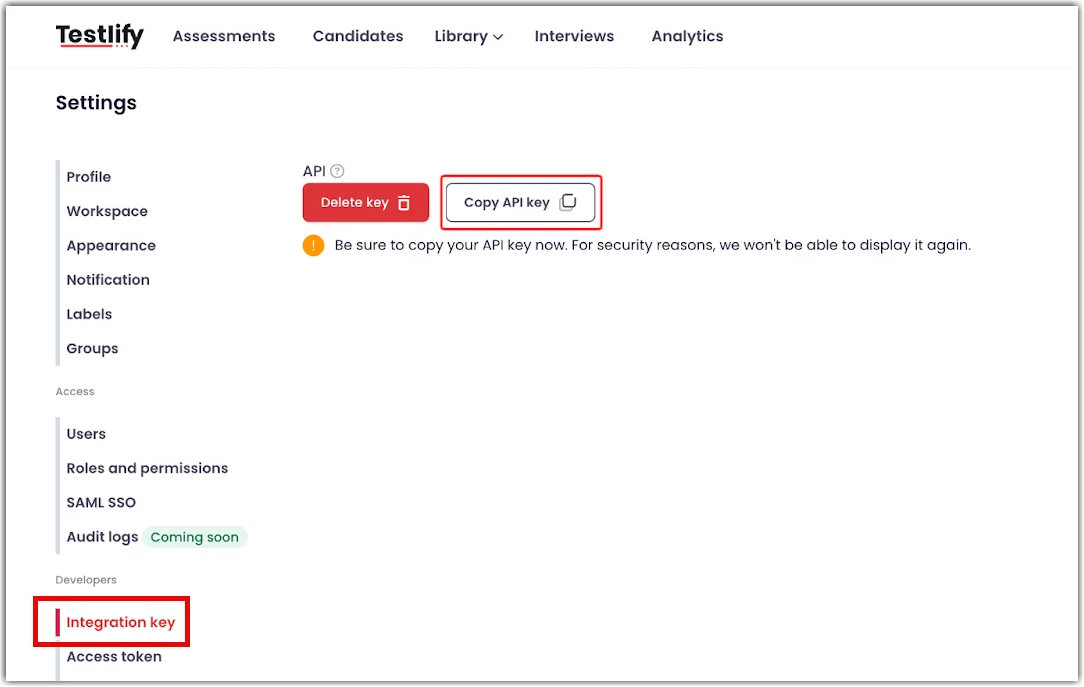
Navigate to the settings page and click Generate key. Then click Copy API Key.
-
Navigate to Rekrutek and click on your initials icon in the top right corner. Then click Integrations in the dropdown.
-
Click on Screening in the left sidebar.
-
Click Connect to the right of Testlify.
-
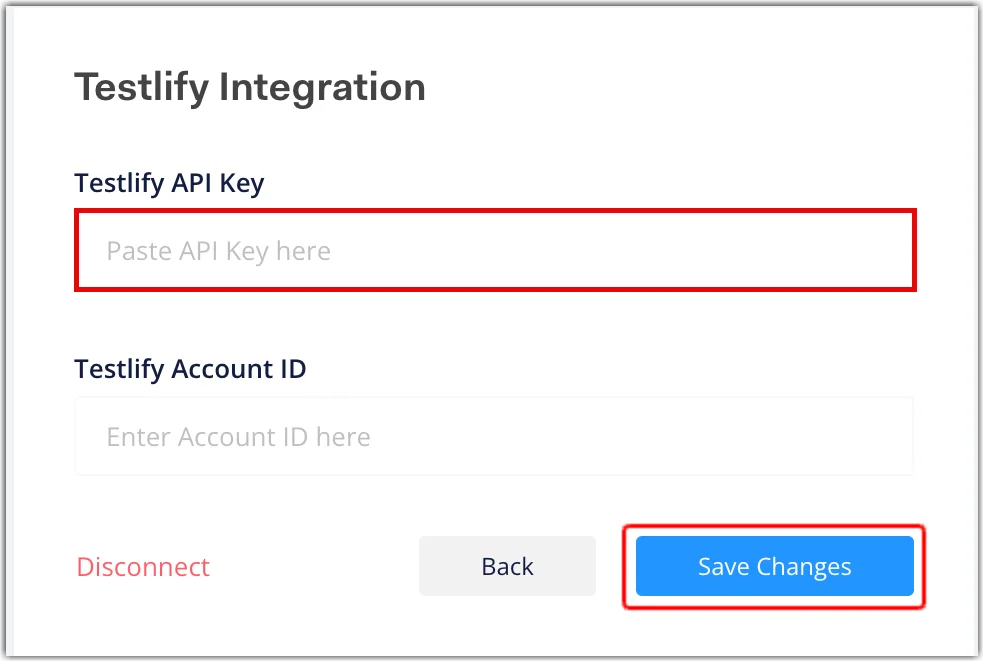
Type your Testlify API Key. You can leave the Account ID field blank.
-
Click Save Changes.
Add Testlify to the Workflow Editor
Section titled “Add Testlify to the Workflow Editor”After you integrate with Testlify on the Integrations page, you’ll be able to add the Testlify partner stage to the Workflow Editor.
-
Ensure your assessments are created in your Testlify account.
-
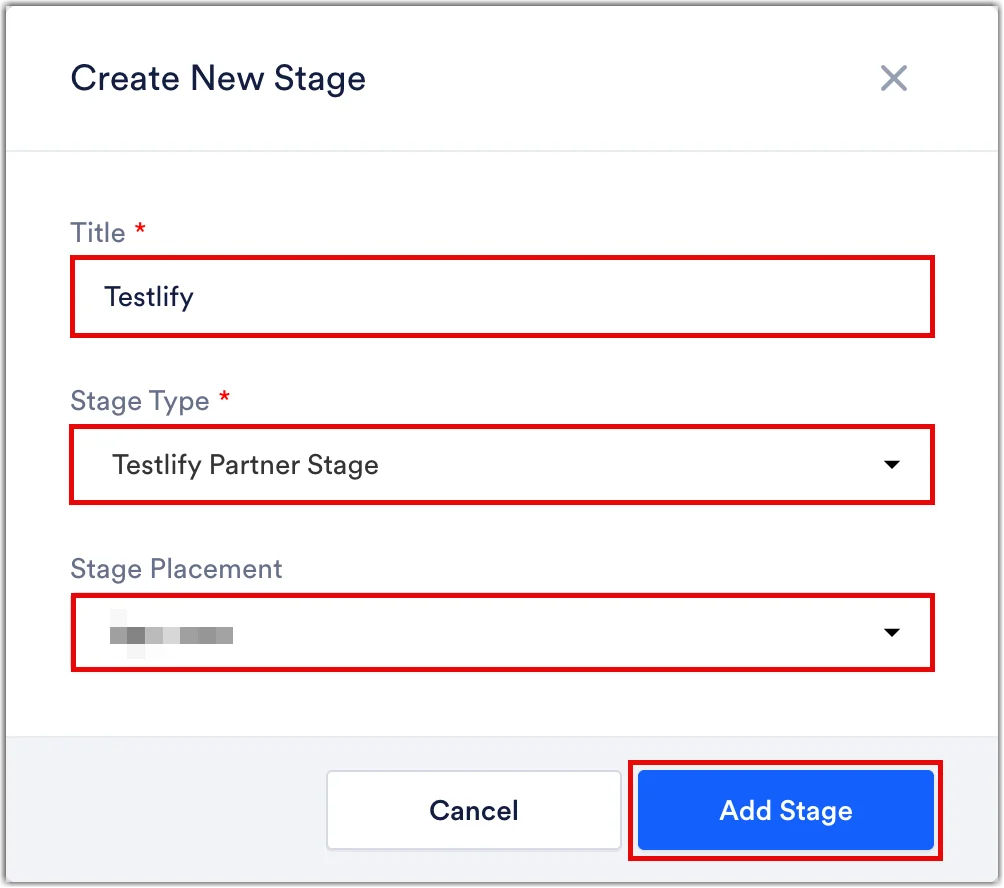
Navigate to the job Opening’s Workflow Editor that you want to add the Testlify stage to and click Add Stage in the top left corner, then Create a new stage.
-
Type a title, select the Testlify partner stage, and decide on the placement of the stage.
-
Click Add Stage.
-
Select a previously created assessment from the Stage Option Type dropdown.
-
Click Save Changes.
Testlify Partner Rule Stage
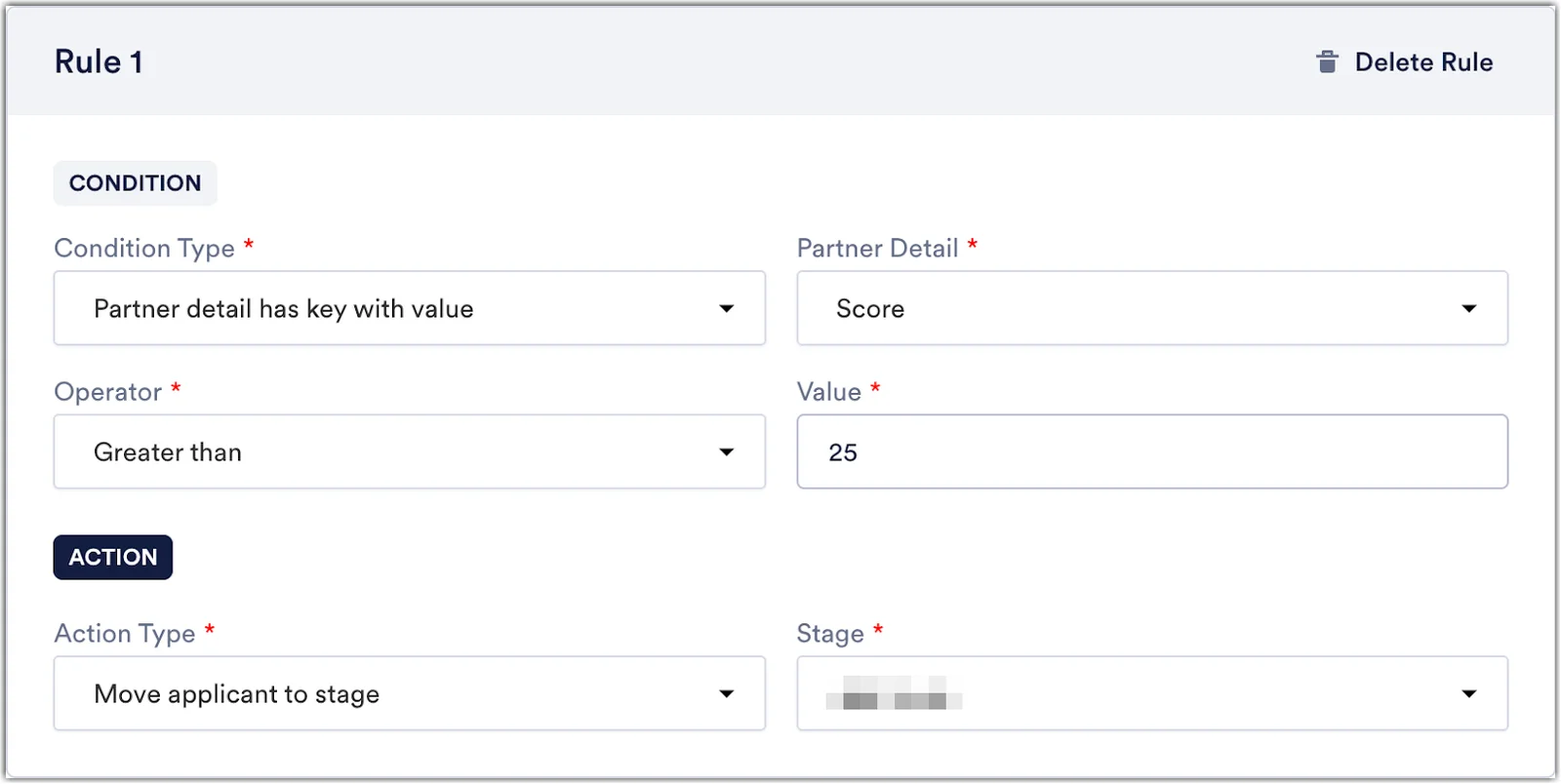
Section titled “Testlify Partner Rule Stage”You can also choose to create a partner rule stage for applicants in the Testlify stage in the Workflow Editor. Below is an example of a rule stage created after the Testlify stage:
Applicant Experience
Section titled “Applicant Experience”When an applicant lands in the Testlify stage in the application, they’ll receive an email with a link to take the Testlify assessment.
Reviewing Assessment Scores
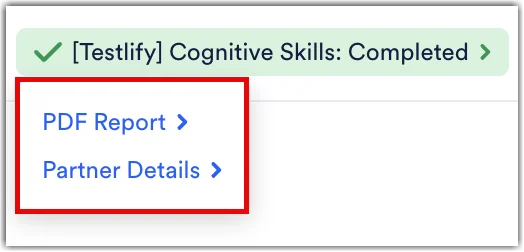
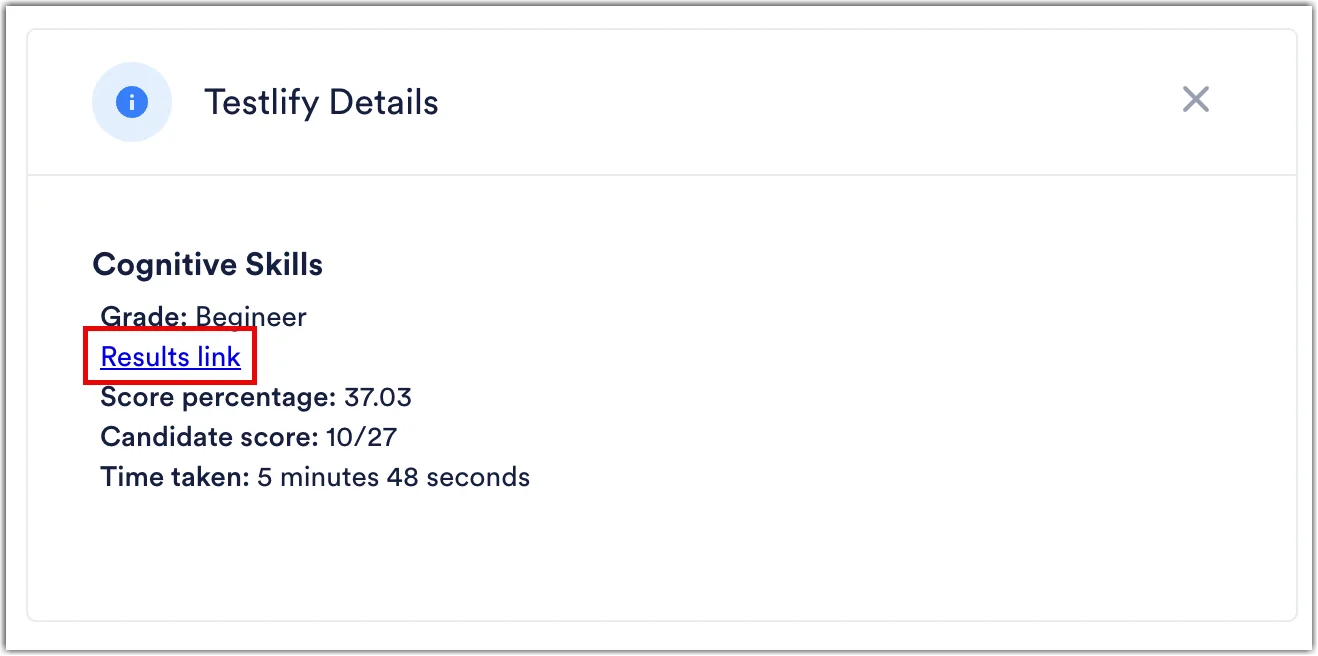
Section titled “Reviewing Assessment Scores”Click on the green completed Testlify Status Label on either the Applicant Table, Universal Applicant View, or within an Applicant’s Profile to either download a PDF of the score report or click Partner Details to see the scores and other details via pop-up.
Within this pop-up, there will be a Results link to review the score report on the Testlify website.
Additional Resources
Section titled “Additional Resources”Watch the video below for an overview of the Testlify Rekrutek integration process: