
Hire Company Settings
Company Settings Overview
Section titled “Company Settings Overview”Company Settings is the administrative hub for your Rekrutek Hire account. Use it to configure your company’s branding, manage users and permissions, enable add-on features, connect third-party tools, and customize how applicants move through your hiring workflows.
To access Company Settings:
- In Hire, click your initials or avatar in the top right corner.
- Select Company Settings.
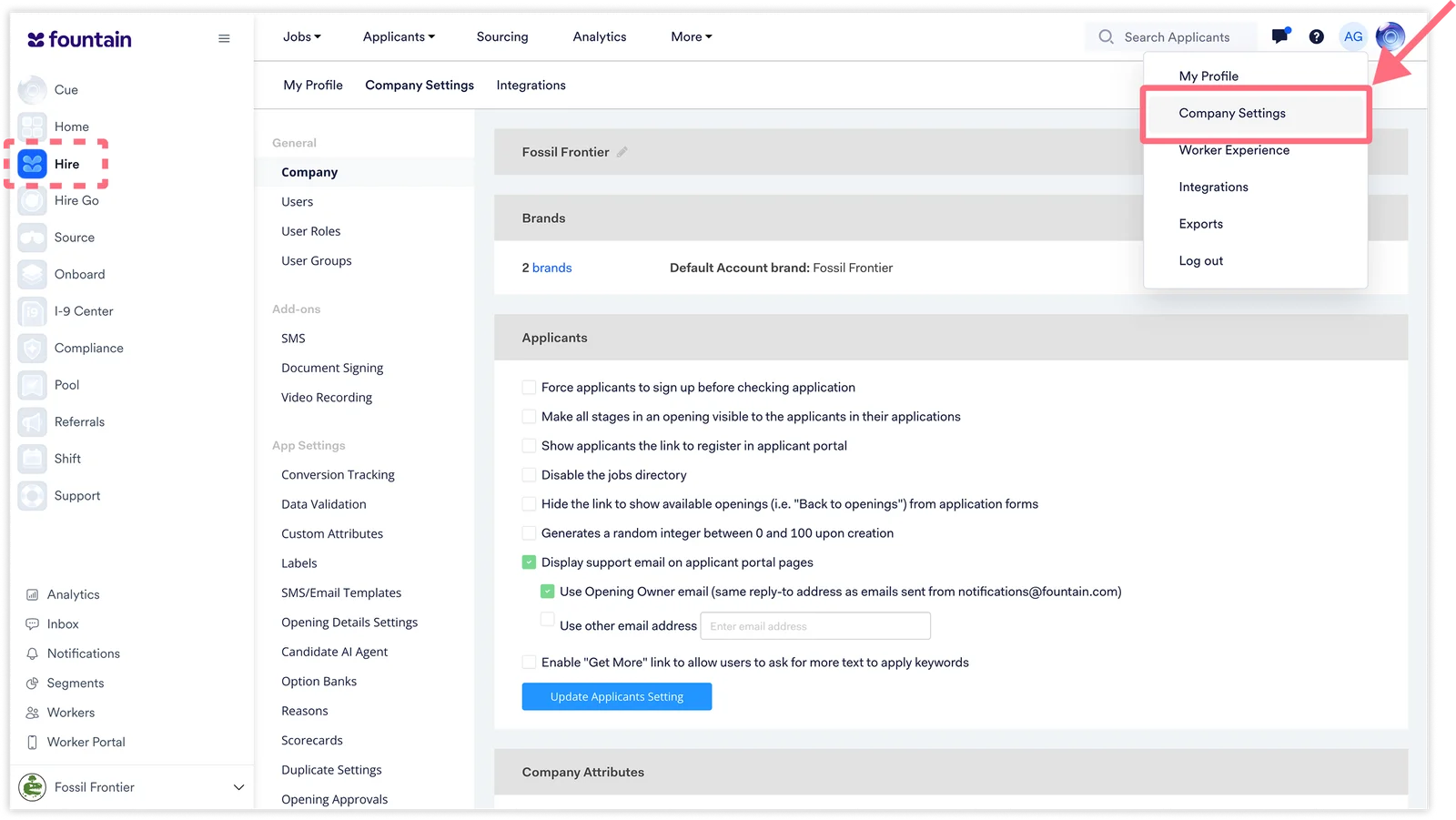
Company Settings is organized into categories: General, Add-ons, Developer Settings, and App Settings. The settings available to you depend on your user role and permissions, as well as the features enabled for your account.
General
Section titled “General”General settings control company-wide configuration, including branding, user access, and team structure.
Company
Section titled “Company”The Company page is the central configuration hub for your Hire account. Settings here control how applicants interact with your job application experience and how your account operates overall.
- Brands: View and manage the brands associated with your account. Each brand can have its own logo, color, and applicant-facing experience. The default brand is displayed here.
- Security: Require two-factor authentication for all users and set an account inactivity lockout period (between 90 and 365 days).
- Applicants: Control applicant-facing behavior, including whether applicants must sign up before checking their application status, whether the jobs directory is visible, how support emails are displayed on applicant portal pages, how pay ranges are displayed, and more.
- Company Attributes: Optionally override the standard Job Type attribute with a custom Company Attribute when present.
- Hiring Goals: Enable hiring goals to track headcount targets per opening. Configure options such as automatically marking an opening inactive when its goal is filled, setting up email or SMS reminder messages, and defining when applicants count toward a goal.
- Notifications: Configure whether outbound emails are sent from the recruiter’s address rather than the default Rekrutek notifications address (not recommended).
- Account Info: View a summary of your account’s total openings and applicants, and access data exports.
The Users page displays all team members with access to your Hire account. From here, you can invite new users, view each user’s role and last sign-in date, manage their opening access, and remove users who no longer need access.
For detailed steps on inviting and managing users, see Manage Users in Hire.
User Roles
Section titled “User Roles”User Roles define what actions each team member can take in Hire. This page lists all roles configured for your account, including built-in roles like Administrator, Standard Role, Restricted Role, and Kiosk, and allows administrators to create custom roles with specific permission sets.
For details on creating and configuring roles, see User Roles and Permissions in Hire.
User Groups
Section titled “User Groups”User Groups allow you to organize users into groups for access management purposes. Groups can be assigned an access type (such as location-based access) and are useful for controlling which openings and locations specific sets of users can see.
Add-ons
Section titled “Add-ons”Add-ons are optional features that extend Hire’s capabilities. The add-ons available to your account depend on your Rekrutek subscription.
Configure SMS messaging settings for your account. Rekrutek uses SMS to communicate with applicants throughout the hiring process. Enabling SMS here makes it available for use in workflow automation and communication stages.
For more information, see SMS in Rekrutek Hire.
Document Signing
Section titled “Document Signing”Set up electronic signature templates for documents such as offer letters and hiring policy packets. Signature templates are created and managed here, and can then be added to workflow stages across your openings.
The Document Signing page includes two tabs:
- Usage: View a summary of signature usage across your account.
- Templates: Create and manage signature templates, including specifying the title, message, associated brand, and signer roles (such as Applicant or Hiring Manager).
For more information, see Document Signing in Rekrutek Hire.
Video Recording
Section titled “Video Recording”Enable video recording as an interview option within your hiring workflows. When enabled, video recording can be added as a stage type within an opening’s workflow.
Developer Settings
Section titled “Developer Settings”Developer Settings provide tools for connecting Rekrutek Hire to external systems and automating data flows.
Access your Rekrutek API keys and view API documentation. The API allows your technical team to integrate Rekrutek Hire with other systems, push applicant data, and automate workflows programmatically.
This feature is only available for certain packages. For more information, see Rekrutek API Documentation.
Webhooks
Section titled “Webhooks”Configure webhooks to send real-time event data from Rekrutek to external systems. You can create webhooks triggered by specific applicant events (such as stage transitions or approvals) and specify a payload URL for each. A webhook log is available for troubleshooting.
For more information, see Webhooks in Rekrutek Hire.
App Settings
Section titled “App Settings”App Settings control the operational configuration of your hiring workflows, including how applicant data is collected, validated, and managed across openings.
Conversion Tracking
Section titled “Conversion Tracking”Set up conversion tracking to measure the effectiveness of your applicant sourcing channels. Conversion tracking allows you to attribute applicants to specific marketing or sourcing efforts.
Data Validation
Section titled “Data Validation”Create validation rules that enforce data quality requirements at specific workflow stages. Validations check that required fields meet defined criteria before an applicant can progress.
Custom Attributes
Section titled “Custom Attributes”View and manage the custom data fields associated with applicants in your account. Custom attributes are created automatically when applicant data is passed in through your application forms or via the API, and can also be configured manually. These fields store information such as availability, vehicle type, or any other data collected during the application process.
Labels
Section titled “Labels”Create custom labels to indicate applicant progress or status. Labels can be toggled on or off and used to trigger stage changes within workflow automation.
For more information, see Labels in Rekrutek Hire.
SMS/Email Templates
Section titled “SMS/Email Templates”Create and manage reusable message templates for SMS and email communications with applicants. Templates can be used across openings for messages such as interview confirmations, cancellations, and follow-ups. Each template includes a format (SMS, email, or both), brand association, and message type.
For more information, see SMS and Email Templates.
Translation Settings
Section titled “Translation Settings”Configure language and translation settings for your applicant-facing content. This setting may not be visible in all accounts.
Opening Details Settings
Section titled “Opening Details Settings”Select which opening attributes are displayed on the Opening page within Hire. You can choose up to 5 attributes from a list of standard options, such as Pay Range, Job Type, Employment Type, and Location fields, to surface as key details on each opening.
Candidate AI Agent
Section titled “Candidate AI Agent”Configure the AI agent used to engage with applicants during the hiring process. The Candidate AI Agent can be set up with a custom name and persona, and tested directly from this page.
For more information, see Candidate AI Agent.
Jobs Directory
Section titled “Jobs Directory”Configure your company’s public-facing Jobs Directory, including branding, display settings, and search filters available to applicants. Options include controlling which filters are displayed (location, position, category, job type), setting a default language, and enabling AI job categorization. This setting may not be visible in all accounts.
For more information, see Jobs Directory.
Option Banks
Section titled “Option Banks”Create and manage reusable sets of answer options for applicant-facing questions. Option banks can be referenced across multiple workflow stages so that consistent answer choices are maintained without recreating them for each opening.
Reasons
Section titled “Reasons”Configure the reasons available to recruiters when placing applicants on hold or rejecting them. Standardized reasons help ensure consistent applicant disposition practices and make reporting more meaningful.
- On Hold Reasons: A list of reasons to select from when placing an applicant on hold.
- Rejected Reasons: A list of reasons to select from when rejecting an applicant.
For more information, see On Hold and Rejection Reasons.
Scorecards
Section titled “Scorecards”Create and manage scorecards used to evaluate applicants during interview stages. Scorecards define the questions and grading criteria reviewers use to assess candidates, and can be weighted or unweighted.
For more information, see Scorecards in Rekrutek Hire.
Duplicate Settings
Section titled “Duplicate Settings”Configure how Rekrutek handles applicants who apply more than once. The Duplicate Management page includes three sections:
- Duplicate Criteria: Define which data fields (Email, Phone Number, Name) Rekrutek uses to identify duplicate applications.
- Duplicate Rules: Set conditions that determine whether a duplicate applicant is blocked or allowed to proceed, and define what happens otherwise (e.g., can apply more than once, can apply to each opening once, or cannot apply again).
- Duplicate Message: Customize the message shown to applicants who are blocked by duplicate rules.
For more information, see Duplicate Applicant Management.
Applicant Search Settings
Section titled “Applicant Search Settings”Configure settings that affect how applicant search behaves across your account. This setting may not be visible in all accounts.
WhatsApp Templates
Section titled “WhatsApp Templates”Create and manage WhatsApp message templates for applicant communications. Templates must be categorized as Utility or Marketing and are subject to WhatsApp’s approval process before use. Your daily message limit is displayed here.
For more information, see WhatsApp Messaging in Rekrutek Hire.
Opening Approvals
Set up an approval workflow that requires openings to be reviewed and approved before they can become active. Approver rules define which users or groups are responsible for approving openings, and can include auto-approval conditions.
For more information, see Opening Approvals.
Shifts
Section titled “Shifts”Define shift templates that can be associated with openings to communicate expected working hours to applicants. Each shift includes a name, days of the week, and time range. This setting may not be visible in all accounts.
For more information, see Utilize Shifts (Hire).