
File Reviewing
Applicants can upload files as part of a Data Collection stage. For example, maybe you need to review their ID, Driver’s license, car insurance, photos of their vehicle, or their resume.
You can also upload files as a Rekrutek user on behalf of an applicant.
File Uploaded Status Label
Section titled “File Uploaded Status Label”After the applicant uploads a file, a Review Files Status Label will be visible by their name in the Applicant Table or Universal Applicant View. Click on the blue Status Label to open the Files tab in their Applicant Profile.

Review Files
Section titled “Review Files”After an applicant uploads a file in a Data Collection Stage, you can review it in their Applicant Profile.
-
Click on the blue Status Label that says Review FIles.
-
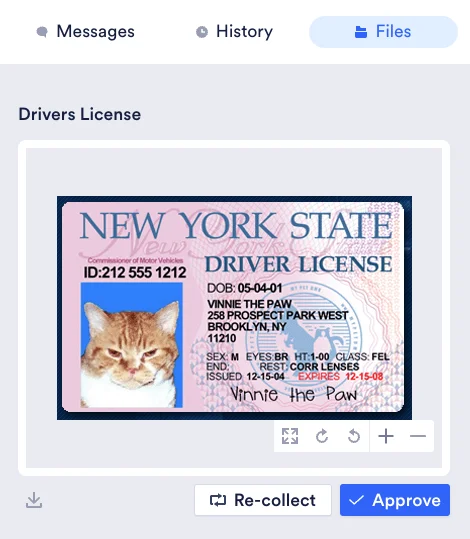
You can zoom in or rotate the document to review it more easily. Use the scroll bar to move the image up or down while zooming in. You can also download the file by clicking the down arrow icon in the bottom left corner of the image.
-
Once you have reviewed the document, make a decision on the document. You will either approve or recollect it.
-
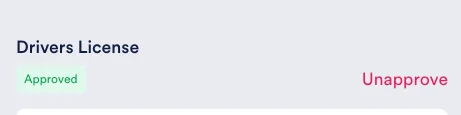
Click the Approve button to approve. The Review Files Status Label will disappear. To undo an approval, click Unapprove.
-
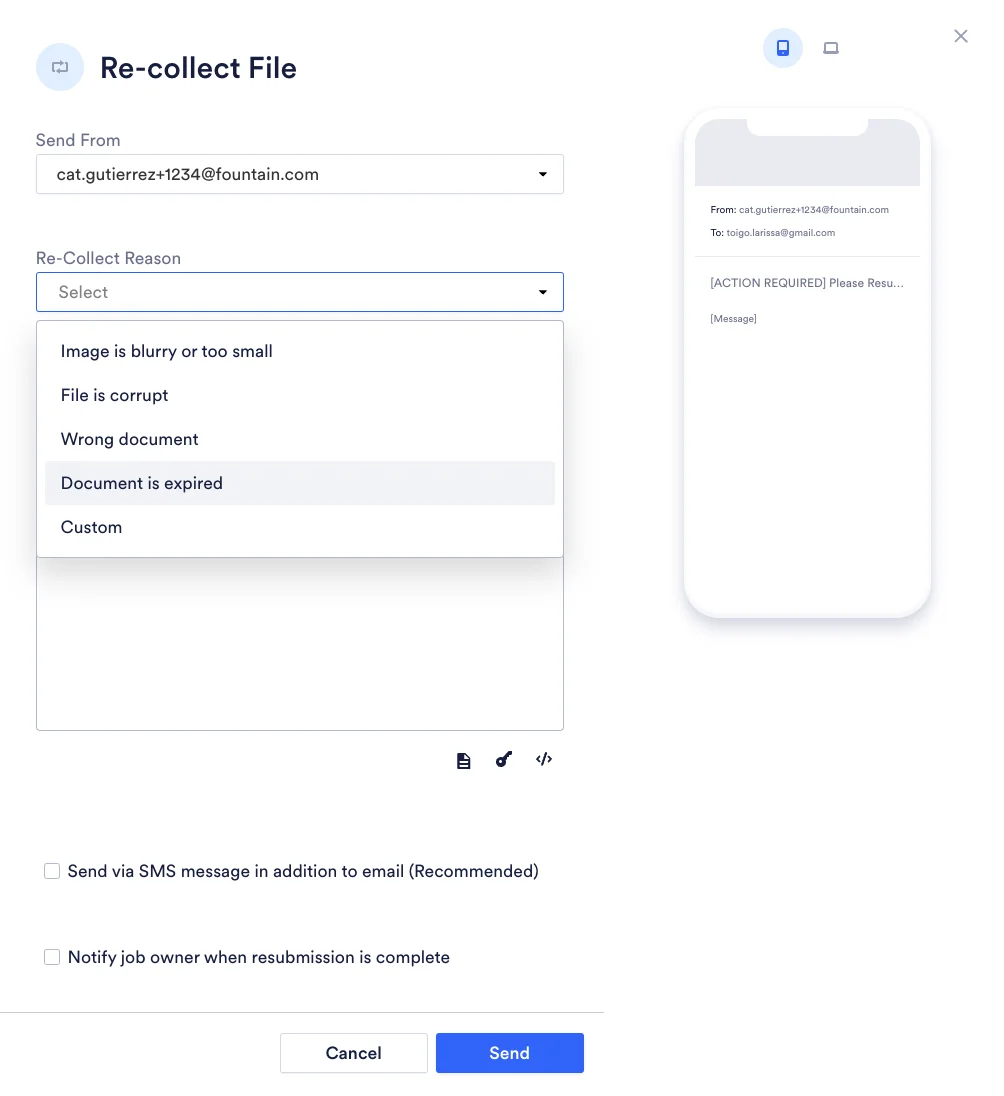
Click the Recollect button to request a new copy of the document.An email template screen will appear for you to notify the applicant of the need to recollect the document. You will also need to select a reason for recollection from the dropdown. Finally, the Status Label will change to in progress.
Reviewing Resumes
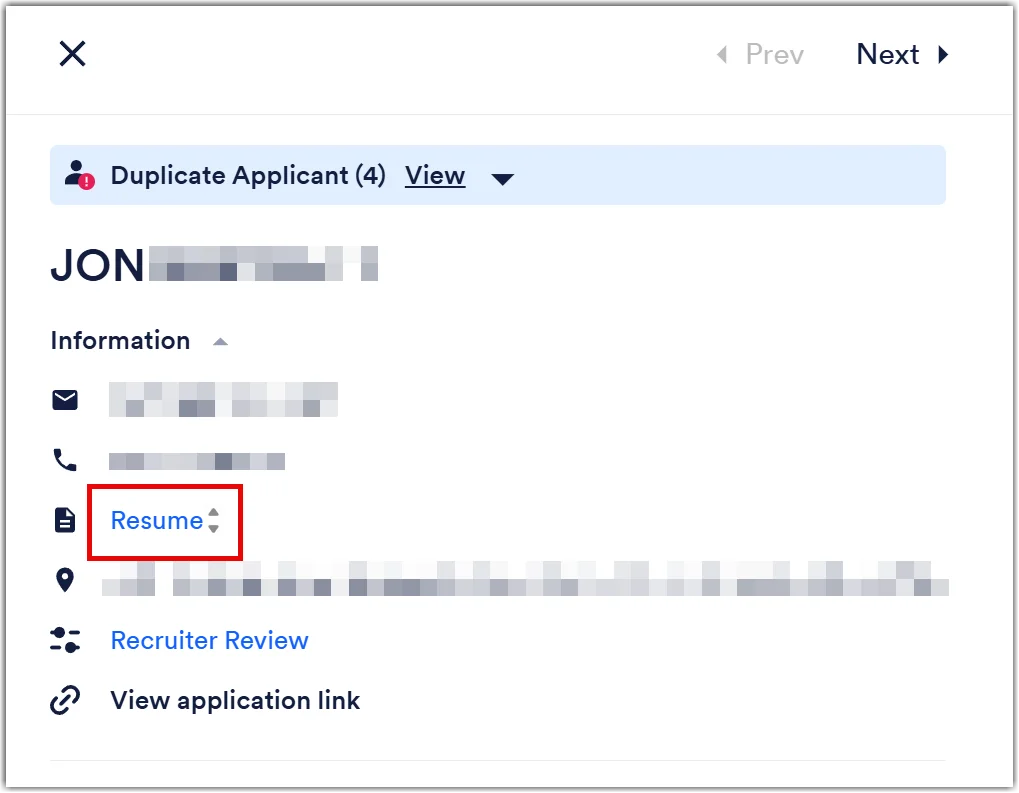
Section titled “Reviewing Resumes”If the Data Collection questions specifically asks for a resume upload (rather than just a file upload), the resume can also be reviewed by clicking the Resume link in the top left contact section of the Applicant Profile as seen below:
File Recollection Templates
Section titled “File Recollection Templates”File Recollection message templates are specifically used during file recollection and must include one of the two required Merge Keys: [PORTAL_UPLOAD_REQUEST_LINK] or [PORTAL_UPLOAD_REQUEST_URL]. This will ensure applicants have a working link to upload the new file. Review this article for more information about Message Templates, and or this article to learn more about Merge Keys.
Manual Upload File for Applicant
Section titled “Manual Upload File for Applicant”Sometimes you have to upload a file for an applicant because they may reach out with a technical difficulty.
To upload a file on behalf of the applicant, follow the steps below:
-
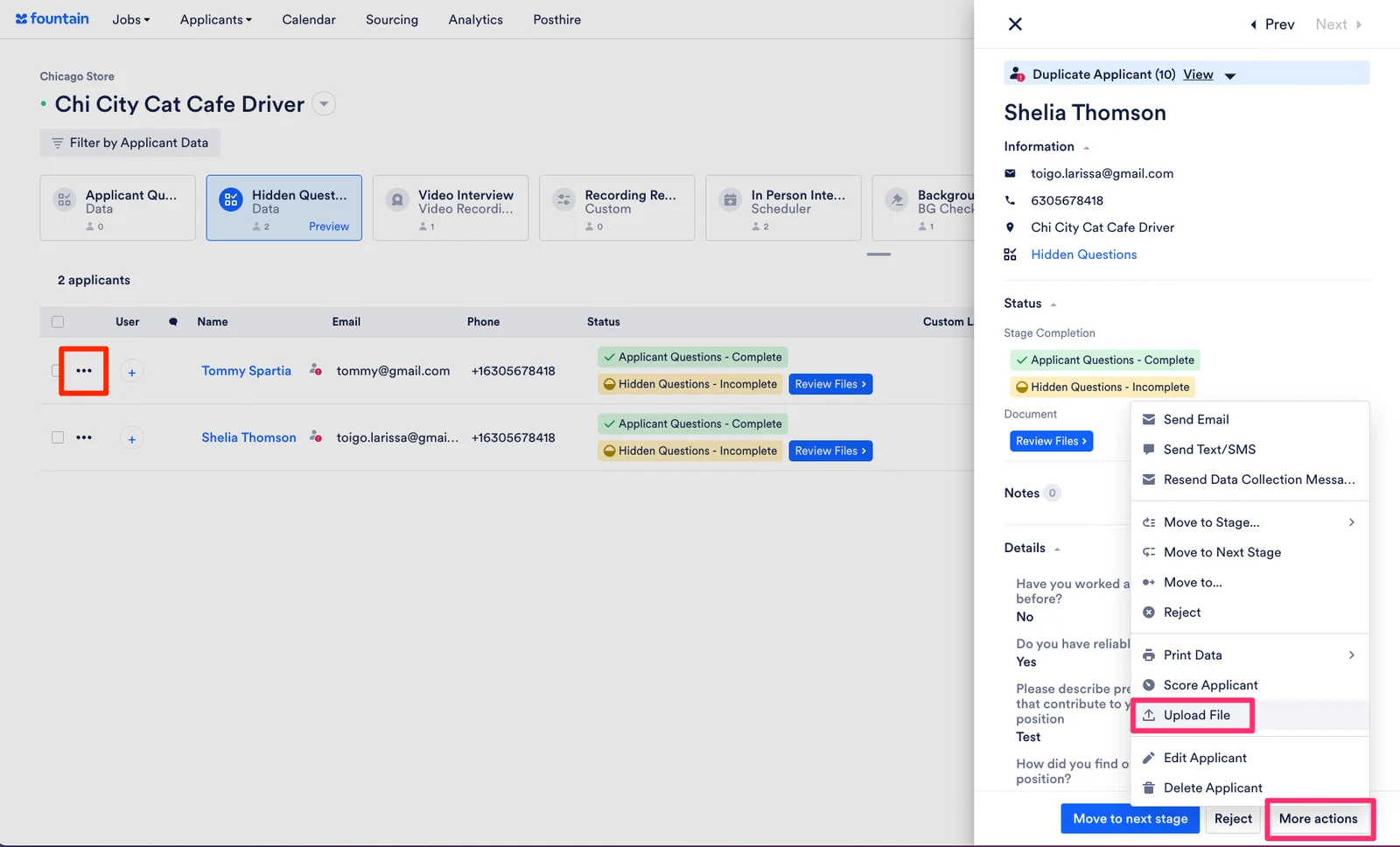
Click the 3 dots button on the Applicant Table or the More Actions button within the Applicant’s profile.
-
Click Upload File.
-
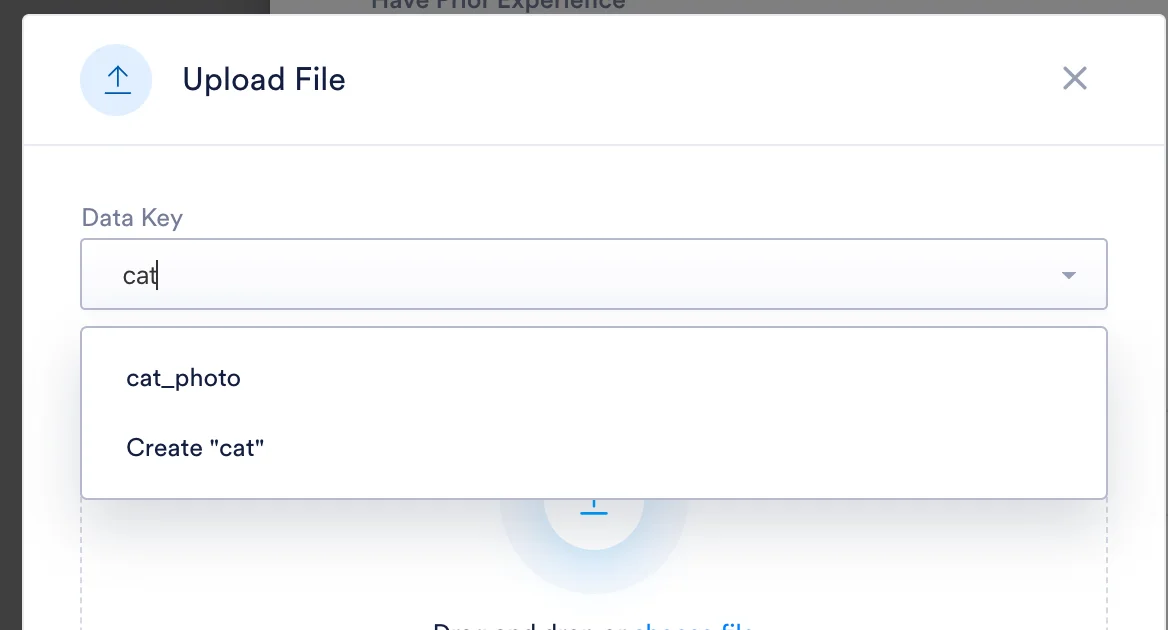
Choose a Data Key that relates to the document you are uploading. The Data Key should be the same Data Key connected to the file upload question in the Data Collection stage.
-
Choose the saved file from your computer.
-
Click Upload.