
Idle Move Rule
When an applicant doesn’t perform the action required by the stage within a certain amount of time, you can automatically move the applicant to another stage, such as Reject or On Hold.
To add an Idle Move Rule, follow these steps.
-
Navigate to your workflow, and select the stage you want to add an Idle Move Rule to.
-
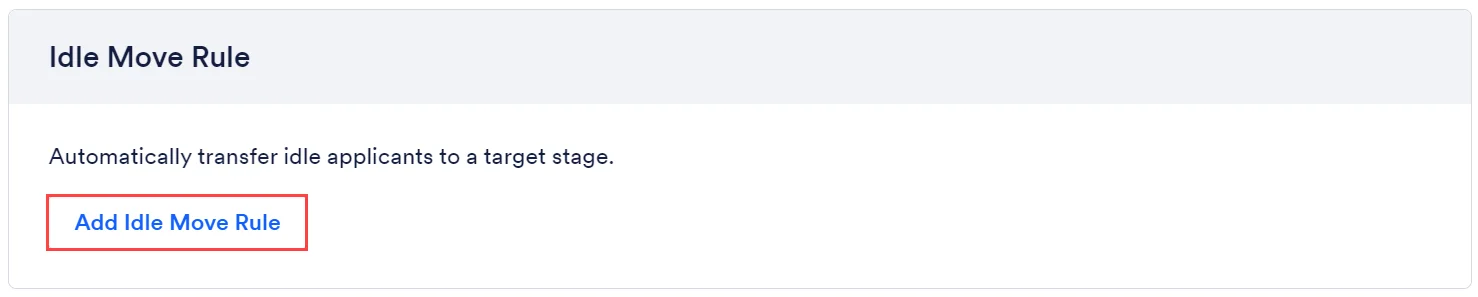
Click Add Idle Move Rule.
-
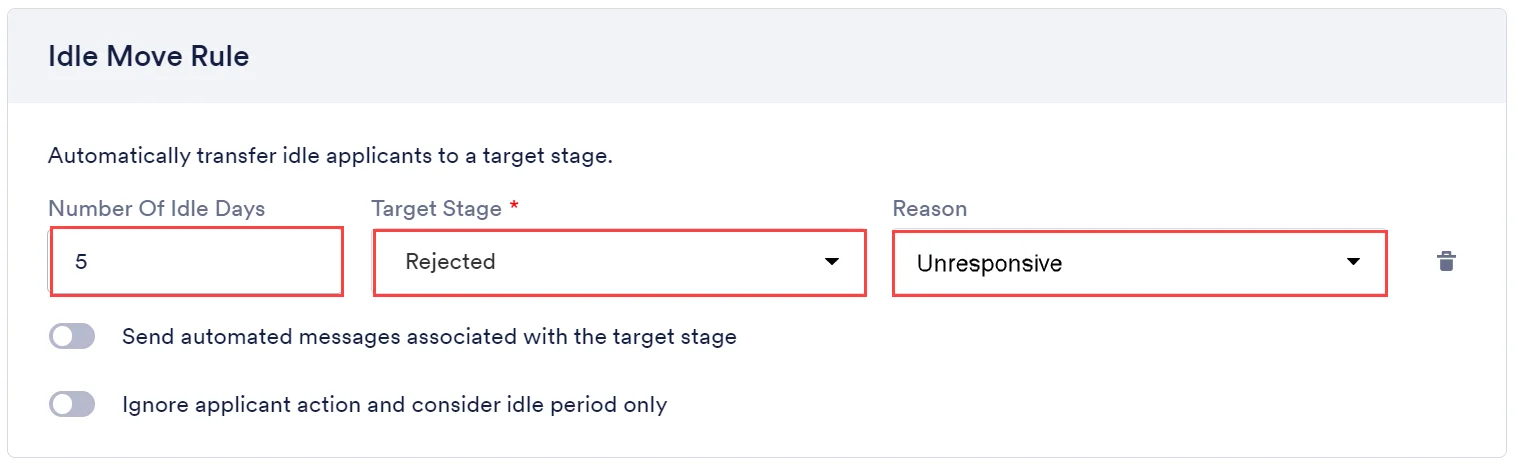
Type the number of days they need to be idle before the move occurs, then select the stage to move the applicant into after the idle days occur. Finally, select the Unresponsive reason within the dropdown.
-
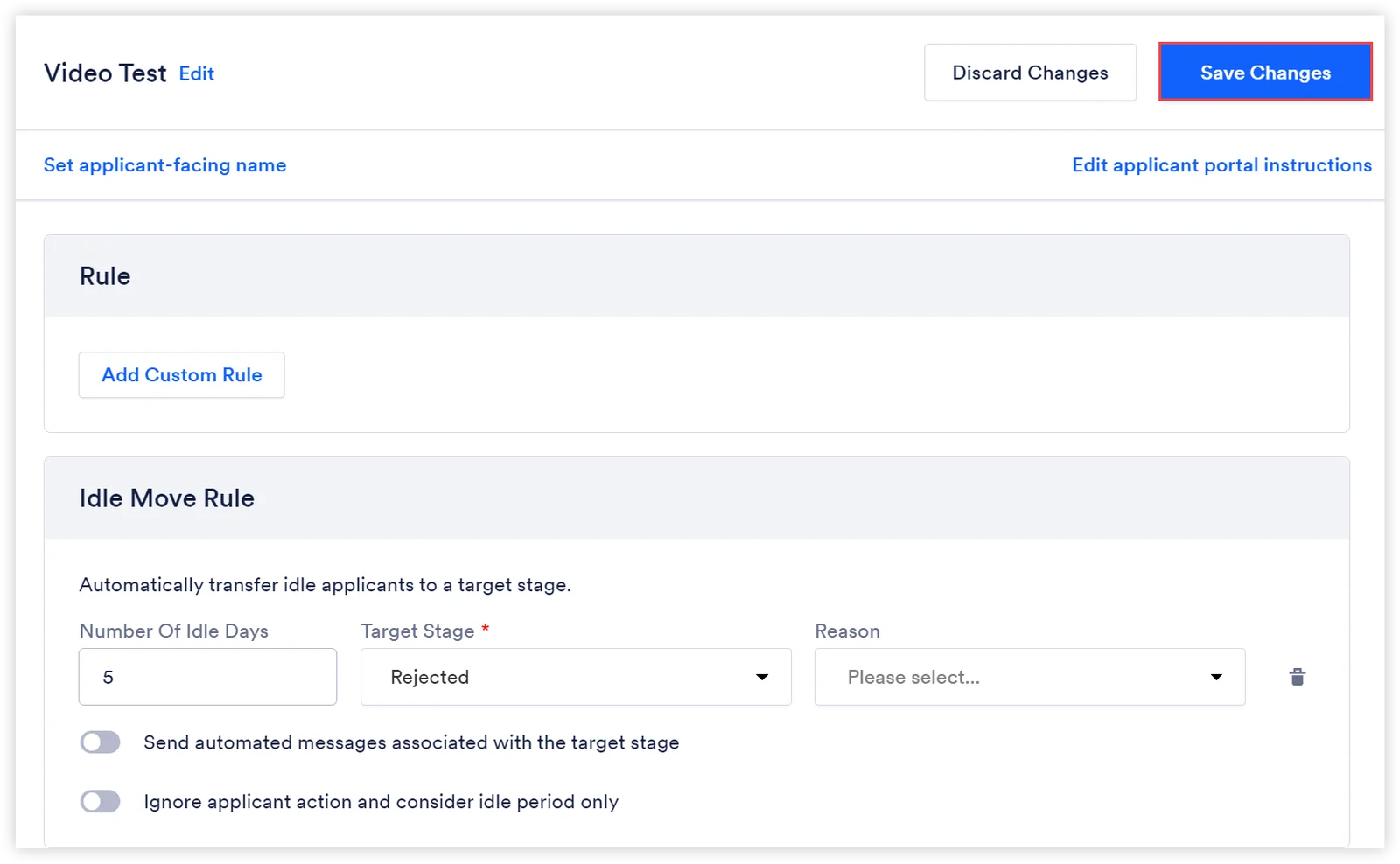
Click Save Changes in the top right corner.
Stage Specific Scenarios When Idle Time is Actively Counting
Section titled “Stage Specific Scenarios When Idle Time is Actively Counting”Stage Type | Idle Time Criteria |
|---|---|
Data Collection | When the applicant has not completed any data collection fields. |
Document Signing |
|
Scheduler |
|
Video Recording | When the applicant has no video responses recorded |
Custom | Regardless of any action, applicants in this stage will count toward the idle trigger. |
Hired | Regardless of any action, applicants in this stage will count toward the idle trigger. |
Rejected | Regardless of any action, applicants in this stage will count toward the idle trigger. |
Archived | Regardless of any action, applicants in this stage will count toward the idle trigger. |
Additionally, there are specific scenarios in which idle time will be updated or paused:
- The applicant is transitioned from one stage to another (regardless if they are in the same workflow or a different workflow)
- When the applicant’s Scheduler stage booked slot is updated or created.
- When the applicant’s document signature request status is changed to ‘signed’.
- When a new recording is saved in a Video Recording stage.
- When a partner detail is updated in a Partner stage type.
Days Left In Stage
Section titled “Days Left In Stage”To see the amount of time that an applicant has remaining before triggering the Idle Move Rule, enable and view the Days Left In Stage column on the Applicant Table.
- Click the Applicants dropdown at the top of any Rekrutek screen and select Applicant Table.
- Click the Customize Columns icon underneath the workflow stage boxes on the right.
- Type ‘Days Left In Stage’ in the search box and click the checkbox. The column will automatically be added to the end of your column list. You can also rearrange the order of the columns to your liking by clicking and dragging each to your preferred spot.
- Click Apply.
Existing Applicants Idle Time
Section titled “Existing Applicants Idle Time”Adding or Updating an Idle Move Rule to a stage with applicants already in it WILL move them if they retroactively meet the trigger rule.
Example #1: Assume we have two applicants, A and B. A has been idle for 5 days and B has been idle for 1 day. We create an Idle Move Rule that moves applicants after 2 idle days.
- Applicant A will be moved immediately to the defined stage.
- Applicant B will be moved the next day to the defined stage.
Example #2: Assume we have two applicants, A and B. A has been idle for 2 days and B has been idle for 4 days. We update an Idle Move Rule from 5 days to 3 days.
- Applicant A will be moved the next day to the defined stage.
- Applicant B will be moved the immediately to the defined stage.