
Scheduler Stage Messages
The Scheduler stage type has message functionality in addition to the typical Stage Landing (Initial) and Follow-Up messages that are seen in other stages. Scheduler stages also have the ability to send a Confirmation, Cancellation, Reminder, and New Availability messages. Additionally, Follow-Up messages will include unique functionality in a Scheduler stage type.
Confirmation Messages
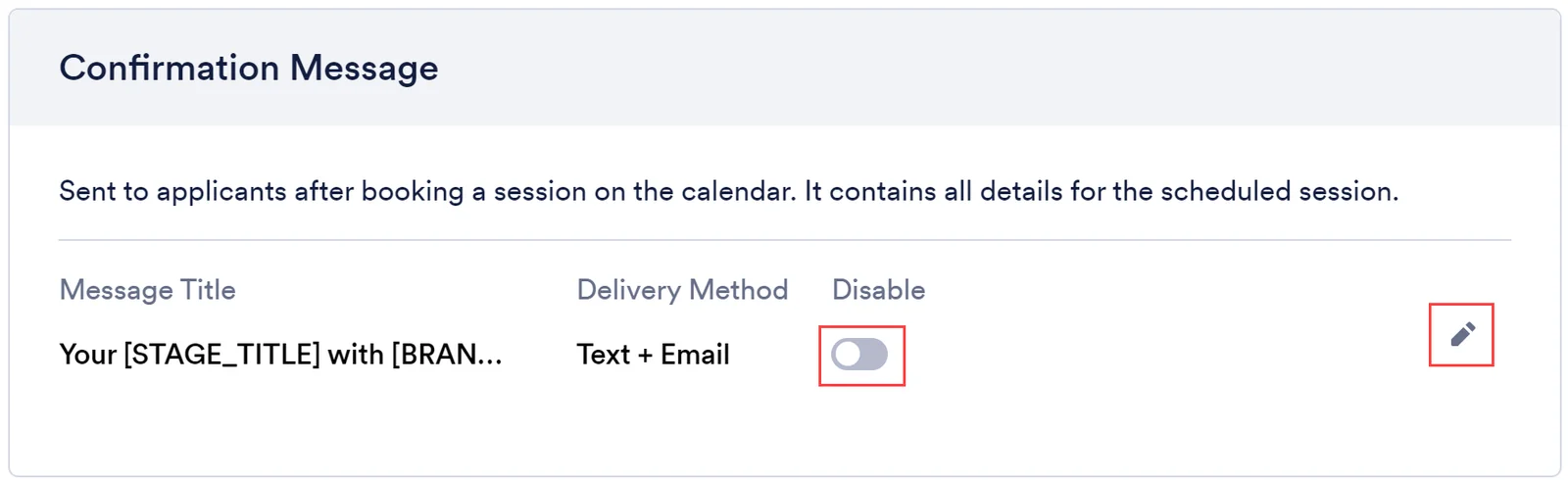
Section titled “Confirmation Messages”The Scheduler stage type includes the option to send an automated SMS and/or email message after an applicant books a session on the Rekrutek calendar. By default, there are generic plain text stage messages available per the stage settings.
-
To edit the SMS or Email message**,** click the pencil icon.
-
Enter information in all required fields, which are marked with an asterisk (*), or select a template from the dropdown menu.
-
To disable this message entirely, click the Disable toggle to on.
Cancellation Messages
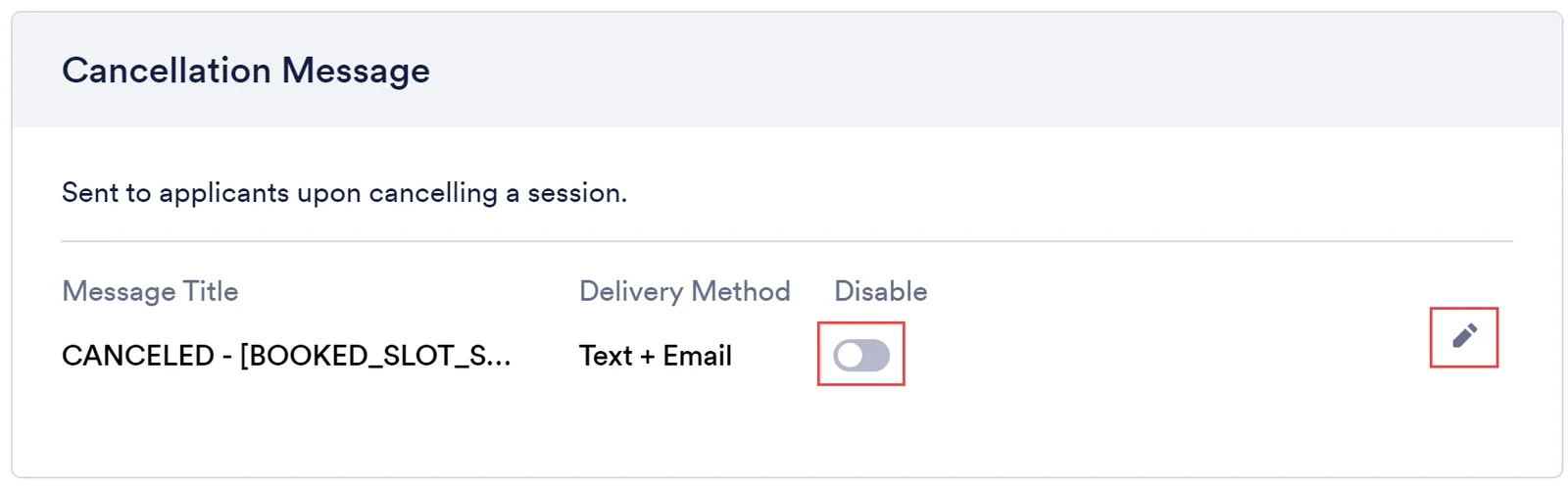
Section titled “Cancellation Messages”The Scheduler stage type also includes the option to send an automated SMS and/or email message after an applicant or recruiter cancels a booked session on the Rekrutek calendar. By default, there are generic plain text stage messages available per the stage settings.
-
To edit the SMS or Email message, click the pencil icon.
-
Enter information in all required fields, which are marked with an asterisk (*), or select a template from the dropdown menu.
-
To disable this message entirely, click the Disable toggle to on.
Reminder Messages
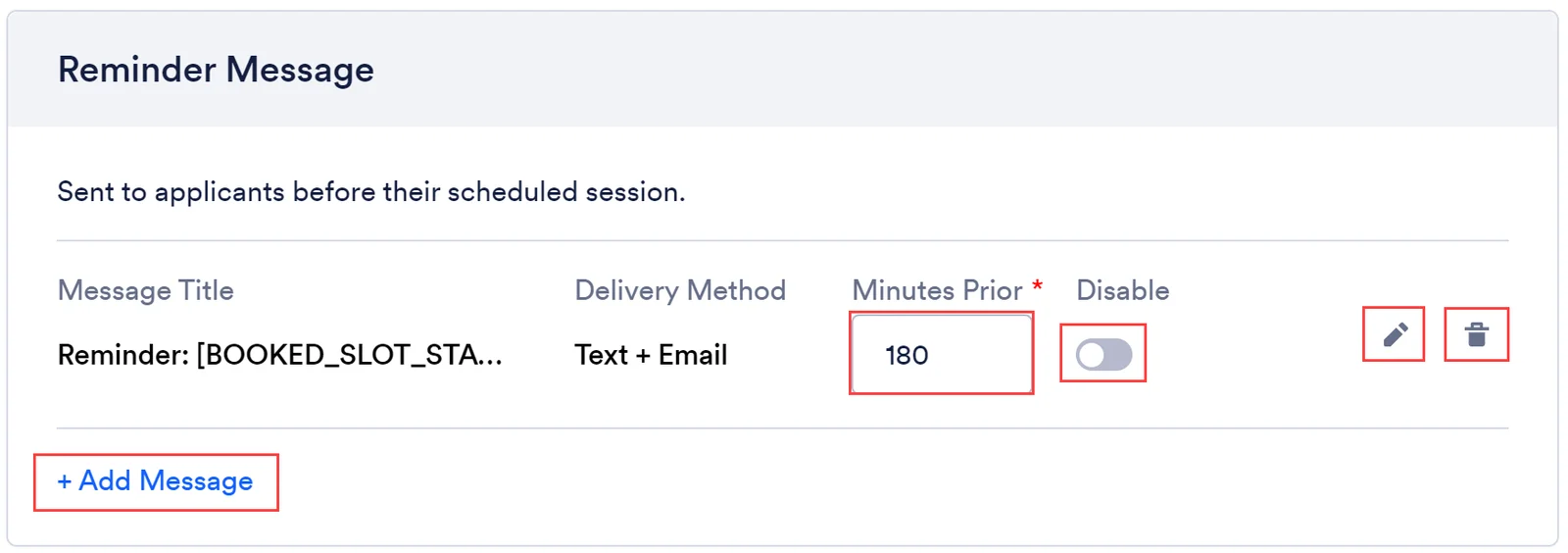
Section titled “Reminder Messages”The Scheduler stage type also includes the option to send an automated SMS and/or email reminder message before the applicant’s booked session on the Rekrutek calendar. Similar to Follow-Up messages, you can choose to add a number of reminder messages sent at different times. By default, there are generic plain text stage messages available per the stage settings.
-
To edit the SMS or Email message, click the pencil icon.
-
Enter information in all required fields, which are marked with an asterisk (*), or select a template from the dropdown menu.
-
Update the number in the Minutes Prior field. This is the number of minutes before the event that the SMS and/or email will be sent to the applicant.
-
To add additional Reminder messages, click +Add Message.
-
To delete a Reminder message, click the trash can icon.
-
To disable this message entirely, click the Disable toggle to on.
New Availability Messages
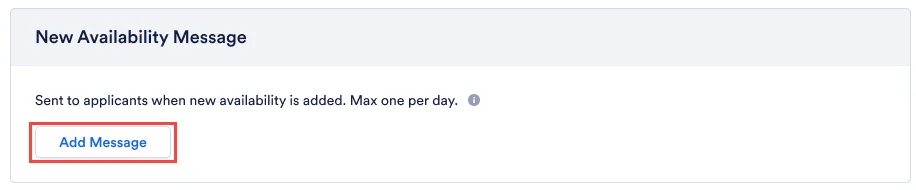
Section titled “New Availability Messages”The Scheduler stage type also includes the option to send an automated SMS and/or email message to applicants when new slots are added if they haven’t already booked a session and are sitting in the Scheduler stage.
These messages will be triggered to send as soon as new slots that the applicant can book are added. This means that the applicant will only receive messages if the new availability can be viewed by the applicant based on set visibility constraints such as limit future sessions and last-minute booking settings. Additionally, this message type is not a rolling message. Meaning, that if more availability is displayed because time passes that allows limited future sessions to show, no email will be sent
-
Click Add Message to create a new availability message.
-
To create the SMS or Email message, click the pencil icon.
-
Enter information in all required fields, which are marked with an asterisk (*), or select a template from the dropdown menu.
-
To disable this message entirely, click the Disable toggle to on.
Unique Follow-Up Message Functionality
Section titled “Unique Follow-Up Message Functionality”In addition to the normal Follow-Up message functionality covered in this article, Scheduler stage Follow-Up messages will not be sent if there is no availability for the session that the applicant can book.
Example:
- We have Follow-Up messages set up to be sent on days 1, 3, and 7.
- On day 3, all available sessions are booked (meaning there is no availability available).
- On day 5 you add more availability.
- The applicant would have only received Follow-Up messages on day 1 and day 7. The day 3 message was skipped because there was no availability on that day on the calendar.