
Invite a User
Administrators or any user with the permission Manager Users has the ability to invite users to Rekrutek. To invite a user you will use Rekrutek’s Company Settings screen.
Invite a User
Section titled “Invite a User”-
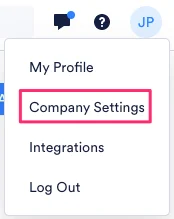
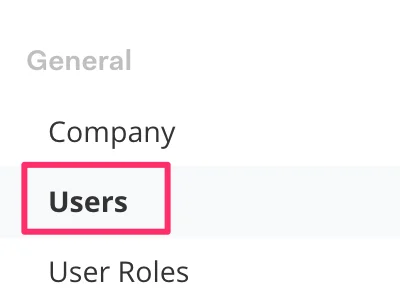
Navigate to Company Settings and click Users in the left menu bar.
-
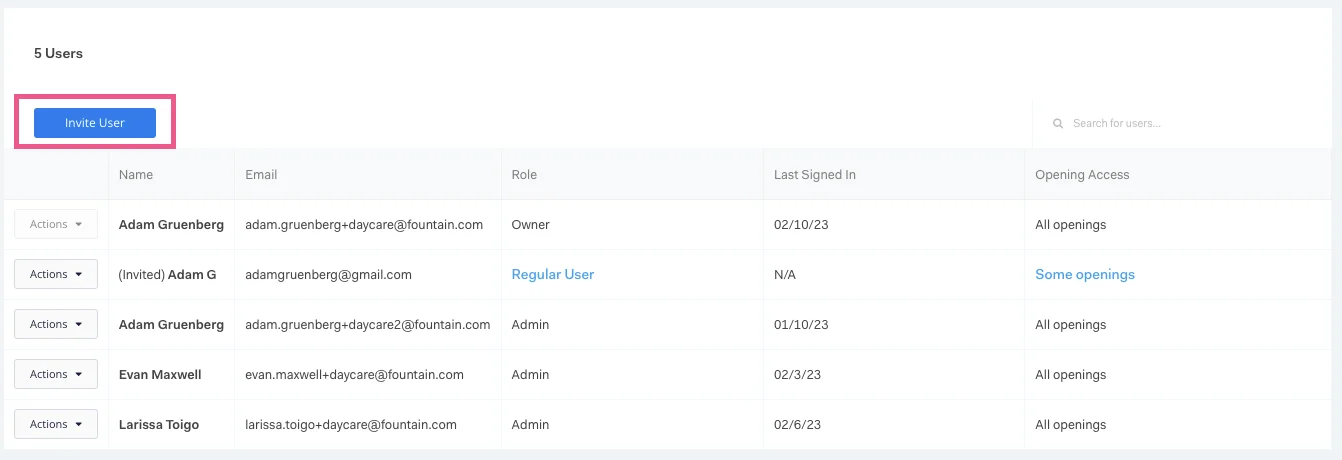
Click Invite User.
-
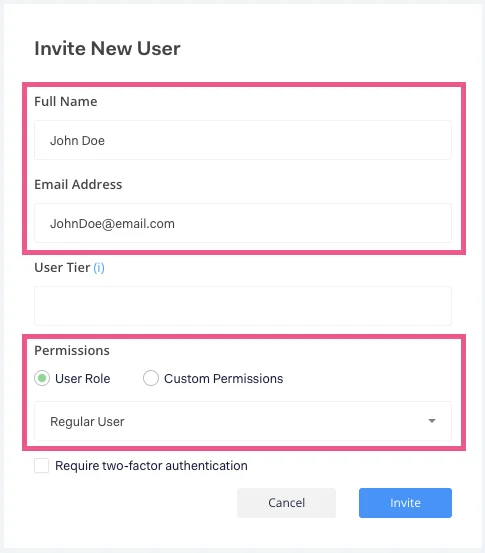
Fill out the new user details and select a role based on the permissions the new user should have. You can also choose to assign Custom Permissions. To learn more about user permissions, visit the User Permissions article.
-
If the user account should use two-factor authentication, click the Require two-factor authentication checkbox. This will require the user to set up a second instance to authenticate when logging in.

-
Click Invite.
-
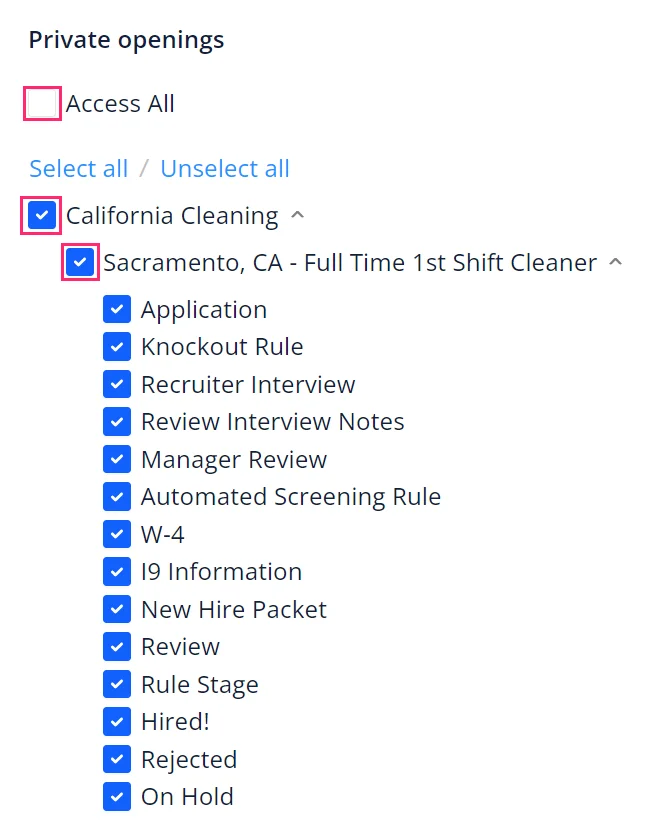
On the next screen, you can choose to restrict the user’s private Opening or private stage access. To update the Private Opening access, check or uncheck the boxes to the left of the Location name or Opening’s name. You can also choose to give access to all private Openings by checking the box to the left of Access All.
-
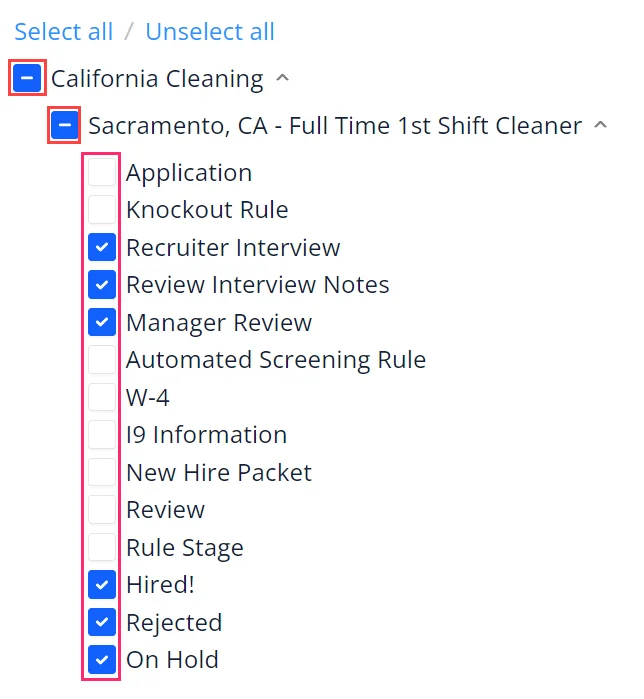
To restrict stages that are visible to the user within a private Opening, check the box by the Opening’s name, and then uncheck the stage boxes that you do not want visible to the user. Click Save to finish.
Location Group, Location, and Opening Owners
Section titled “Location Group, Location, and Opening Owners”When Location Groups, locations, or Openings are created in Rekrutek Hire, the user will select an owner for these items as part of the creation process.
It is important to note that Location Group, location, or Opening owners will supersede settings on the Opening Access page. This user will automatically have access to Openings that fall under this ownership and the option to deselect access will be grayed out.
Additionally, there is a hierarchy of Location Group, location, and Opening ownership:
-
If the user is a Location Group owner, they will have access to all Openings that fall in that Location Group by default regardless of the user’s Opening Access settings.
-
If the user is a location owner, they will have access to all Openings in that location by default regardless of the user’s Opening Access settings.
- If the user is an Opening owner, they will have access to that Opening by default regardless of the user’s Opening Access settings.
-