User Login
Logging in to Rekrutek is a simple and intuitive process. However, there are a few instances where you may need additional assistance with accessing or logging in to your account.
Initial Login
Section titled “Initial Login”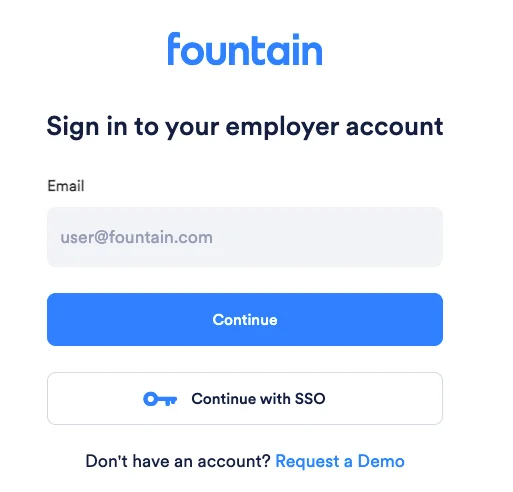
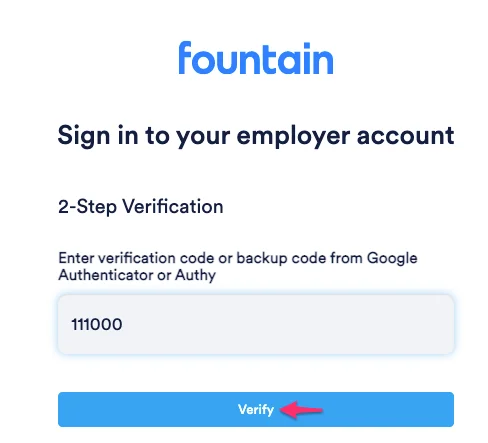
If you have 2-step verification enabled on your account, you’ll be required to perform the 2-step Verification process and enter your verification or backup code from the Google Authenticator.
SSO Login
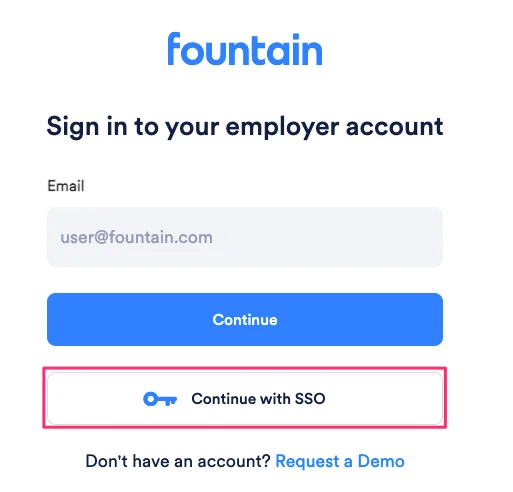
Section titled “SSO Login”Rekrutek offers Single Sign-On Integration that enables your team members to utilize a single sign-on to access your account. Read more about SSO Login here.
Additional Assistance Logging In
Section titled “Additional Assistance Logging In”If you’re unable to login to your account, click Trouble Signing In or Forgot Password beneath the login.
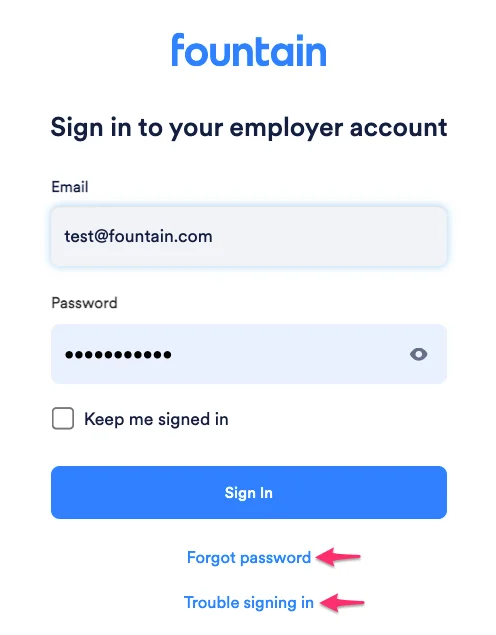
Forgot Password
Section titled “Forgot Password”Selecting this option will prompt you to enter your email address, where a change password/reset password link will be sent.
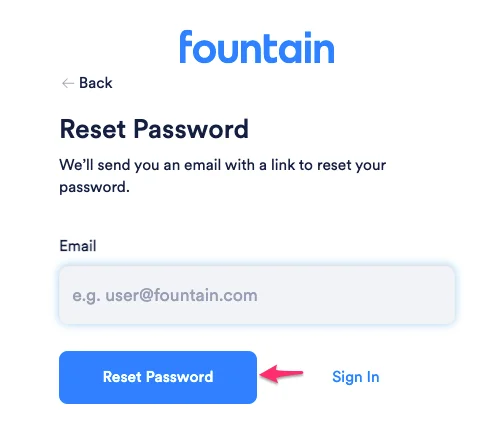
After resetting your password return to the login screen and enter your email along with the new password you just created.
Trouble Signing In
Section titled “Trouble Signing In”If you are unable to login to your account, click Trouble Signing In. In this menu, select the pertinent issue:
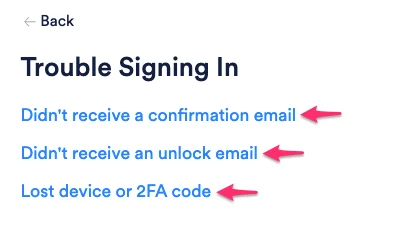
Didn’t Receive a Confirmation Email
Section titled “Didn’t Receive a Confirmation Email”If you select this option, you will be required to reenter your email address, and your confirmation instructions will be delivered.
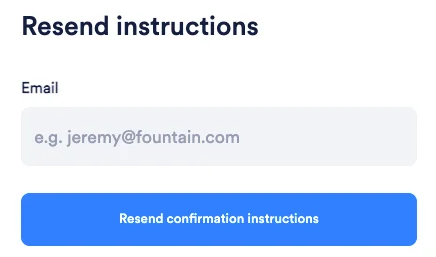
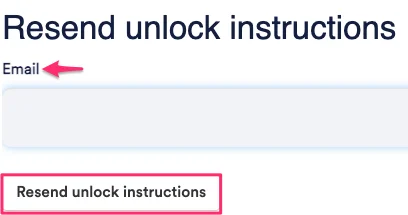
Didn’t Receive an Unlock Email
Section titled “Didn’t Receive an Unlock Email”If you select this option, simply re-enter your email address to receive instructions to unlock your Rekrutek account.
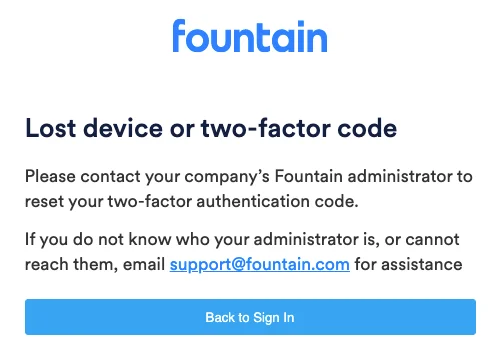
Lost Device or Two-Factor Code
Section titled “Lost Device or Two-Factor Code”If you lose your device or Two-Factor Code, contact your administrator.
Locked Account
Section titled “Locked Account”If you have received the message that your account has been locked due to inactivity or multiple failed login attempts, you will be sent an email with a link to unlock your account. The email will be sent to the email address associated with the locked account. The subject line will be Unlock Instructions.
Select the link contained in the email and follow the instructions to login to your account.
Reset Two-Factor Authentication Login
Section titled “Reset Two-Factor Authentication Login”The following instructions detail the process for resetting your two-factor authentication login credentials. Please note, only users with “Admin” level permissions can reset two-factor authentication.
-
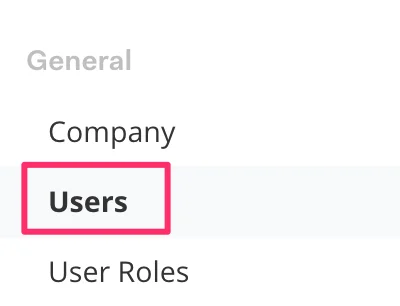
Navigate to Company Settings and select Users in the left menu bar.
-
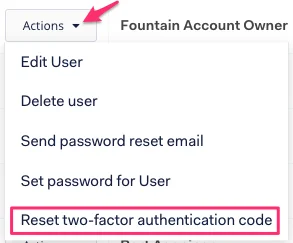
Select Actions then choose Reset two-factor authentication code from the drop-down menu.
-
Follow the instructions provided to access your account.
-
Rescan the QR code using the authenticator app when you log in.
User Session Timeout
Section titled “User Session Timeout”Once you are logged in to Rekrutek, you should be able to access your account for up to 48 hours before your session times out. Once your session times out, you will be required to reenter your login credentials in order to access your account.
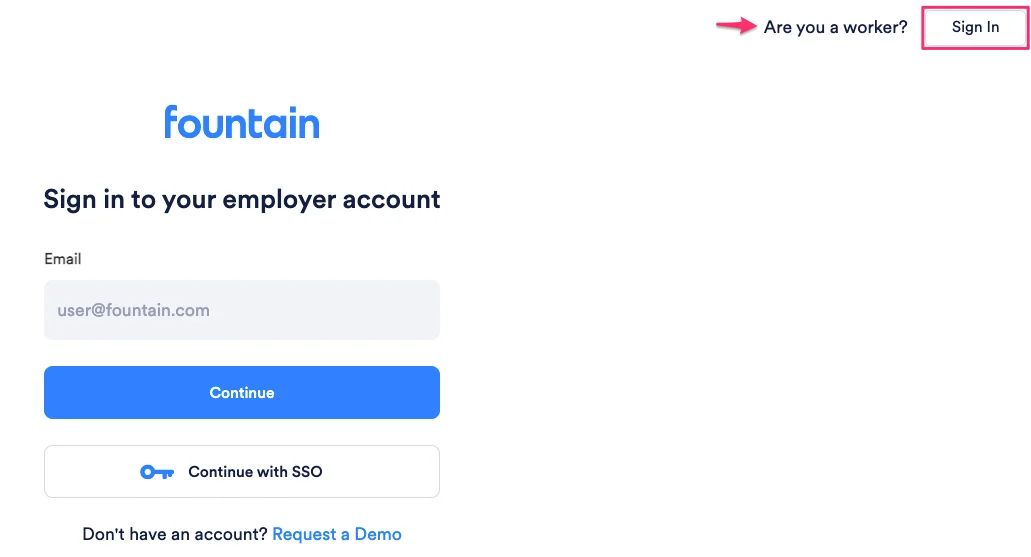
Applicant Login Instructions
Section titled “Applicant Login Instructions”Applicants can select the Sign In button located in the top right corner of Rekrutek.ai as shown below.