Message Templates
Message Templates were created to facilitate a way of managing Messages that will be used more than once. It is a scalable solution for accounts and brands with many positions and stages. After creation, a Template can be assigned to any amount of Messages of the same type. After an assignment, the Message becomes linked and syncs to whenever the Template is changed.
Add a Message Template
Section titled “Add a Message Template”To add a new message template, follow the steps below:
-
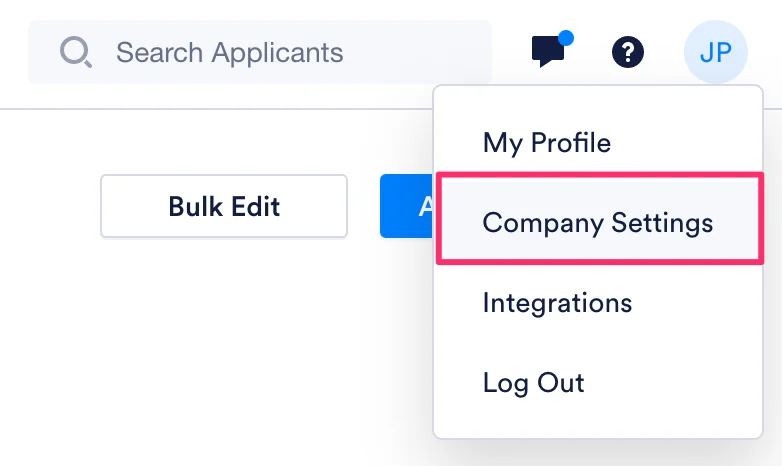
Click your initials and then click Company Settings in the dropdown.
-
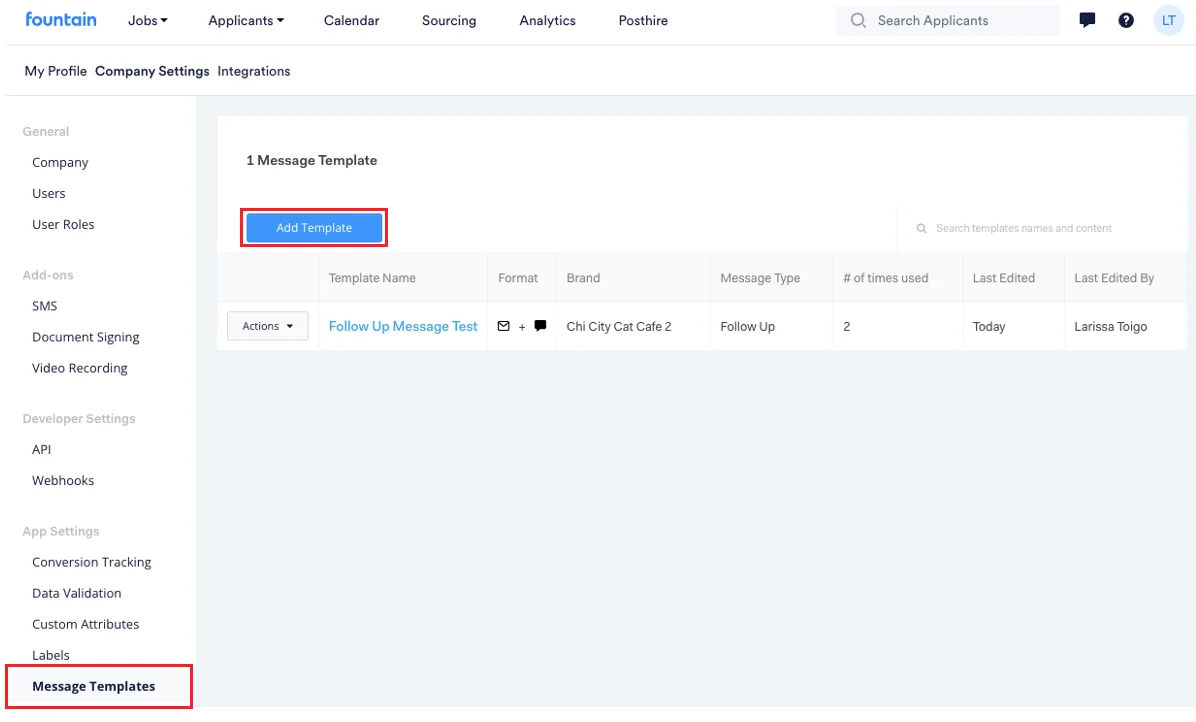
Click Message Templates located in the left side bar under App Settings, then click Add Template.
-
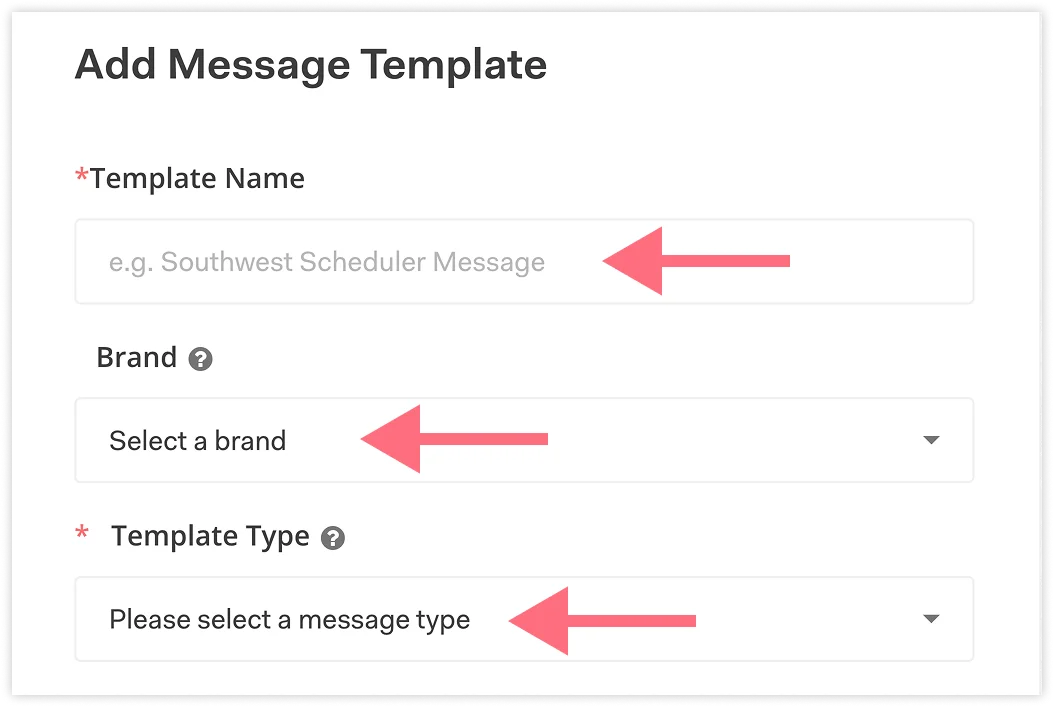
Type a template title. It should be descriptive enough that you know what the template is used for in the future. The types of Templates available are listed in the next section of this article.
Message Template Types
Section titled “Message Template Types”Template Types (click to expand)
| Template Type | Description |
|---|---|
| Approved | Tied to the ‘Approved’ stage and sends out to applicants as soon as they land in the stage. |
| Automated | Tied to the ‘Custom’ and ‘Document Signing’ stages and sends out to applicants as soon as they land in the stage. |
| Cancellation | Tied to ‘Scheduler’ stage and sends to applicants as soon as they cancel a session on the calendar. |
| Confirmation | Tied to ‘Scheduler’ stage and sends to applicants as soon as they book a session on the calendar. |
| Consent | Tied to the ‘Background Check’ stage and contains the link to the background check consent submission form. |
| Custom | Tied to ‘Send Email’ function in the ‘Actions’ button in the Applicant Table and applicants’ profiles; can be associated with particular brands for permission reasons. |
| Data Collection | Tied to the ‘Data Collection’ stage and contains the link to the data collection form; sends out to applicants as soon as they land in the stage. |
| Document Signing | Tied to the ‘Document Signing’ stage and contains the link to the document signing form; sends out to applicants as soon as they land in the stage. |
| File Recollection | Sends to applicants when they upload the wrong file in a stage. This message must be triggered by the Rekrutek user. |
| Follow-Up | Available in all stages; sends to applicants who have been idle in the stage for X amount of days. |
| I-9 Form | Tied to the ‘I-9 Form’ stage and contains the link to the I-9 form; sends out to applicants as soon as they land in the stage. |
| Lessonly Learning | Tied to the ‘Learning Stage with Lessonly.com’ stage and contains the link to a Lessonly lesson; sends out to applicants as soon as they land in the stage. |
| MultiStage | Tied to the ‘Multi Stage’ stage and contains the link to the Multi Stage form; sends out to applicants as soon as they land in the stage. |
| Northpass Learning | Tied to the ‘Learning Stage with Northpass’ stage and contains the link to a Northpass Learning lesson; sends out to applicants as soon as they land in the stage. |
| On-Hold | Tied to the ‘On Hold’ stage and sends out to applicants as soon as they land in the stage. |
| Rejection | Tied to the ‘Rejected’ stage and sends out to applicants as soon as they land in the stage. |
| Reminder | Tied to the ‘Scheduler’ stage and sends out to applicants x hours/minutes before their scheduled session. |
| Scheduler | Tied to the ‘Scheduler’ stage and contains the link to book a session on the calendar; sends out to applicants as soon as they land in the stage. |
| Video Recording | Tied to the ‘Video Recording’ stage and sends out to applicants as soon as they land in the stage. |
| W4 Federal Form | Tied to the ‘W4 Federal Form’ stage and contains the link to the W4 Federal form; sends out to applicants as soon as they land in the stage. |
| W4 State Form | Tied to the ‘W4 State Form’ stage and contains the link to the W4 State form; sends out to applicants as soon as they land in the stage. |
Once you’ve selected the Template’s name and type, you can customize the content of the email and/or SMS. With Message Templates, you can have one or the other, or both!
For Custom Message types, you can tie the template to a particular brand to avoid confusion across brands or limit user access to certain templates.
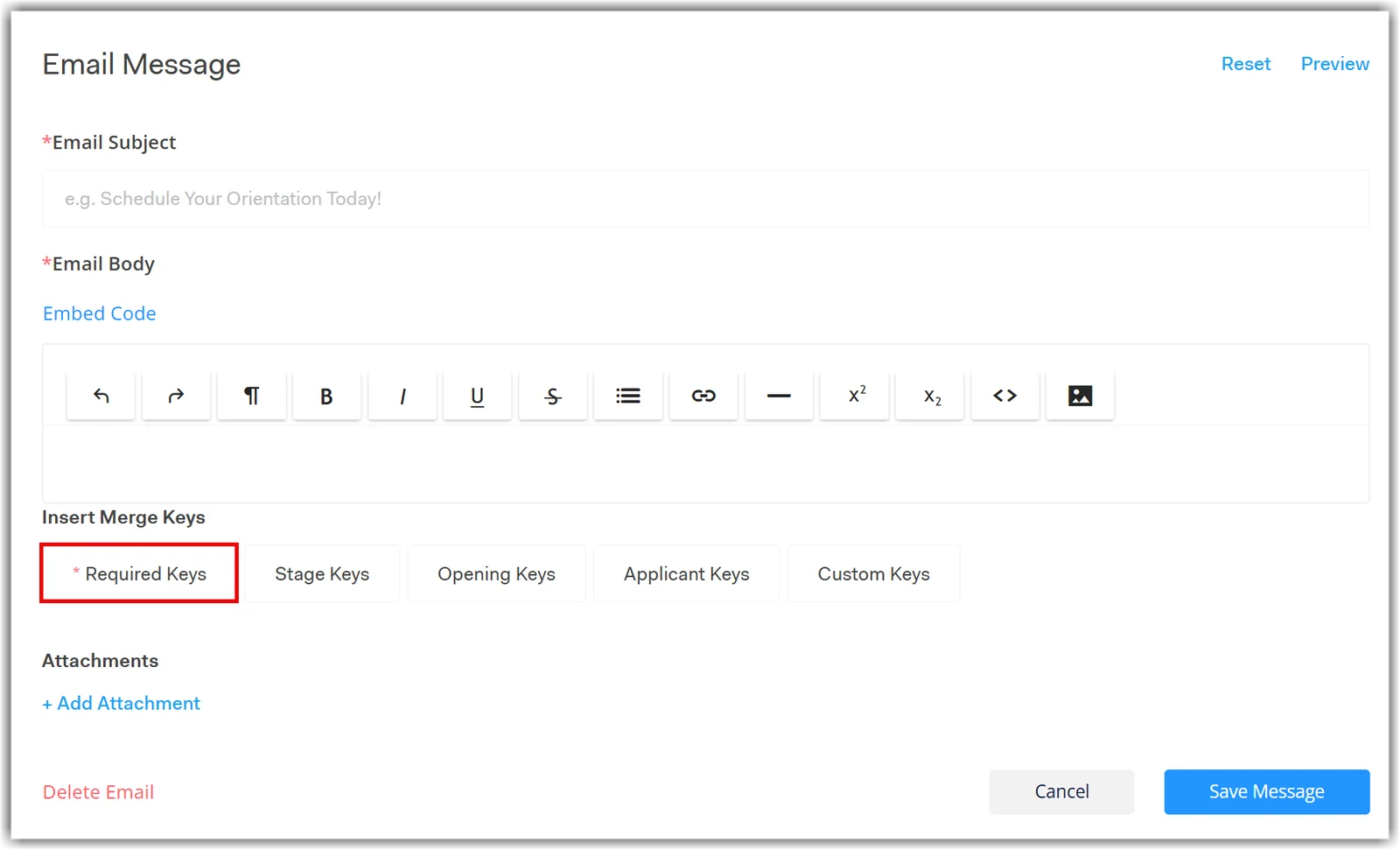
The email editor looks like the image below. Refer to this article for more information on Merge Keys.
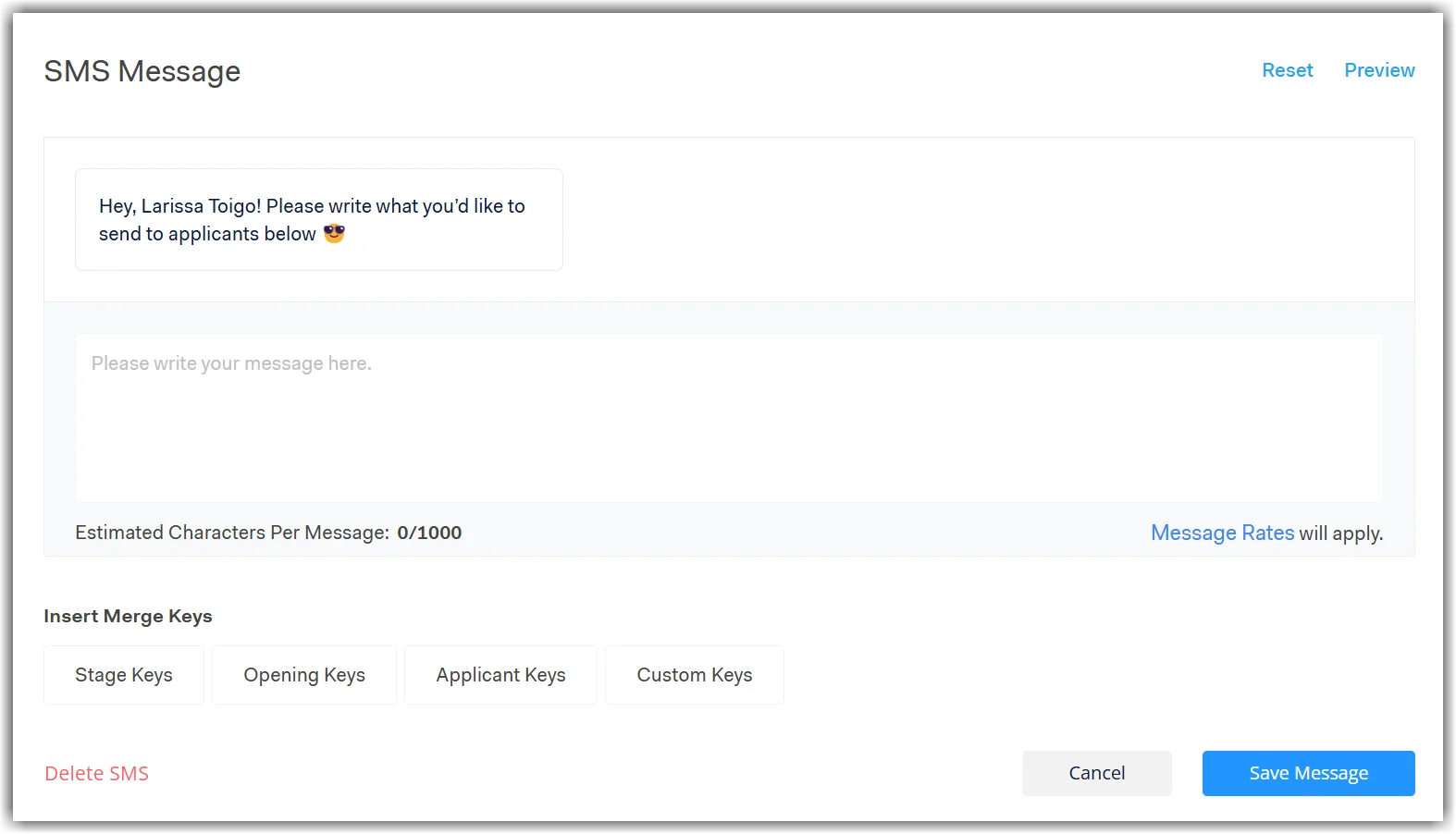
The SMS editor looks like the below image.
Once you’re done editing the content, hit Save Message and you have yourself a new Message Template!
▶ Watch how to create a Message Template
Section titled “▶ Watch how to create a Message Template”Applying a Message Template
Section titled “Applying a Message Template”To apply a message template, follow the steps below:
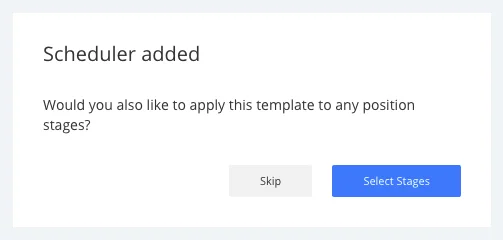
- After you save your Message Template, you’ll see a template-added popup. To apply your Message Template to stages, click Select Stages.
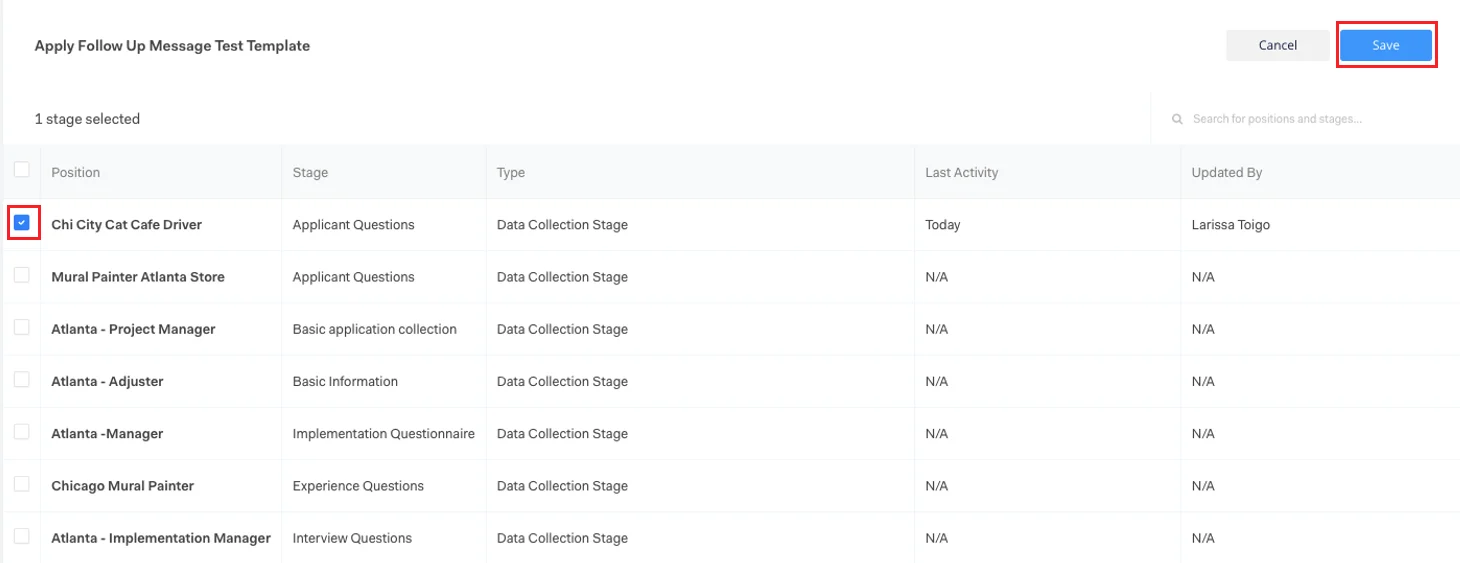
- You’ll see all of the positions/stages you can apply your Message Template to. Make your selection(s), and then click Save.
From the Workflow Editor
Section titled “From the Workflow Editor”You can also apply Message Templates to stages from a position’s Workflow Editor. Simply choose the Template in the Message Template dropdown.
Deleting a Message Template
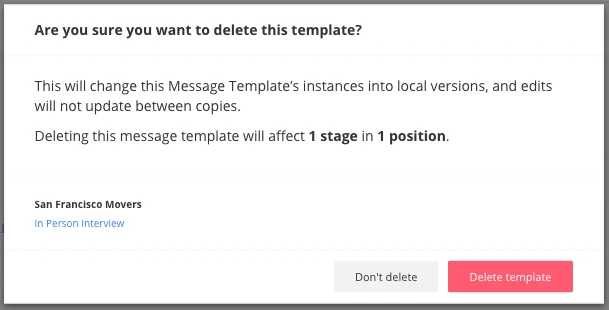
Section titled “Deleting a Message Template”It is possible to delete any existing Template even if it’s already linked to any Messages. In this case, all linked Messages will be unlinked, and Template content will be copied directly to Messages.
To delete a Message Template, go to Message Templates in Company Settings and click Actions, then select Delete Template.
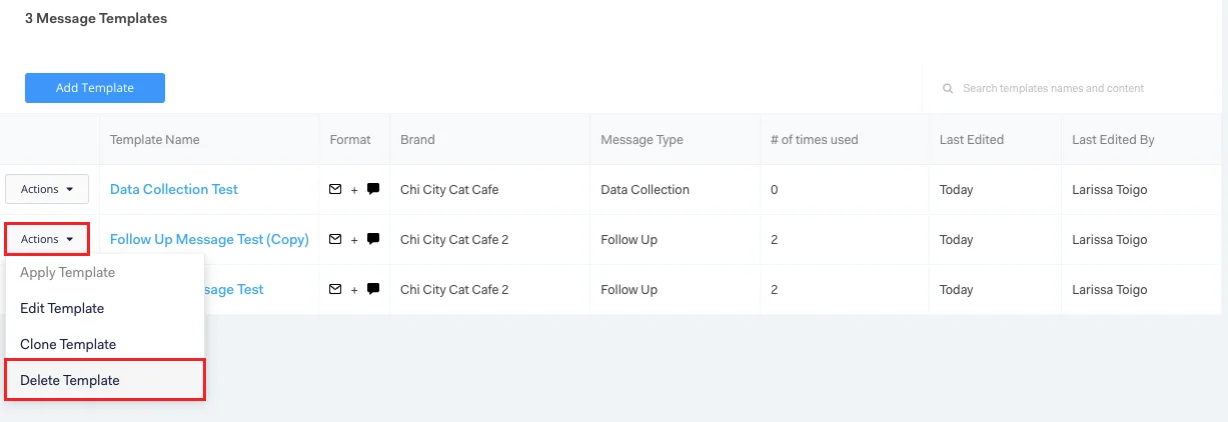
A deletion confirmation message will pop up; it shows the number of affected stages and positions, as well as a full list of affected messages with position name and stage name.