
How to Log In to Rekrutek
Log In to Rekrutek
Section titled “Log In to Rekrutek”All Rekrutek users can log in at hire.rekrutek.ai. This URL works for every user regardless of which Rekrutek products your company has access to.
Log In Steps to Rekrutek
Section titled “Log In Steps to Rekrutek”Enter Your Email
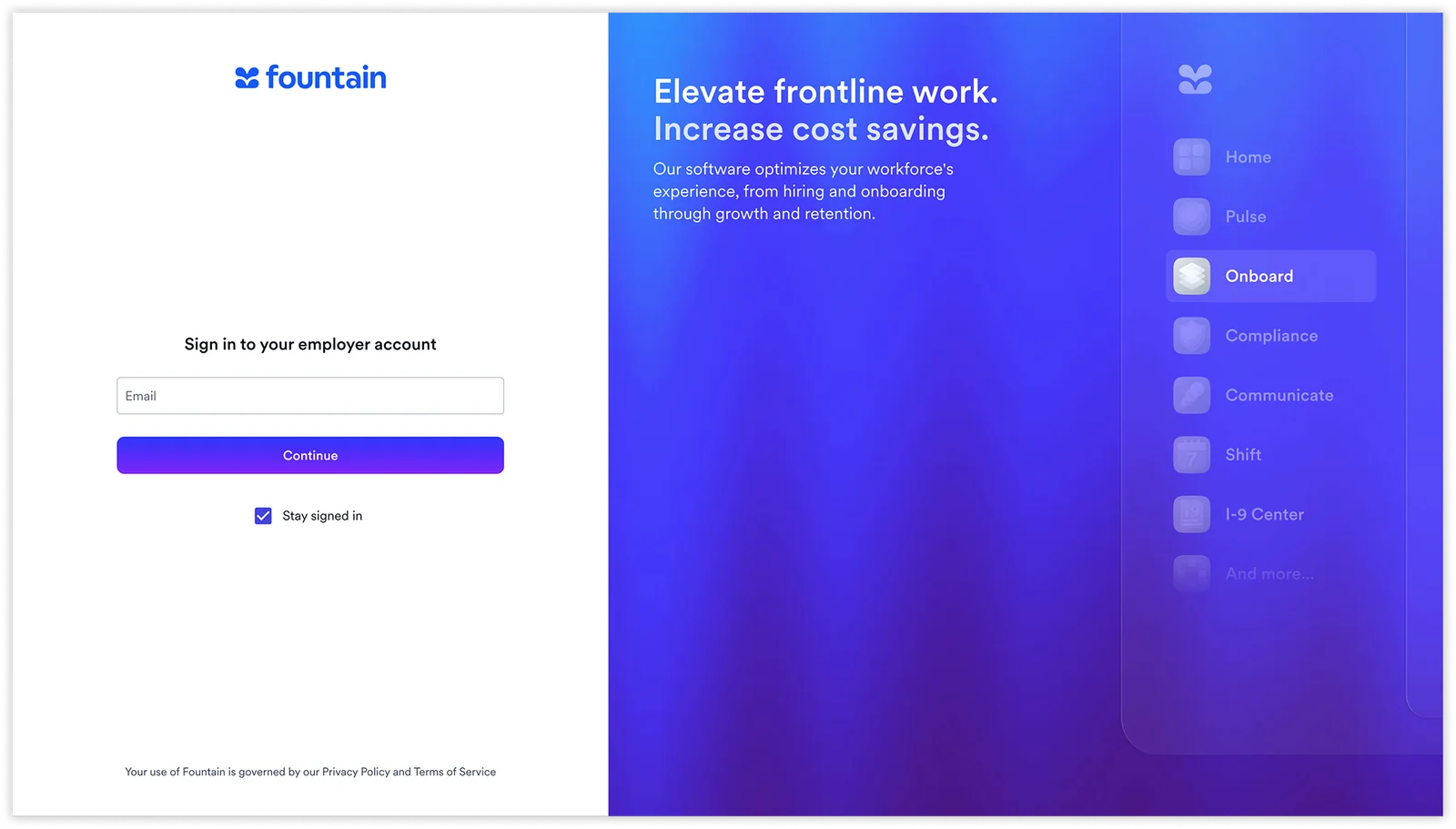
Go to hire.rekrutek.ai. You will see the Rekrutek login page with an Email field. Enter your work email address and click Continue.
Enter Your Password
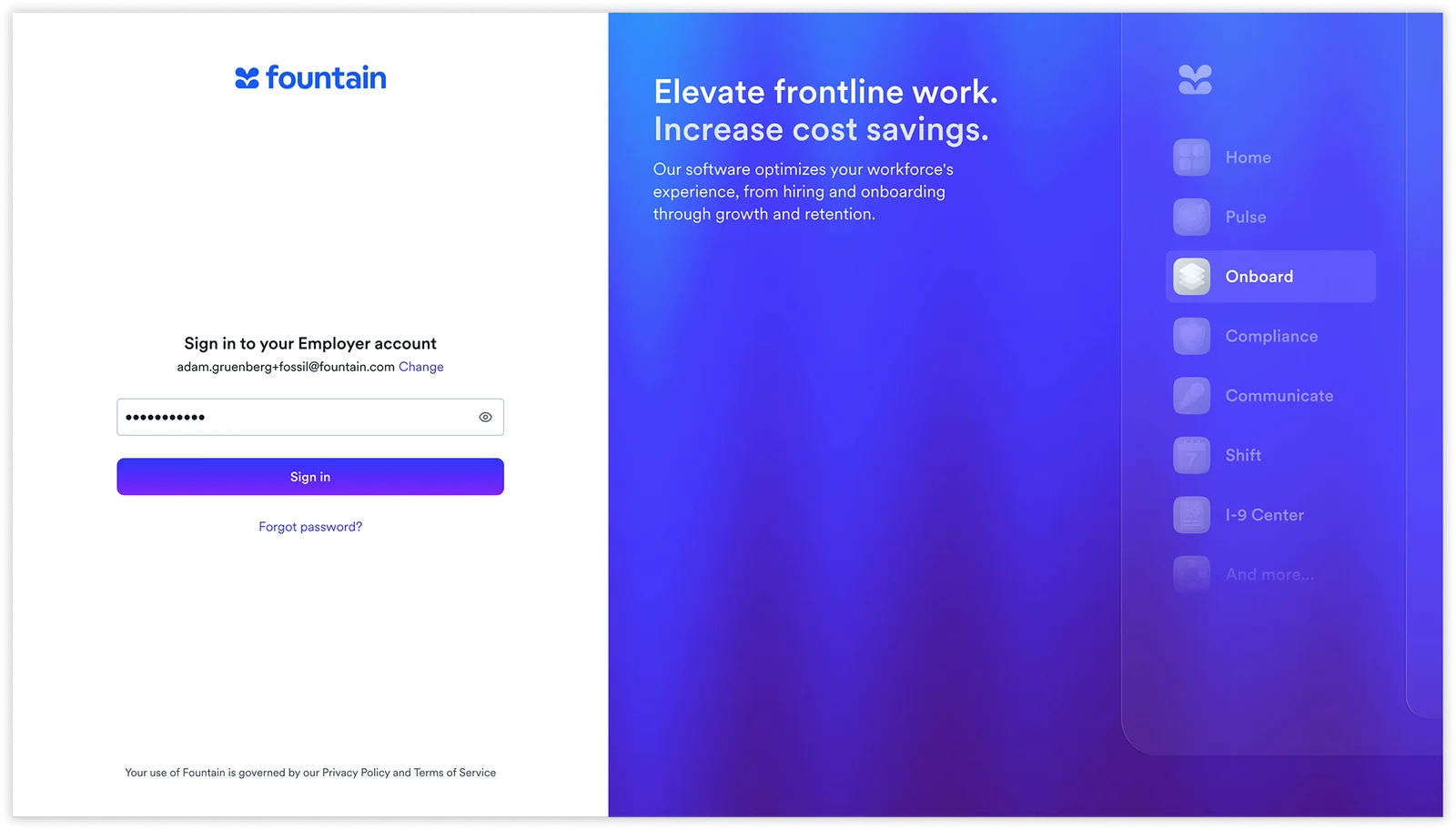
After your email is recognized, your email address is displayed on screen with a Change link if you need to correct it. Enter your password and click Sign in.
Reset Your Password
Section titled “Reset Your Password”If you cannot remember your password, click Forgot password? on the password entry screen. You are taken to the Reset your password page.
- Enter your work email address in the Email field.
- Click Reset password.
- If an account matching your email is found, a confirmation message appears on screen and a reset link is sent to your inbox.
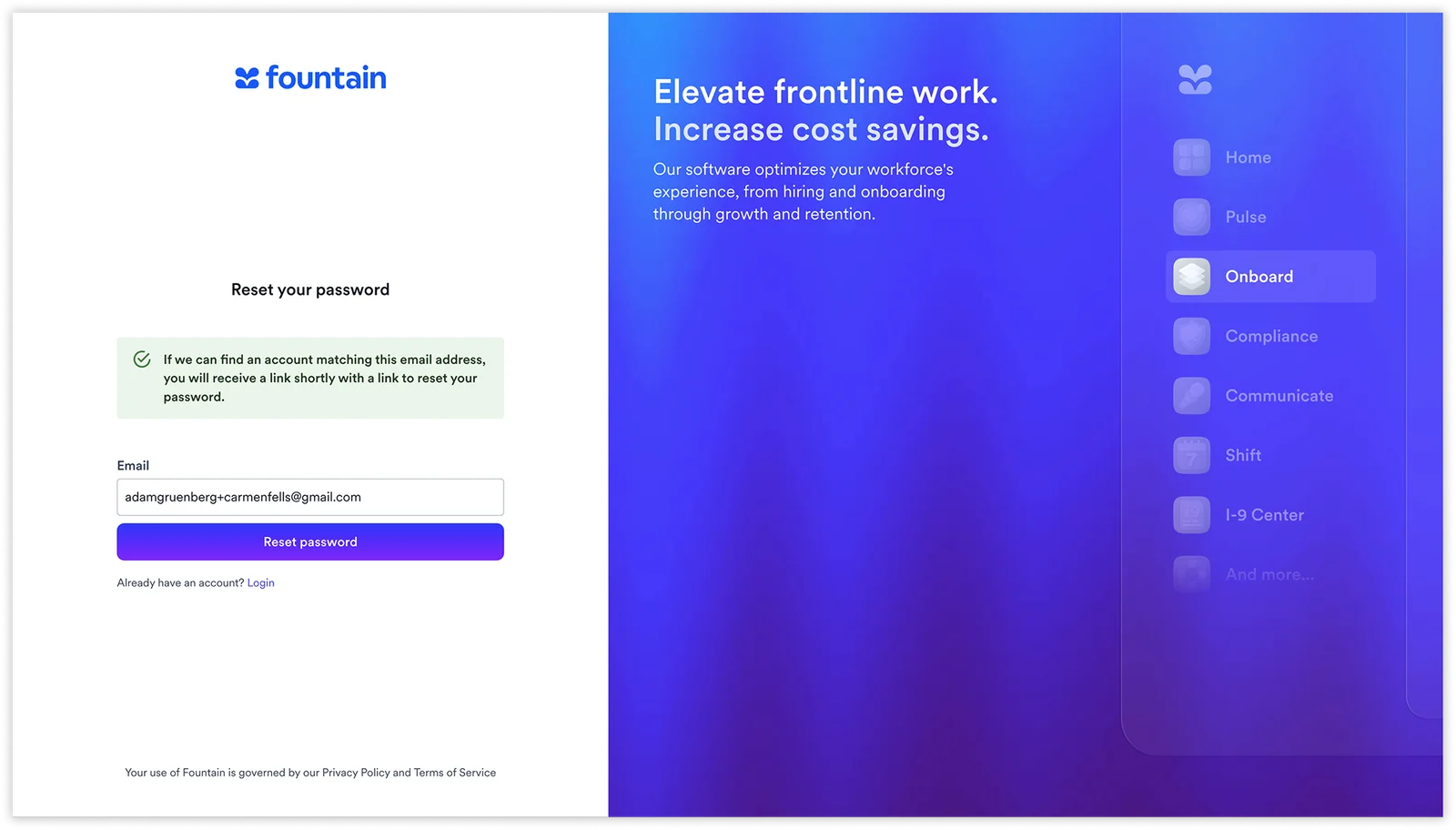
Once you have reset your password, click Login under “Already have an account?” to return to the sign-in page.
Log In to Rekrutek Hire Go
Section titled “Log In to Rekrutek Hire Go”Hire Go users, such as field hiring managers, can log in using the steps described above at hire.rekrutek.ai. You can also log in directly at go.rekrutek.ai.
Log In Steps to go.rekrutek.ai
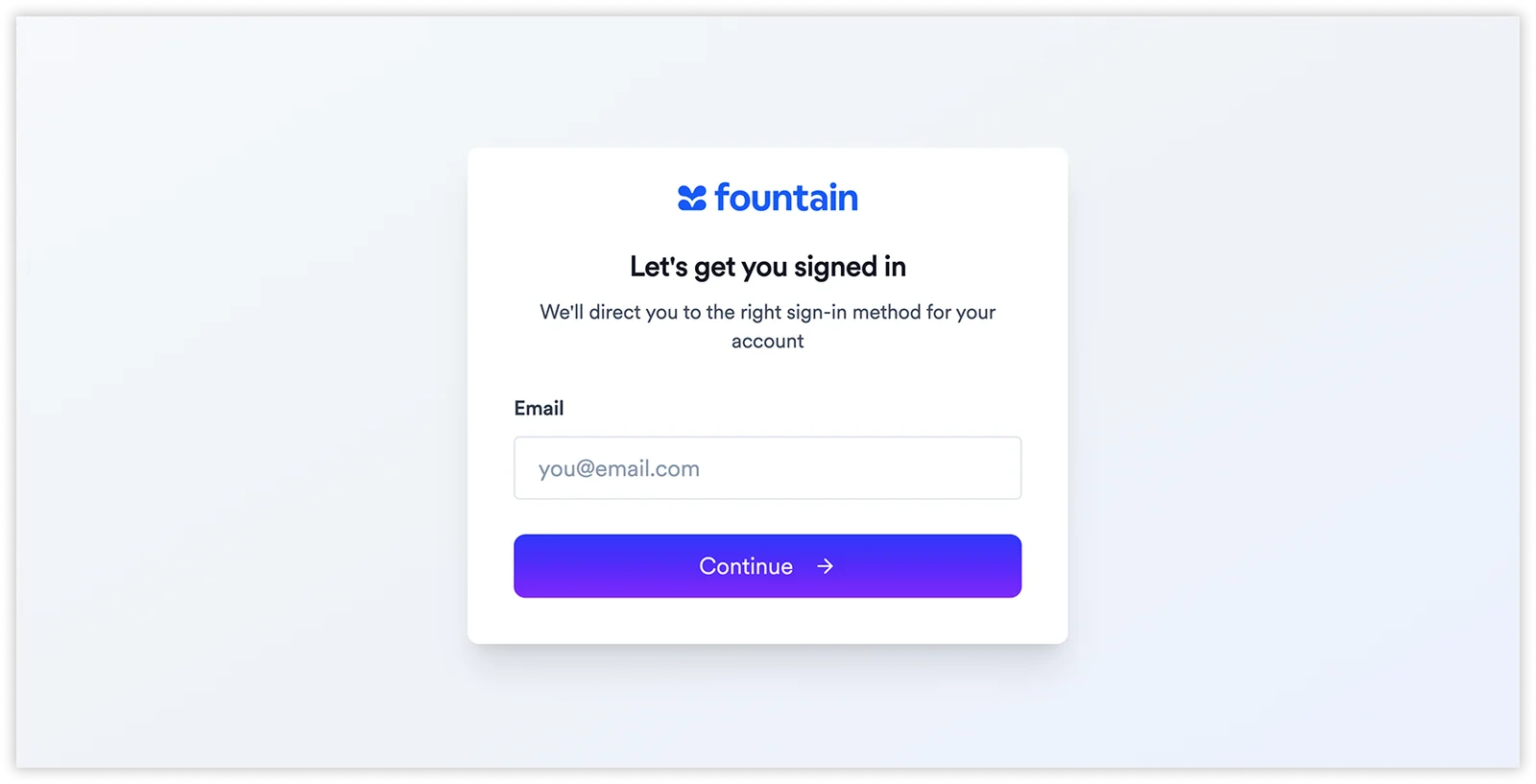
Section titled “Log In Steps to go.rekrutek.ai”- Go to go.rekrutek.ai. You will see a centered sign-in card with the message “Let’s get you signed in.”
- Enter your email address in the Email field and click Continue.
- Enter your password on the next screen and click Sign in.
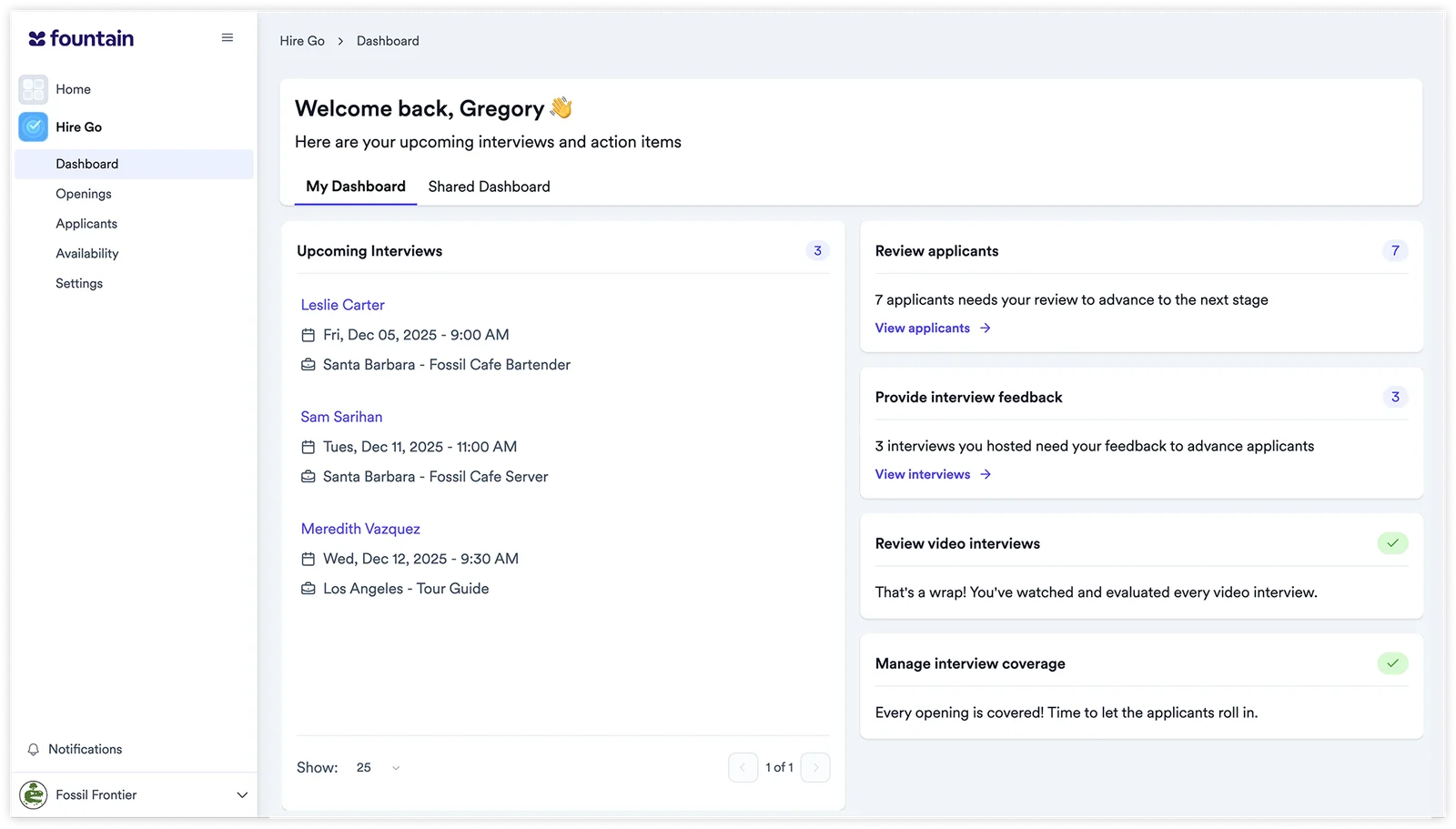
Once logged in, you are taken to the Hire Go Dashboard where you can manage your upcoming interviews and action items.
Reset Your Password
Section titled “Reset Your Password”The forgot password flow is the same regardless of which URL you use. Click Forgot password? on the password screen and follow the steps in the Reset Your Password section above.
Log In to Rekrutek Hire
Section titled “Log In to Rekrutek Hire”Rekrutek Hire users can log in using the steps described above at hire.rekrutek.ai. You can also use the alternative URL hire.rekrutek.ai.
Log In Steps to hire.rekrutek.ai
Section titled “Log In Steps to hire.rekrutek.ai”- Go to hire.rekrutek.ai. You will see a sign-in page with the heading “Sign in to your employer account.”
- Enter your email address and click Continue. You are redirected to the standard Rekrutek password screen.
- Enter your password and click Sign in.
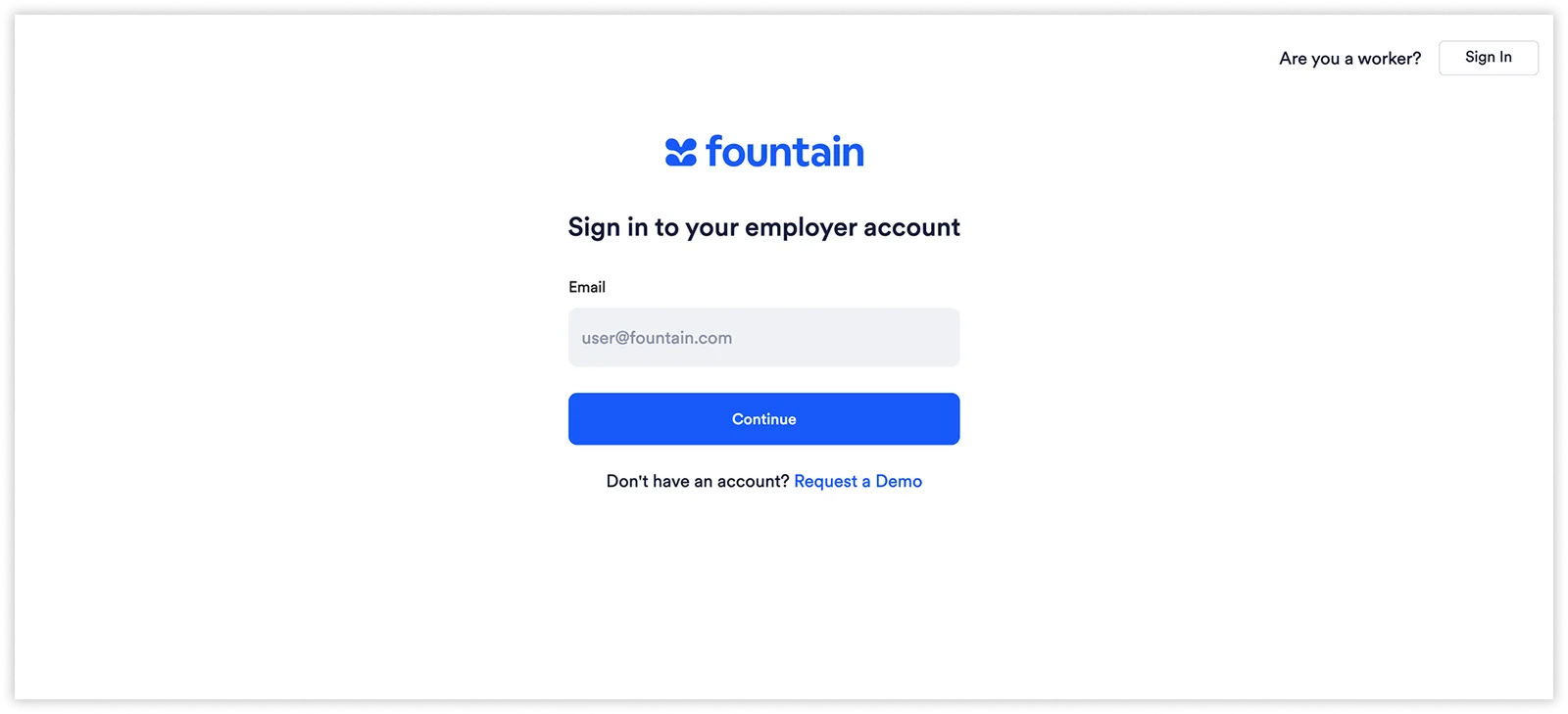
Once logged in, you are taken to the Rekrutek Hire Openings page. The left-hand navigation panel shows all other Rekrutek products your account has access to.
Reset Your Password
Section titled “Reset Your Password”The forgot password flow is the same regardless of which URL you use. Click Forgot password? on the password screen and follow the steps in the Reset Your Password section above.
Two-Factor Authentication
Section titled “Two-Factor Authentication”If your company has two-factor authentication (2FA) enabled, you are prompted to verify your identity after entering your password. This applies to all users regardless of which URL they use to log in.
Set Up 2FA for the First Time
Section titled “Set Up 2FA for the First Time”If 2FA has just been enabled on your account, you will see a screen after signing in that says “Two-Factor authentication is now required.”
-
Download an authenticator app on your mobile device if you do not already have one (such as Google Authenticator or Authy).
-
Open your authenticator app and add a new account.
-
Either scan the QR code displayed on screen, or manually type the text code shown below the QR code into your authenticator app.
- Once your authenticator app shows a 6-digit code for Rekrutek, click Continue.
Verify Your Identity Each Time You Log In
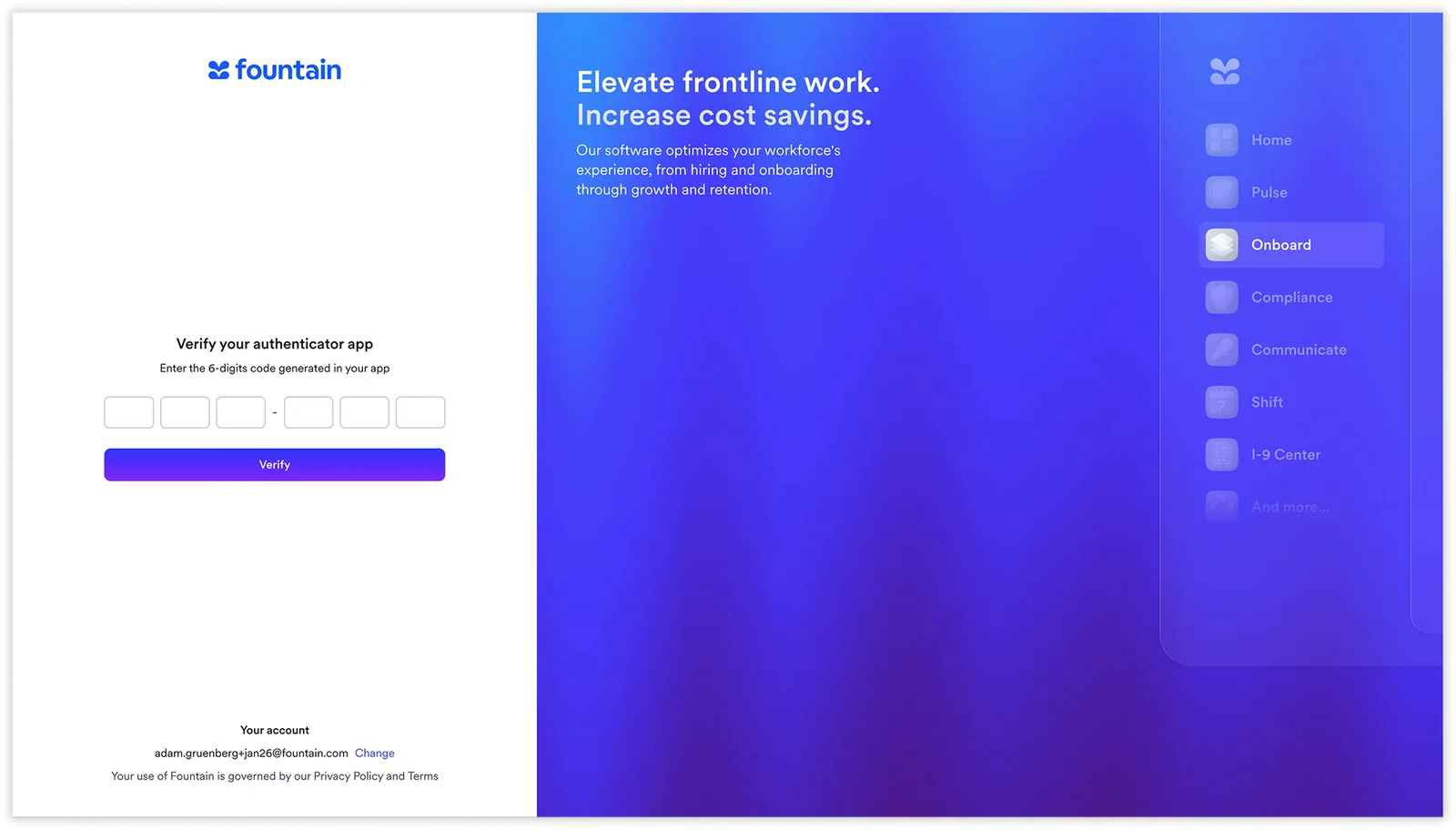
Section titled “Verify Your Identity Each Time You Log In”Once 2FA is set up, you will see a “Verify your authenticator app” screen each time you sign in.
- Open your authenticator app and find the current 6-digit code for your Rekrutek account.
- Enter the code into the six input boxes on screen.
- Click Verify.